Youtube Gallery Portfolio
WordPress
- by: Tean
- codecanyon.net/user/Tean
Thank you for purchase. If you have any questions that are beyond the scope of this help file, please feel free to email via my user page contact form on the link above. Thanks so much!
Installation
How to install
Make sure you extract downloaded file from codecanyon, inside you will find file named: 'appag.zip'. This is the plugin file you upload in wordpress panel!
Activate plugin
After you install plugin you will have to activate your license to start using the plugin.
To activate license you need to create account on the following link, where you will provide your PURCHASE CODE, and get TOKEN in return which you will then enter in plugin section to activate the plugin.
This is made to make sure customers use the license on a single project (as per Envato rules) and to help customers owning many licenses to easily track on which server licenses are being used.
How to update
1. Using FTP Client, delete old plugin files and upload new ones.2. Your previously created playlists and other data is going to be saved.
Quick usage
How to insert gallery in page?
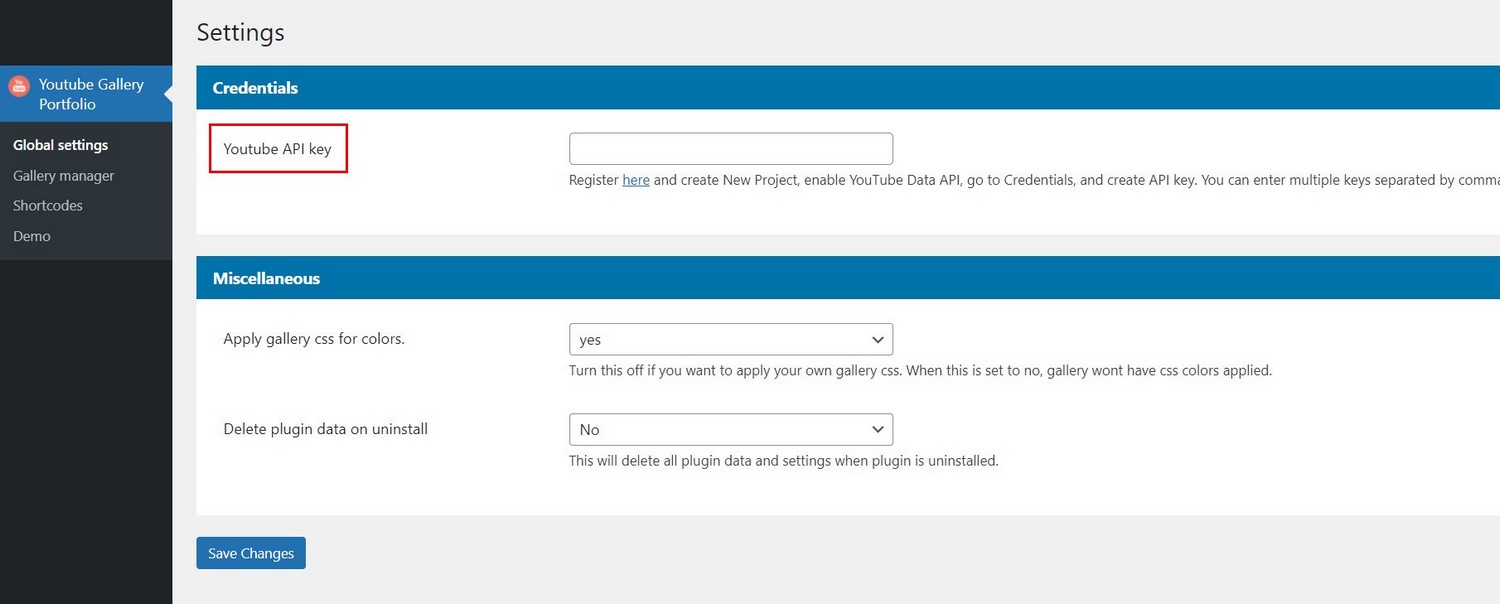
1. First set Youtube credentails in settings page:
2. Create new gallery in Gallery manager:

3. Once gallery is created, go to Video sources tab and add your Youtube channel or playlist:
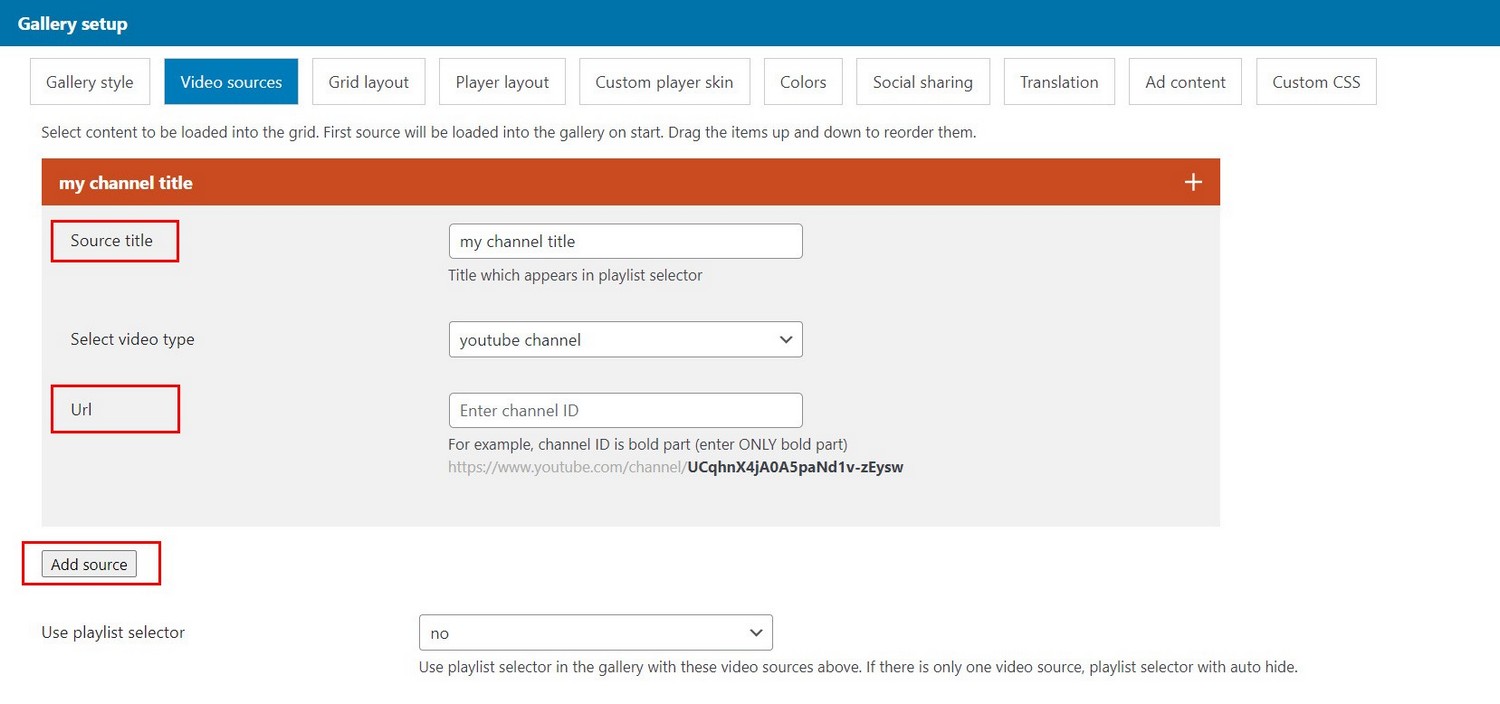
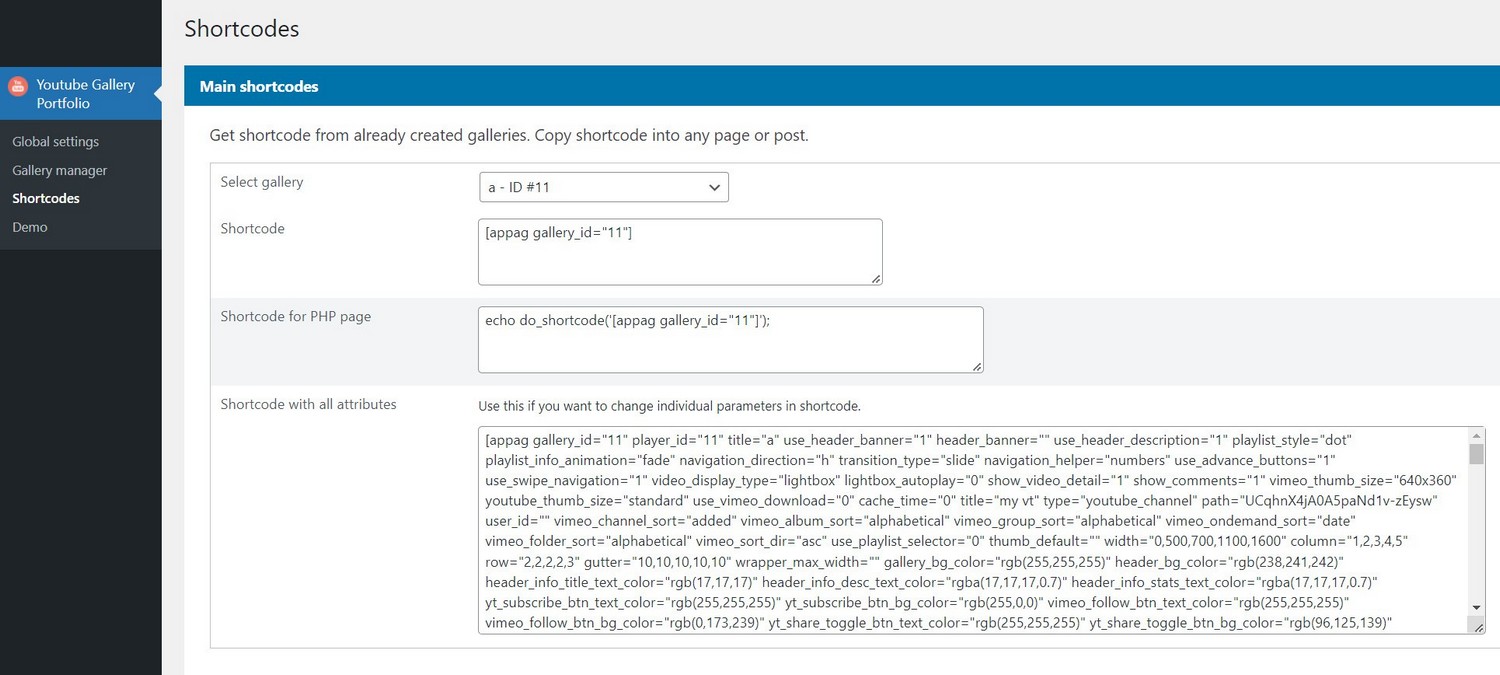
4. This is the minimum that is required to add gallery to page. You can get shortcode for this gallery (or all the galleries you have created) in Shortcodes page:
Using Youtube in gallery
Using Youtube in the gallery
Using Youtube requires API key which needs to be entered in Settings section.
Go here for the API key: https://console.developers.google.com and create new Project, enable YouTube Data API service, go to Credentials, and create API key.
Tutorial on how to create Youtube API key: https://www.youtube.com/watch?v=pJSkp719HeE
Adding videos to gallery
Videos are added inside Gallery manager in Video sources tab:

Youtube supported sources:
Youtube channel:
Channel example: https://www.youtube.com/channel/UC2MGuhIaOP6YLpUx106kTQwEnter just ID part in the field: UC2MGuhIaOP6YLpUx106kTQw
Youtube playlist:
Playlist example: https://www.youtube.com/playlist?list=PLFgquLnL59alCl_2TQvOiD5Vgm1hCaGSIEnter just ID part in the field: PLFgquLnL59alCl_2TQvOiD5Vgm1hCaGSI
Show default subtitle language on start
If your videos have multiple subtitles languages, you can force to show chosen subtitle language using Default subtitle language parameter.
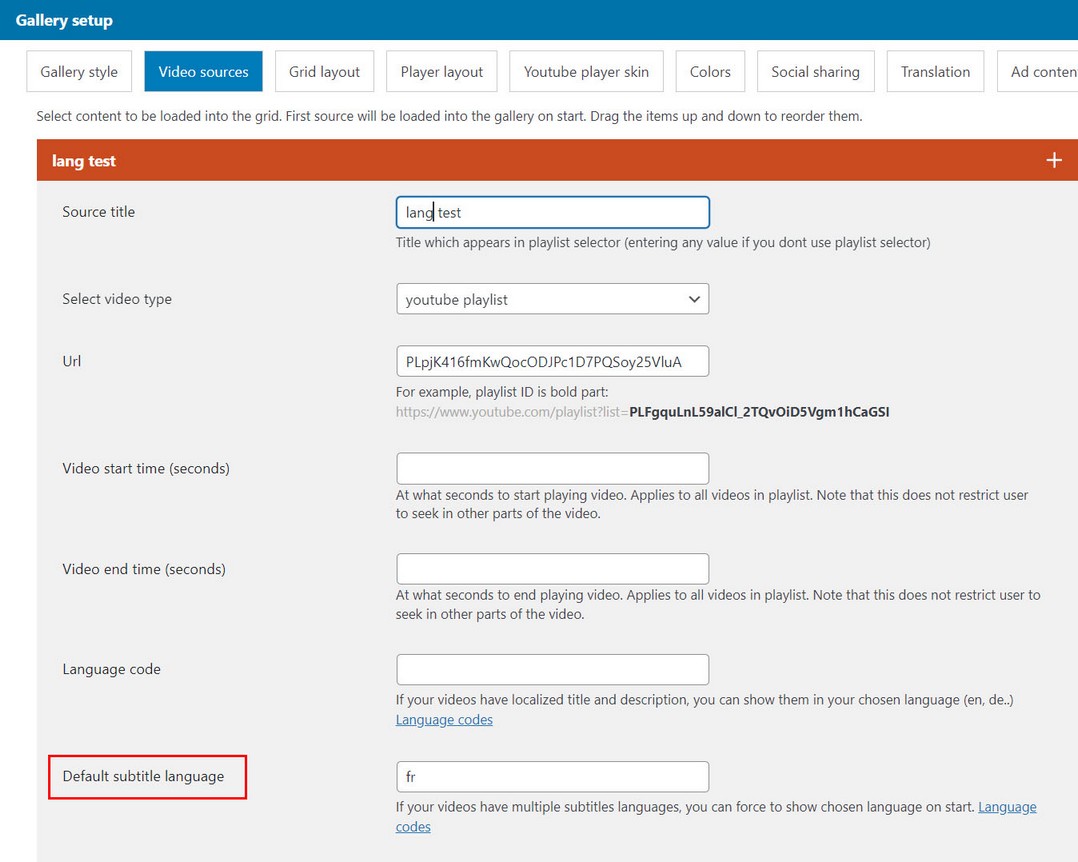
Use language code value:
https://www.loc.gov/standards/iso639-2/php/code_list.phpNote that the list above is not correct in all cases, for example using Chinese requires following codes:
zh-Hans (Chinese Simplified)
zh-Hant (Chinese Traditional)
Localized title and description
If your videos have localized title and description, you can show them in your chosen language using Language code parameter:
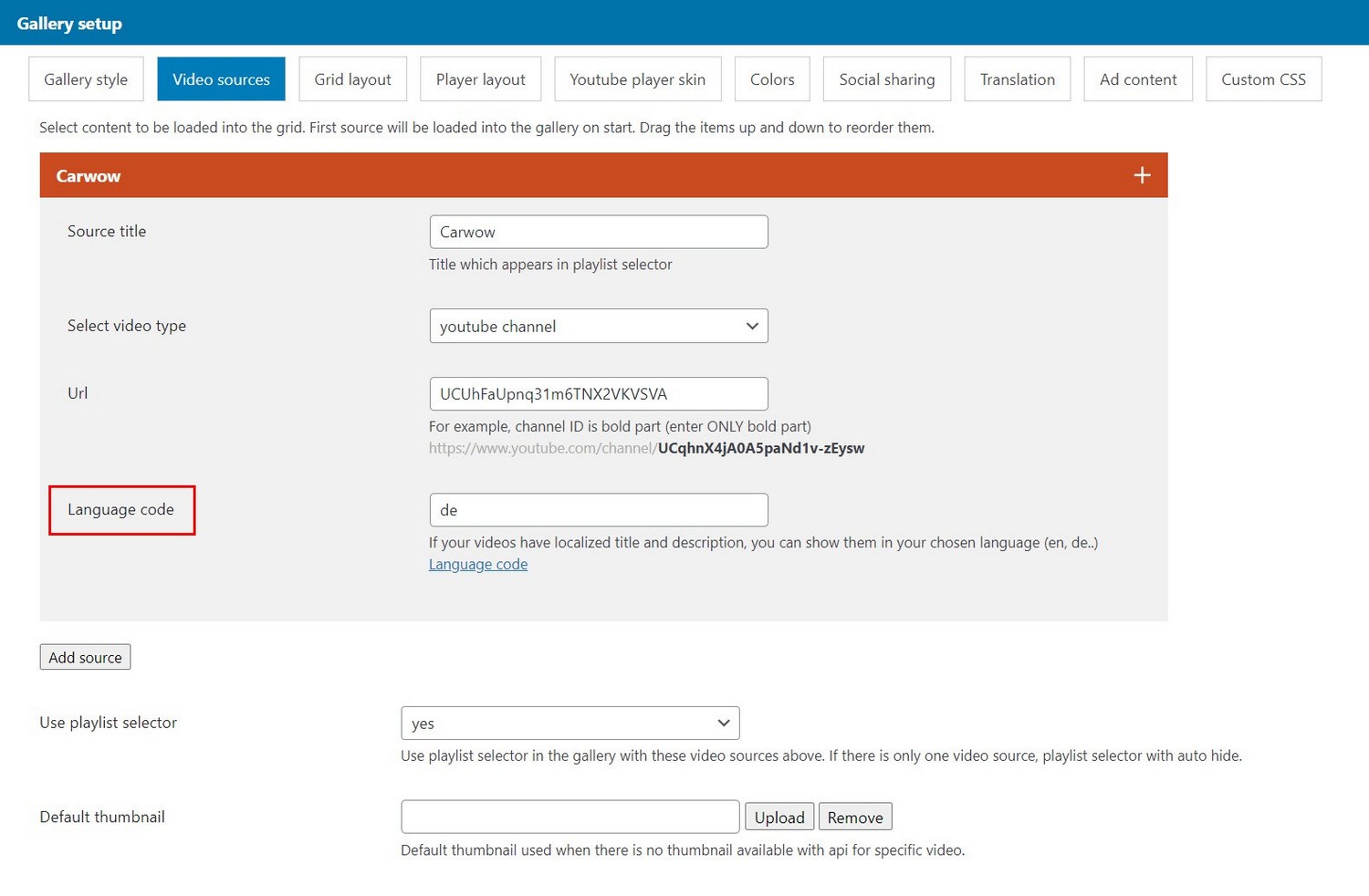
Use language code (BCP-47) value:
https://en.wikipedia.org/wiki/IETF_language_tag#:~:text=An%20IETF%20BCP%2047%20language,the%20IANA%20Language%20Subtag%20Registry.How to translate title and description for your Youtube videos:
https://support.google.com/youtube/answer/6289575Shortcodes
Once you generate a gallery, you can get a shortcode in Shortcodes menu. You can also use and reuse this shortcode and modify individual parameters (for example change link to channel) and use if with Advanced Custom Fields for example.
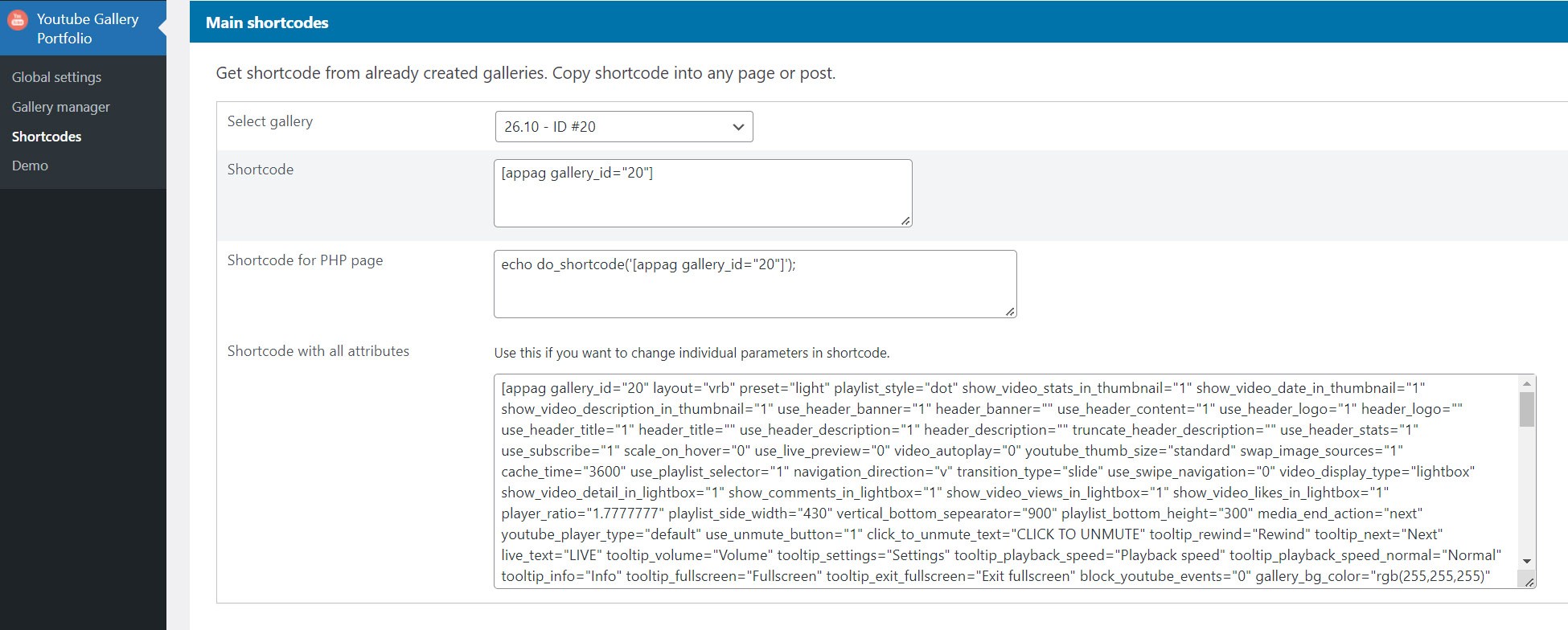
Full shortcode may look something like this:
Multiple Galleries
1. Create new gallery for every instance you use:
Wrong: (2 same galleries cannot repeat in the same page!)
[appag gallery_id="1"]
[appag gallery_id="1"]
Correct:
[appag gallery_id="1"]
[appag gallery_id="2"]
2. Use same gallery with different instance_id in shortcode:
[appag gallery_id="1" instance_id="0"] [appag gallery_id="1" instance_id="1"](instance_id is just a unique number you choose for each gallery)
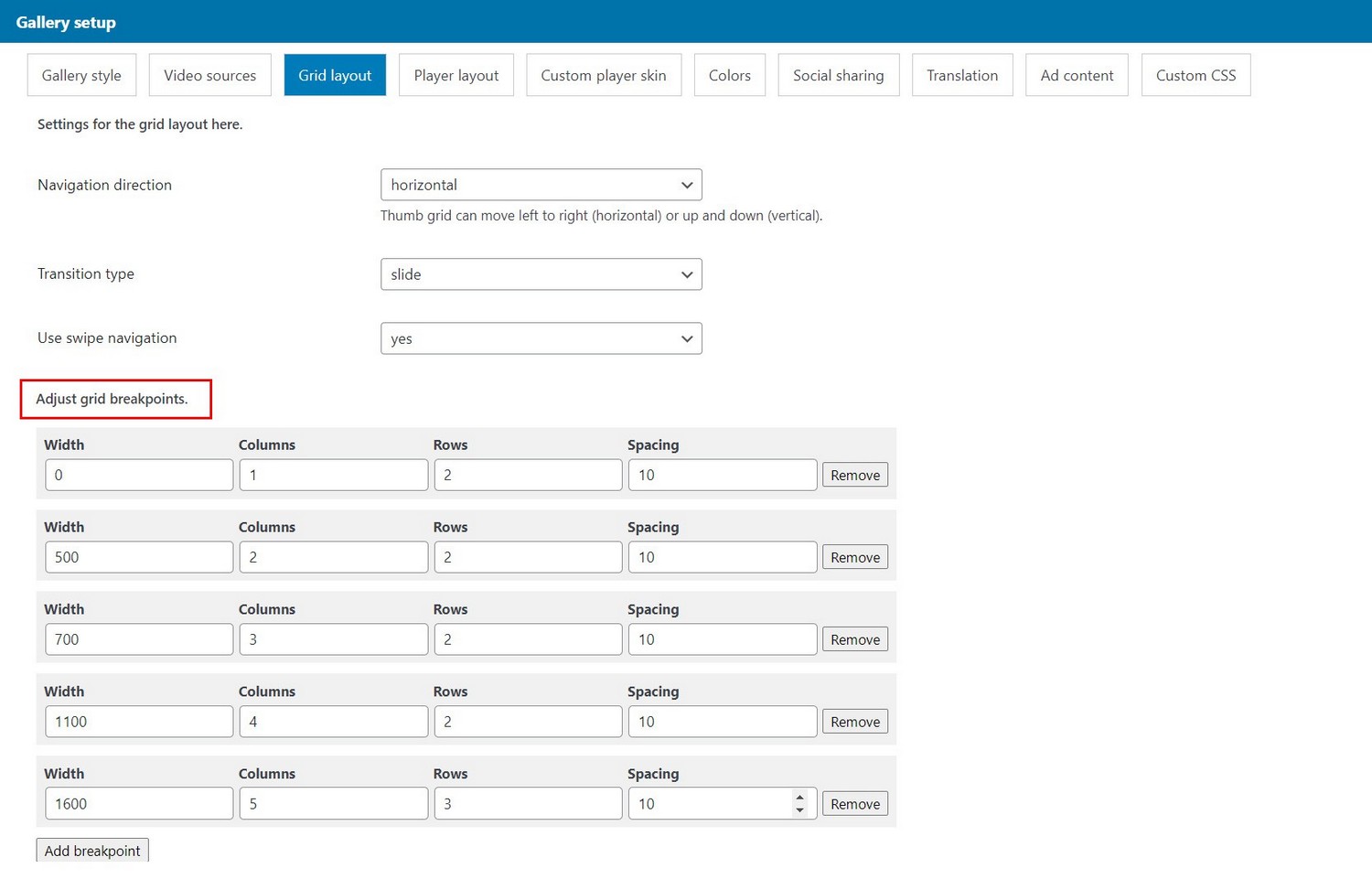
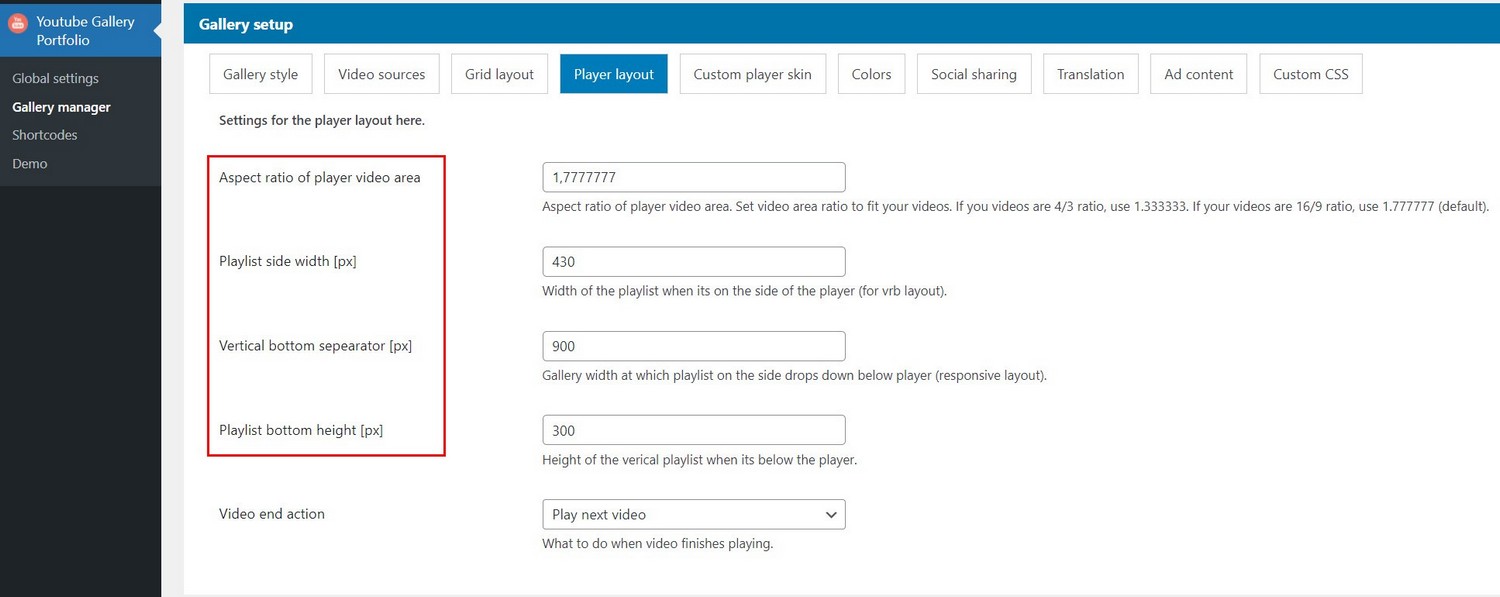
Responsive layout for different devices
For Grid layout
Adjust columns and rows in Grid tab
For Player layout
Adjust settings in Player layout tab:
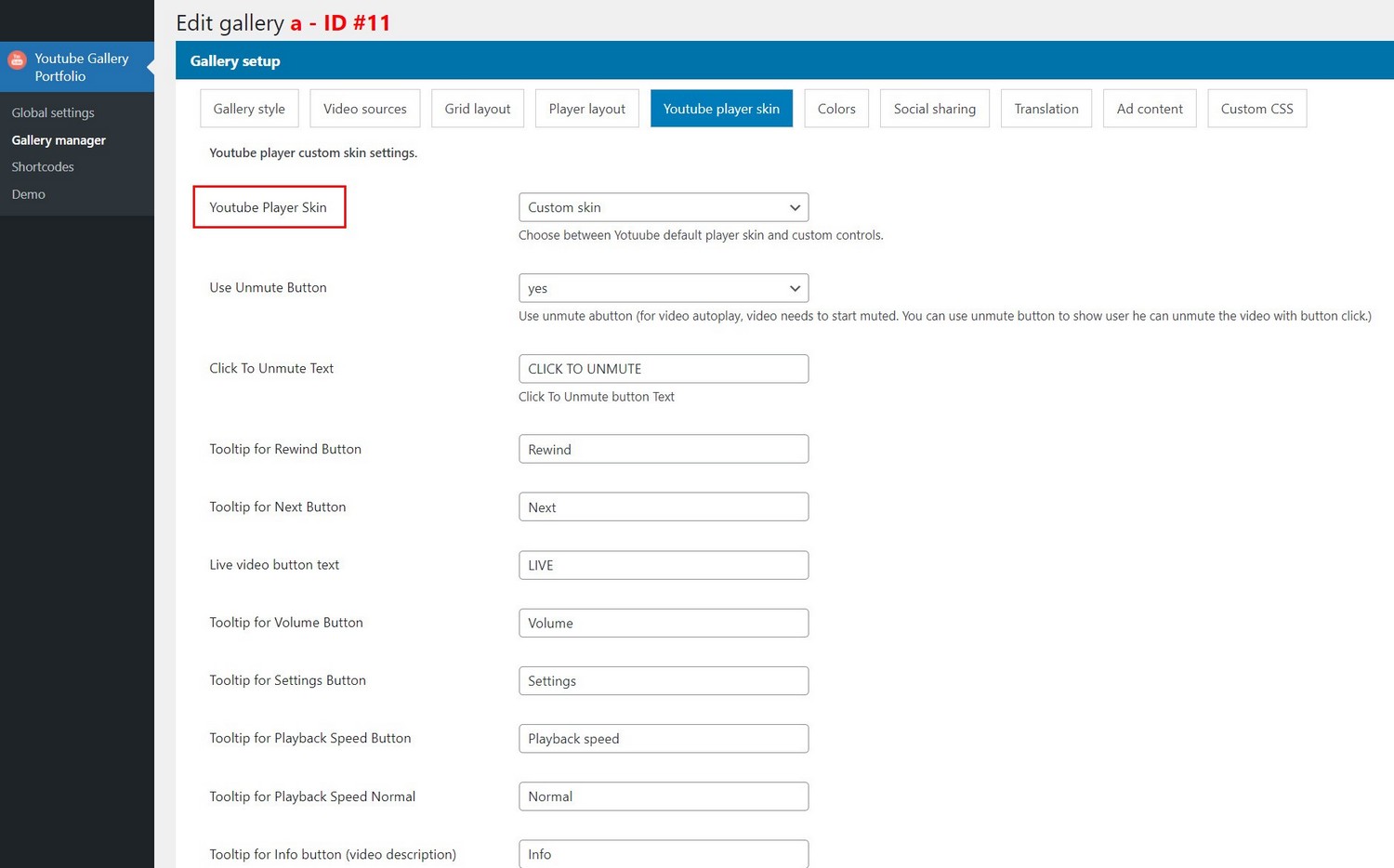
Custom Youtube player skin
Using Youtube player with custom skin
Its possible to display Youtube player with custom skin. Use the following settings:
Video display inside gallery
How to show video inside gallery?
When you click on the thumbnail video can be shown in the following ways:
1. In lightbox popup:
Click on the thumbnail will open lightbox:

2. Inline inside thumbnail:
Click on the thumbnail will play video inside thumbnail:
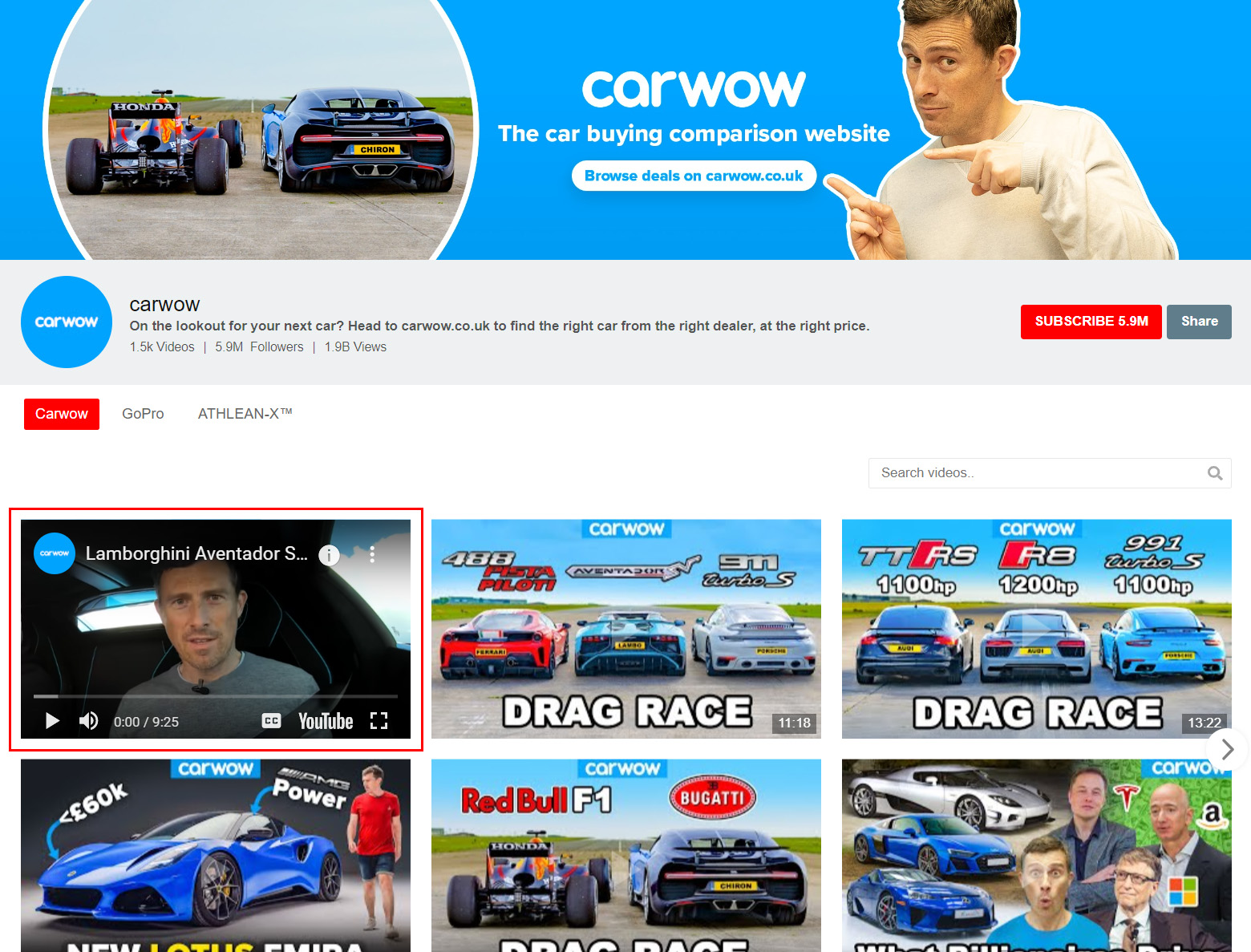
3. As a "link", clicking the thumbnail can open this video on Youtube.
4. No action, clicking the thumbnail will do nothing.
These settings can be adjusted in Gallery manager / Grid tab:

Playlist selector
How to show Playlist selector above the gallery?
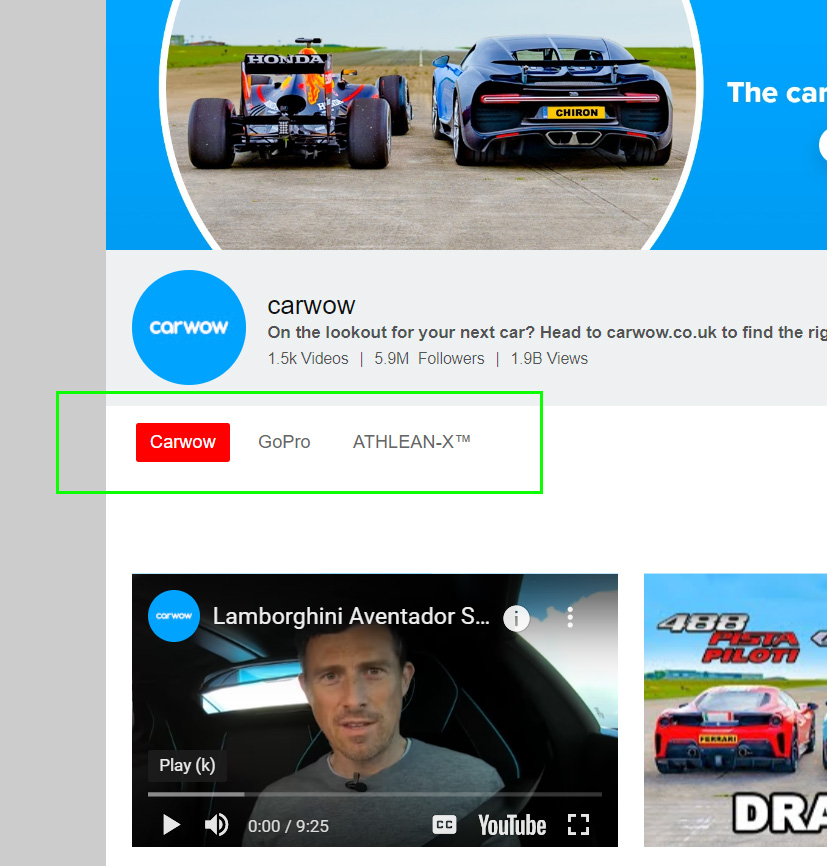
To display playlist selector inside the gallery, choose Use playlist selector in Video Sources tab. All the video sources you have created will be listen in Playlist selector. Note that if there is only single video source, playlist selector is automatically hidden.
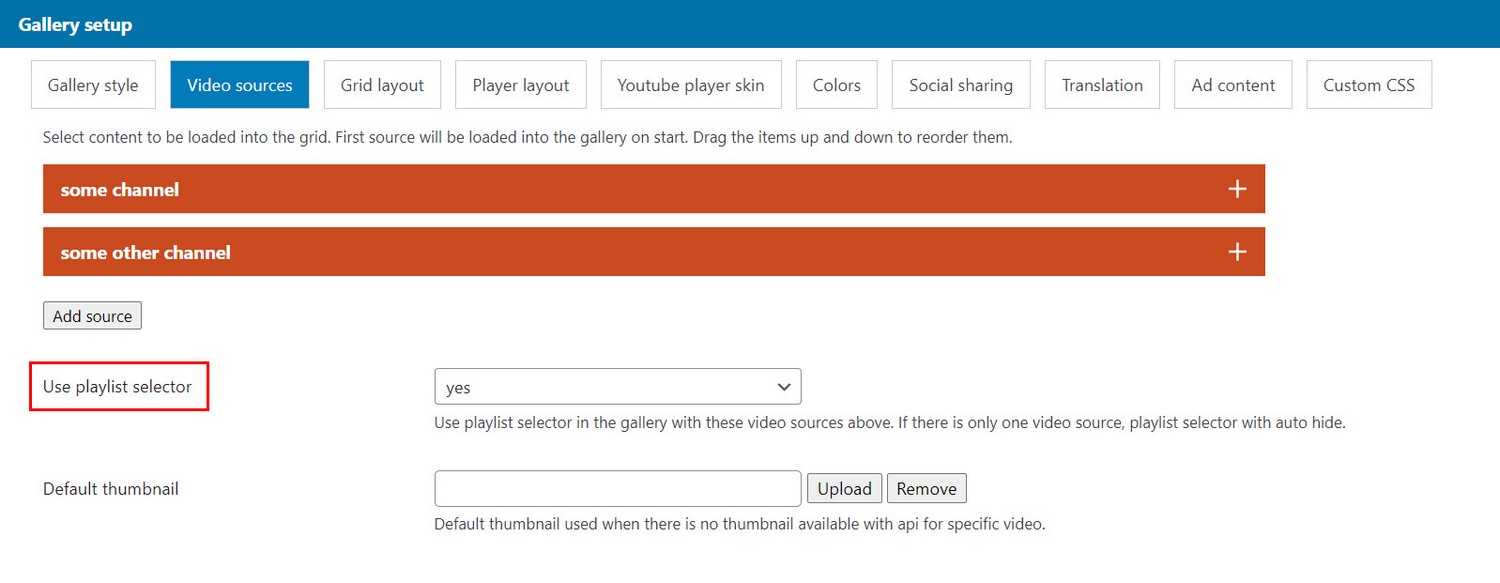
Playlist shelf
Playlist shelf displays user playlists in page and then shows playlist videos in lightbox. Playlist shelf accepts only Youtube channel as source.
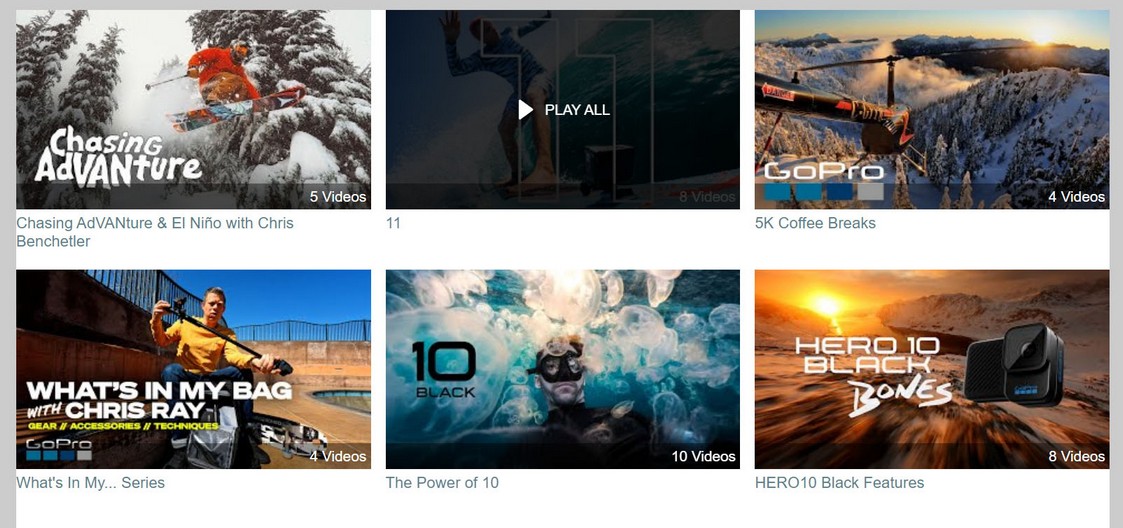
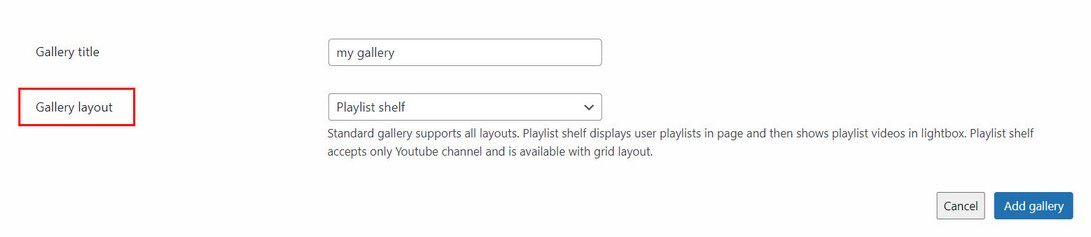
To use playlist shelf, create gallery in Gallery manager with layout Playlist shelf
Search videos
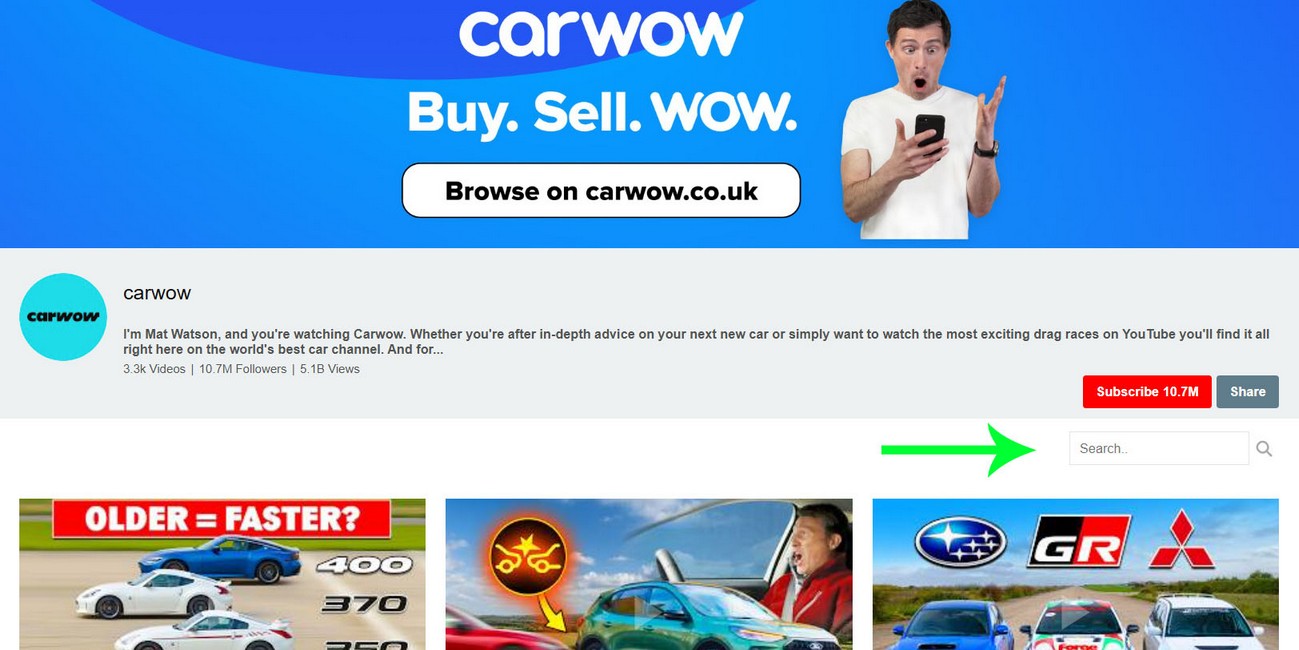
Display search field above the gallery
Once youtube source is loaded (playlist or channel), videos can be searched using a search field.
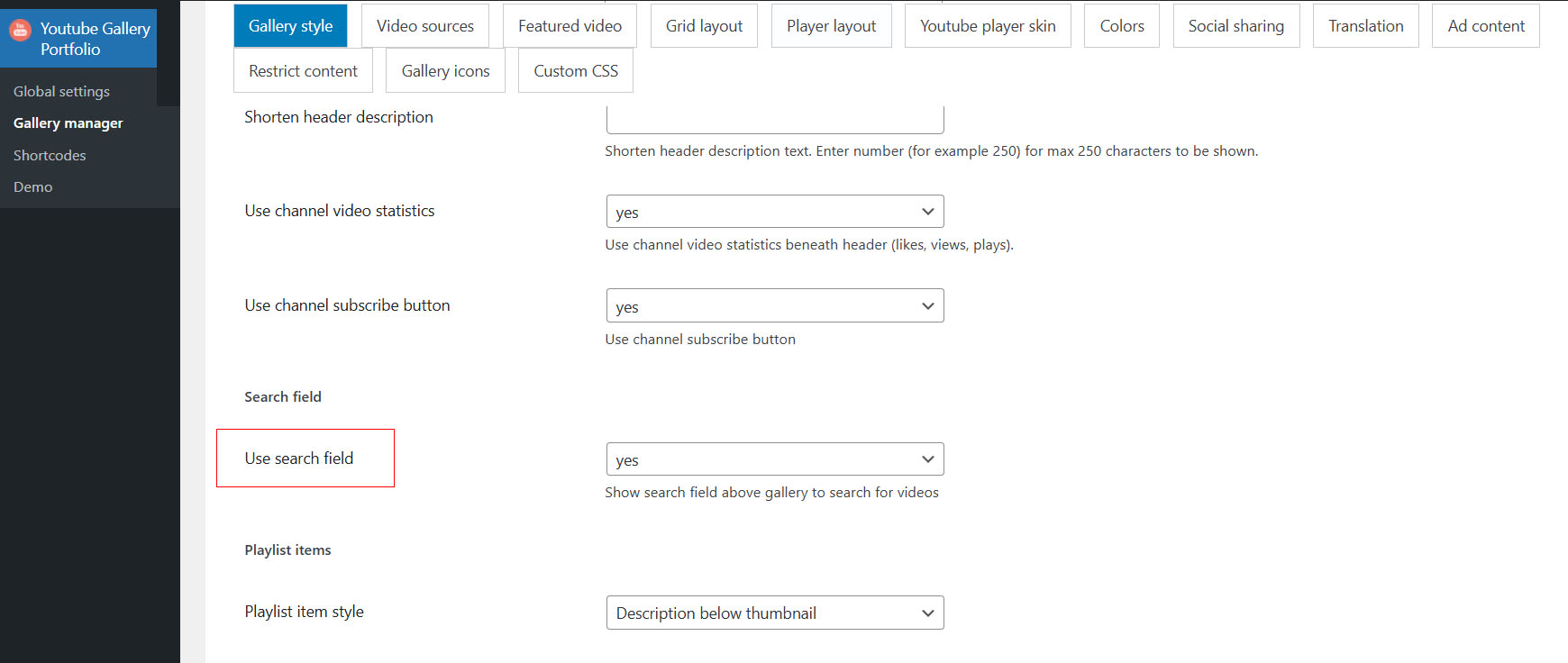
Enable search field in Gallery manager / Edit Gallery / Gallery style tab
Featured videos
Show featured videos above main gallery

Enable featured videos in Gallery manager / Edit Gallery / Featured video tab

Select to show number of latest videos from youtube source that is loaded inside the gallery.
Alternatively, if you want to show specific youtube video(s), add one or more Youtube video IDs separated by comma.
Exclude videos
How to restrict videos from showing in the gallery?
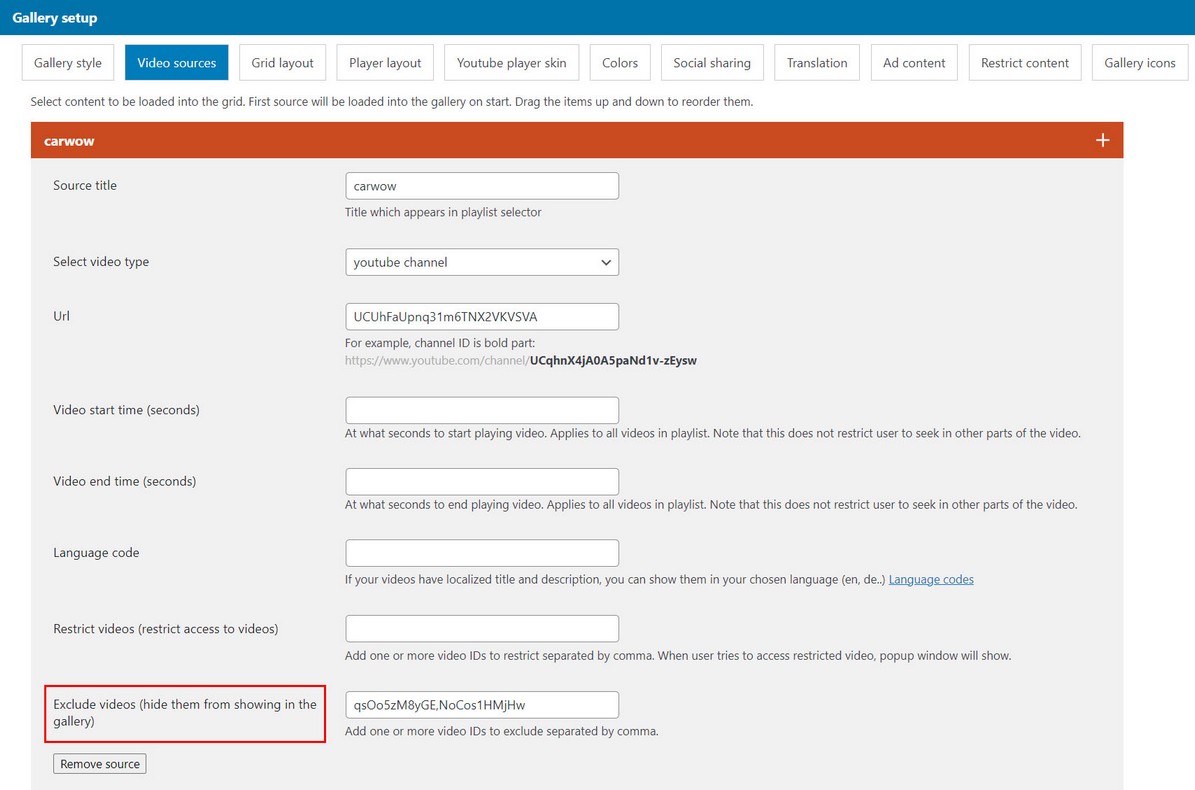
Method 1 - restrict by video ID
When adding video source in Gallery manager / Video sources tab, add Exclude videos (one or more video IDs to exclude separated by comma):
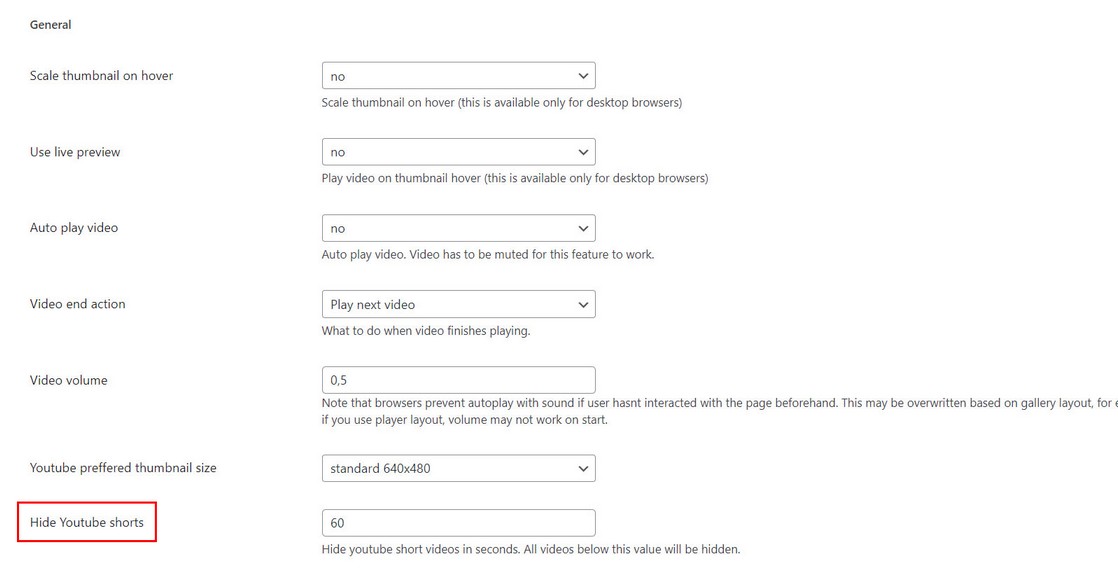
Method 2 - hide shorts from showing (short videos)
Works with youtube channel
Use Hide Youtube shorts setting in Gallery manager / Gallery style tab
Method 3 - show only shorts (short videos)
Works with youtube channel
Use Show only Youtube shorts setting in Gallery manager / Gallery style tab

Restrict videos
Retrict certain videos from user and show popup window notice
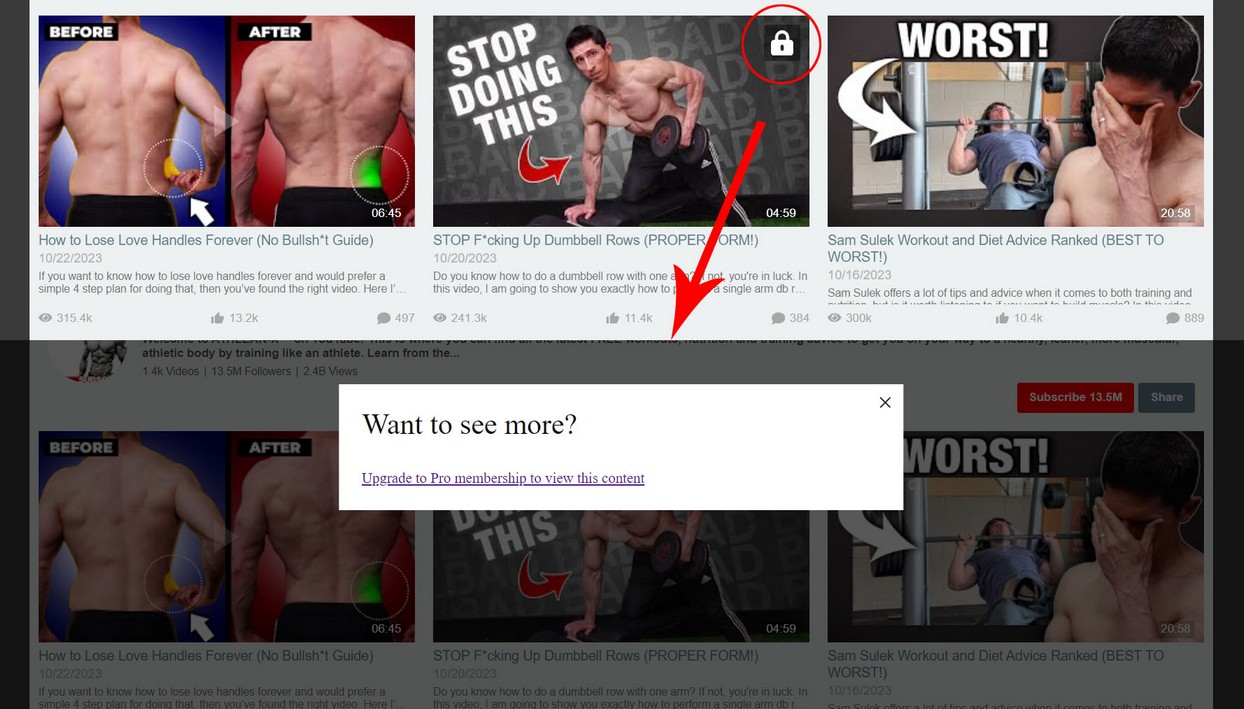
When adding video source in Gallery manager / Video sources tab, add Restrict videos (one or more video IDs to restrict separated by comma):

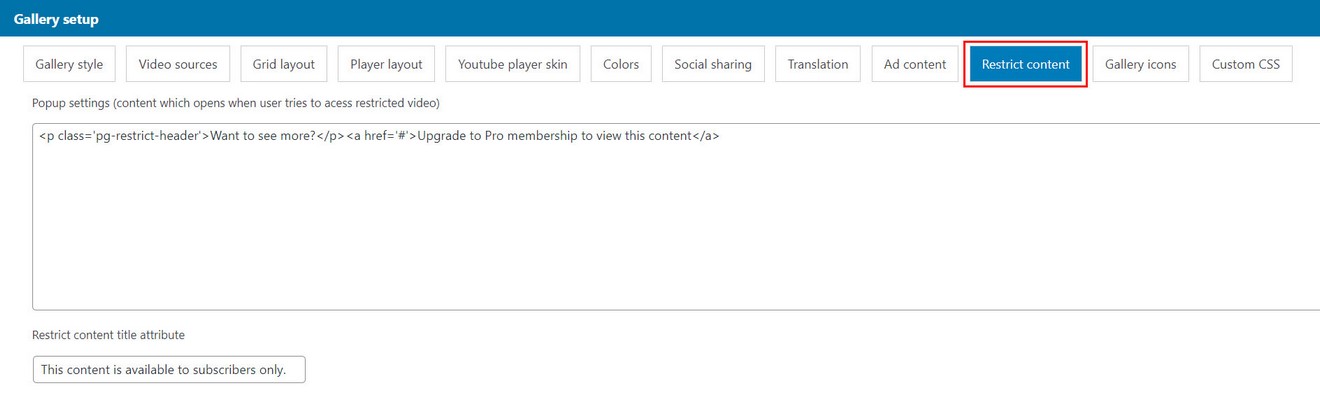
Popup settings (content which opens when user tries to access restricted video):
Adjust settings for popup window in Gallery manager / Restrict content tab:
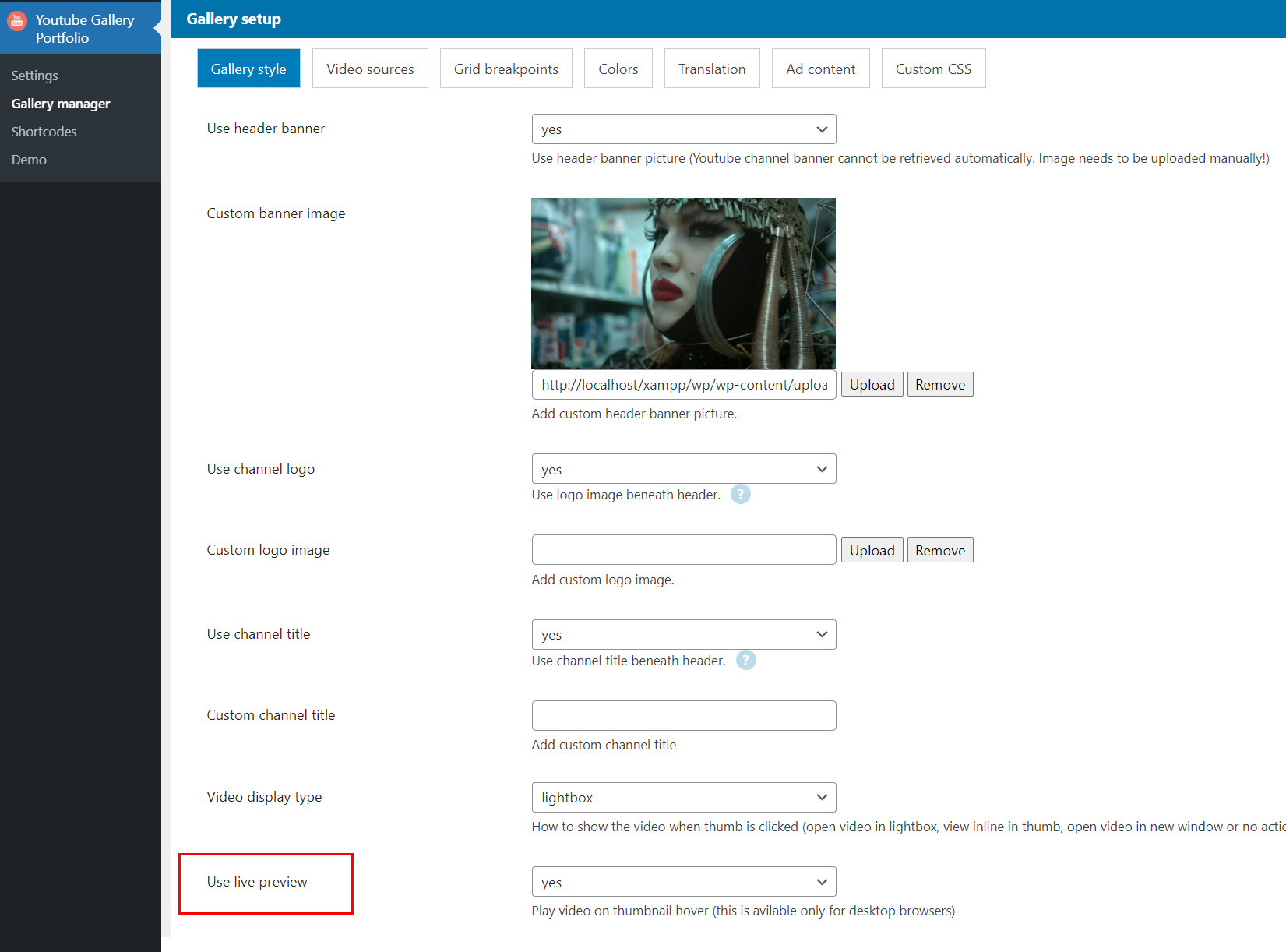
Live preview
How to play video on hover?
This feature is available for desktop browsers.
Use these settings:
Scale effect
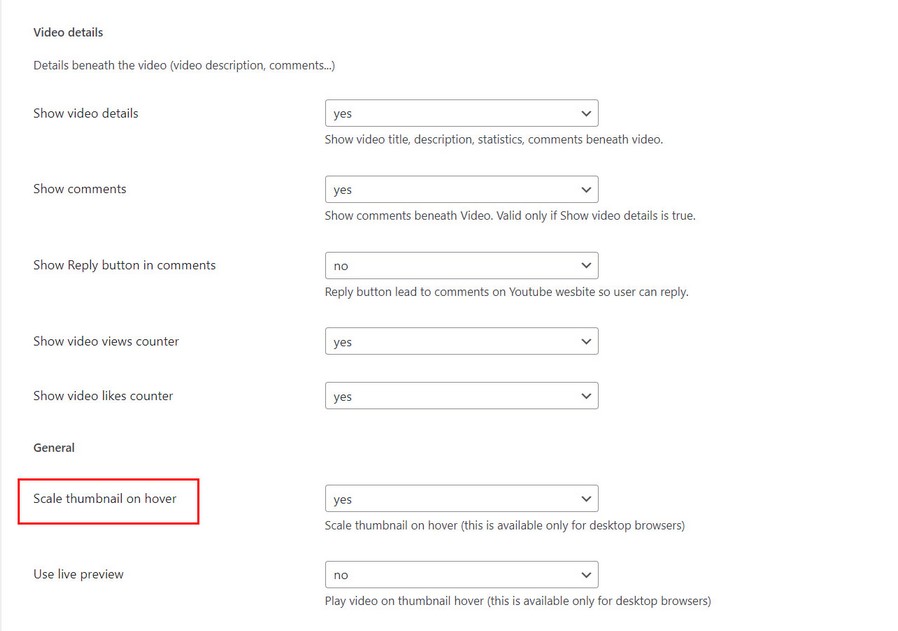
Creating scale effect on hover
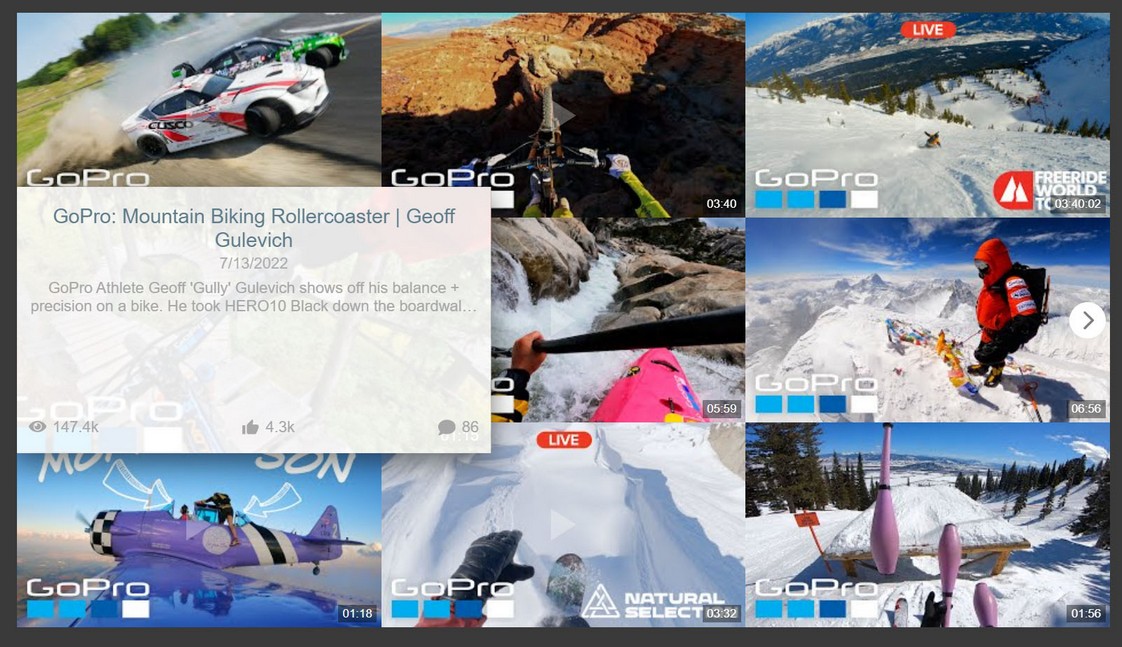
Scale effect works best with grid layouts.
Adjust settings for Scale effect in Gallery manager / Gallery style tab:
Info button
Show full video description
Create info button over thumbnail area which when clicked will show full video description in popup window.

Adjust settings in Gallery manager / Gallery style tab:

Autoplay viewport
Option to autoplay in viewport for player layouts
Autoplay in viewport is available with player layouts when player is shown directly in the page (not opened in lightbox).

Adjust settings for Autoplay viewport in Gallery manager / Gallery style tab:

Gallery icons
Changing gallery icons
Icons in the gallery are SVG. Adjust settings for Gallery icons in Gallery manager / Gallery icons tab:

Ad content
Insert advertising content into the gallery (Adsense, Amazon Affiliates, Commission Junction etc...). Basically any HTML is allowed. Make sure its properly formatted so it doesnt break the layout.

Enter your advertising code here. You can add ad content that will be placed in the gallery below the grid. You can also add ad content that will be placed in the video popup window. Make sure it properly formatted so it doesnt break the layout!
Example how to add AdSense code:
<script async src="https://pagead2.googlesyndication.com/pagead/js/adsbygoogle.js"></script>
<ins class="adsbygoogle"
style="display:inline-block;width:728px;height:90px"
data-ad-client="AD_CLIENT_HERE"
data-ad-slot="AD_SLOT_HERE"></ins>
<script>
(adsbygoogle = window.adsbygoogle || []).push({});
</script>
Enter AD_CLIENT_HERE and AD_SLOT_HERE data.
Uninstall plugin
Sometimes you may want to fully uninstall the plugin and delete all plugin data. To do so, go to Settings section and use the following option:
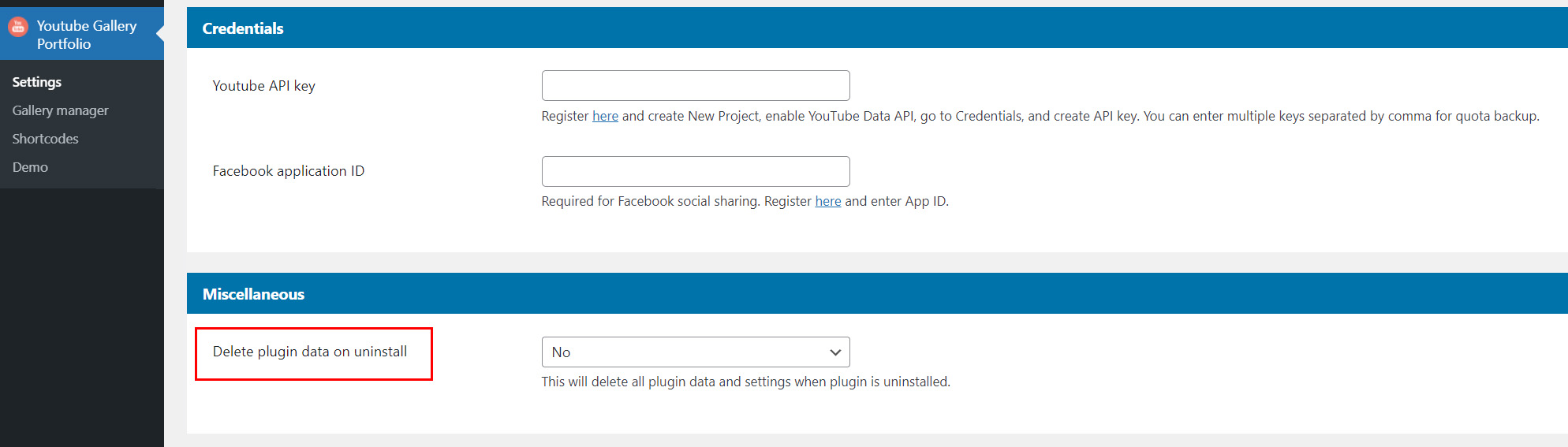
Then you can deactivate and delete plugin from Wordpress -> Plugins section.
Troubleshooting
If the plugin does not work as expected, try the following tests to see if it makes a difference and what could be causing an issue:
1. Update to latest plugin files available on Codecanyon
2. Switch to default Wordpress theme
3. Check for errors in browser developer console (Chrome F12 key, Console tab)
4. Try to deactivate any 3rd party plugins (the ones that not come with Wordpress)
5. If you still have issues after you have done all changes above, you can send a message at http://codecanyon.net/user/Tean#contact , provide your PURCHASE CODE, provide a link to your live page, and a temporary user and password for your wordpress admin panel so we can have a look.