HTML5 Audio Player with Playlist
Javascript
Thank you for purchase. If you have any questions that are beyond the scope of this help file, please feel free to send a message on the link. Thanks so much!
Registration
Register the plugin at the following link
Instructions how to register (ONLY steps 1-3 are required)
Registration made to make sure customers use the license on a single project (as per Envato rules) and to help customers owning many licenses easily track on which server licenses are being used.
Installation
Include the following css and javascript into HEAD section of the page:
<link rel="stylesheet" type="text/css" href="css/_global.css" />
<link rel="stylesheet" type="text/css" href="css/PLAYER_CSS_FILE_GOES_HERE.css"/><!-- include player css file for the skin you use -->

<script src="js/perfect-scrollbar.min.js"></script><!-- playlist scroll -->
<script src="js/jsmediatags.min.js"></script><!-- id3 tags when reading songs from folder -->
<script src="js/new.js"></script><!-- main js file -->
Copy player HTML code in BODY section of the page:
(copy player code from the demo you want to use for example art-wide-dark.html )
<div id="hap-wrapper" class="hap-art-wide hap-art-wide-dark">
   ...rest of the player html goes here
</div>
Create playlist in BODY section of the page:
<div id="hap-playlist-list">

    <div id="playlist-audio">
        <div class="hap-playlist-item" data-type="audio" data-path="MP3_URL" data-artist="ARTIST_NAME" data-title="SONG TITLE" data-thumb="THUMB_URL"></div>
        <div class="hap-playlist-item" data-type="audio" data-path="MP3_URL" data-artist="ARTIST_NAME" data-title="SONG TITLE" data-thumb="THUMB_URL"></div>
        <div class="hap-playlist-item" data-type="audio" data-path="MP3_URL" data-artist="ARTIST_NAME" data-title="SONG TITLE" data-thumb="THUMB_URL"></div>
    </div>

</div>
Initialize the plugin with settings (see configuration):
<script>

document.addEventListener("DOMContentLoaded", function(event) {

    var settings = {
        activePlaylist:"#playlist-audio",
        activeItem:0,
        volume:0.5,
        autoPlay:false,
        preload:"auto",
        randomPlay:false,
        loopState:'playlist',
        usePlaylistScroll:true,
        usePlaylistType:"perfect-scrollbar",
        useNumbersInPlaylist: true,
        playlistItemContent:"title,thumb"
    };

     new hap(document.getElementById("hap-wrapper"), settings);

});

</script>
Configuration
Available player options:
| Parameter | Value | Description |
|---|---|---|
| sourcePath | plugin root where the player is located. If the player is located in the same directory where all player folders are located (js, css, includes...) then this does not need to be set. If all player folders (js, css, includes...) are located in one level below the root in a directory named some_folder for example, then sourcePath would be "some_folder/". If all player folders (js, css, includes...) are located in one level above the root in a directory named some_folder for example, then sourcePath would be "../some_folder/". Plugin uses this internally to load some php files so it need url to includes directory, and also when it loads popup.html file for popup window feature. |
|
| instanceName | Name of the player instance, string, this is returned in callbacks so if you have multiple players in same page you can recognize them. | |
| activePlaylist | active playlist on player start. Leave empty for none. Check working with playlist section for more info. | |
| activeItem | active song to start with on player load (-1 = none, 0 = first song, 1 = second song...). Check working with playlist section for more info. | |
| startFirstSongWithPlayBtnWhenNoSongActive | true / false | with no song active on player start (activeItem = -1), start first song using play button. |
| playlistContent | DOM selector | Custom element in which to place playlist items. By default playlist items are placed in '.hap-playlist-content' element, but you can specify your own, for example playlistContent:"#your-div" |
| playlistContentClass | classname | Additional classname to add to hap-playlist-content. Default is 'hap-playlist-default', for grid skins it 'hap-playlist-grid'. This affects only CSS and its used for playlist item styling. |
| volume | 0-1 | Audi volume |
| playbackRate | Playback rate. Can be adjusted during playback if playback rate slider is used. http://www.w3schools.com/tags/av_prop_playbackrate.asp | |
| autoPlay | true,false | |
| autoPlayAfterFirst | true / false | Auto play media after first media has been manually started. This will make autoPlay false on start! |
| preload | auto, metadata, none | Preload media attribute |
| randomPlay | true,false | randomize playback in playlist. |
| loopState | playlist, single, off | Loop playlist, loop current audio, or off (on playlist end no loop). |
| stopOnSongEnd | true,false | Stop on song end. Use this is you want to manually advance to next song. |
| gdk | Google drive api key, register here: https://console.developers.google.com create new project, enable Google Drive API, create Credentials, API key, enter referrer (your domain). | |
| whatsAppWarning | Message that appears when user tries to share via WhataSapp on desktop browser. Example: Please share this content on mobile device! | |
| linkIconTitle | title for tooltip on link icon hover | |
| downloadIconTitle | title for tooltip on download icon hover | |
| useKeyboardNavigationForPlayback | true,false | Use keyboard navigation for controling playback. By default keyboard controls are only active when mouse is above the player. Supports multiple players per page. |
| useGlobalKeyboardControls | true,false | If true, keyboard controls are always active. Supports only single player per page. This method may interfere with other keyboard inputs on the page. Use with caution. |
| keyboardControls | array |
keycode + action value pairs. Possible actions include player api available methods.
            keyboardControls: [
                {keycode:37, action: 'seekBackward'},
                {keycode:39, action: 'seekForward'},
                {keycode:32, action: 'togglePlayback'},
                {keycode:38, action: 'volumeUp'},
                {keycode:40, action: 'volumeDown'},
                {keycode:77, action: 'toggleMute'},
                {keycode:34, action: 'nextMedia'},
                {keycode:33, action: 'previousMedia'},
                {keycode:82, action: 'rewind'}
            ],
|
| modifierKey | shiftKey / ctrlKey / altKey | Add modifier key (Shift, Alt, or Control) to be used as double keys. |
| useNumbersInPlaylist | true,false | Use numbers in front of playlist title. |
| sortableTracks | true,false | Set sortable playlist items. Using sortable requires link to sortable.min.js script in head tag!
https://github.com/SortableJS/Sortable For example:
<script src="/jssortable.min.js"></script> |
| sortableHandle | .hap-playlist-item | Class will to make drag. |
| limitDescriptionText | number | Limit number of characters in playlist item description text. When limit is set, read more button will appear to show all text. |
| createReadMoreInDescription | true,false | Create Read more button to shorten description in playlist items |
| limitDescriptionReadMoreText | Read more | Read more text to show / hide all description in playlist items |
| limitDescriptionReadLessText | Read less | Read more text to show / hide all description in playlist items |
| playlistItemContent | title,thumb,description,duration,date | Content to create in playlist items. Enter one or more separated by comma. Select content to display in playlist items. Description, duration, date may be available for Podcast, Soundcloud, Youtube. |
| playlistTitleOrder | title,artist | Order of title and artist. Possible values: title,artist or artist,title |
| numberTitleSeparator | Separator between number and title in playlist. | |
| artistTitleSeparator | Separator between artist and title in playlist. | |
| playlistItemMultilineWidth | number | Player width at which icons in playlist items (link, download, statistics icons) go into second line to make room for playlist titles (default 600) |
| downloadIcon | download icon in playlist. | |
| linkIcon | link icon in playlist. Tip: you can add text instead of icon, for example "BUY" and then style it with css and you have text button. | |
| statDownloadIcon | statistics download icon in playlist. | |
| statLikeIcon | statistics like icon in playlist. | |
| statPlayIcon | statistics play icon in playlist. | |
| playbackRateMin | number | Minimum playback rate (if playback rate slider is used). |
| playbackRateMax | number | Maximum playback rate (if playback rate slider is used). |
| sortOrder | title-asc / title-desc / random | Sort order of tracks on start. No sort order specified means no sort will be applied (tracks will be displayed as default). random sort will shuffle track order (but this is not related to randomPlay option). |
| searchSelector | Use your own input search field for the playlist items and specify dom selector (ID/Classname) for this element. | |
| searchDescriptionInPlaylist | true,false | Search description in playlist when using search field. Or use just title for search. |
| createDownloadIconsInPlaylist | true,false | This will create download icons in playlist for podcast, sondcloud (if download is available), folder and google drive. |
| createLinkIconsInPlaylist | true,false | This will create link icons in playlist for podcast, sondcloud, folder and google drive. |
| disableSongSkip | true,false | Disable song change (seek, previous, next, click another song). |
| togglePlaybackOnMultipleInstances | true,false | For multiple players in page, pause other players when one player is started. Default true. |
| togglePlaybackOnPlaylistItem | true,false | Clicking on thumbnail will pause play song, instead of always play song from start. Useful for grid layouts where clicking a thumbnail can pause / play a song without the need for sticky player. |
| cors | https://zet.pluginsandthemes.ro/,https://cors.io/? | Proxy url for getting id3 tags from cross domain. How to install your own CORS PROXY with this Video Tutorial: https://youtu.be/ai2Cx9AjK34 |
| useInlineSeekbar | true,false | Use inline seekbar inside active song playlist thumbnail which show song progress. Useful for grid layout if you dont use sticky player. |
| seekTime | seconds | Default seek time value for seek backward / seek forward commands (seconds). |
| breakPointArr | javascript breakpoints to resize player instead of media query. It uses css classes (.hap-breakpoint-px) to trigger player resize based on player width. See breakpoints section | |
| addPlaylistEvents | true,false | Attach click, mouseover, mouseout events to playlist items. |
| playlistItemClickSelectorArr | array | Classes which trigger click on playlist item.
['hap-playlist-thumb', 'hap-thumbimg', 'hap-playlist-title-wrap', 'hap-playlist-title', 'hap-playlist-artist'] |
| getId3Image | true,false | Get album artwork when reading ID3 tag from songs in folder. If you dont use thumbnails in player, setting this to false can speed up loading time. |
| useAudioPreview | true,false | Play short song preview snippet in player instead of full song (requires data-song-preview="short song url here") |
| clearDialogCacheOnStart | true,false | Dialogs can be dragged around and are resizable. Clear dialog position and size in browser on player start (for lyrics, video). This option will reset dialog position on player start. |
| autoAdvanceToNextSongOnError | true,false | When getting or playing song url failed, auto advance to next song. |
| applySafariAudioRestartFix | true,false | Apply Safari fix to make audio start from beginning on restart. |
| placeHolderThumb | image url | Set placeholder image in player artwork area, if no song is loaded on start. |
Internal script loading
Note: some javascipt files are loaded internally (sharemanager.js, perfect-scrollbar.min.js etc...). By default all javascript files are located in /js directory. You can change the location from where they are loaded by adding this to settings.
| Parameter | Value | Description |
|---|---|---|
| sharemanager_js | js/sharemanager.js | Location of the file from the root where the player is placed. |
| perfectScrollbar_js | js/perfect-scrollbar.min.js | Location of the file from the root where the player is placed. |
| hls_js | https://cdn.jsdelivr.net/npm/hls.js@latest | Location of the file from the root where the player is placed. |
Working with playlist
This section explains how to load a playlist on start.
Loading playlist from HTML nodes:
You need to have this in page BODY:
<!-- PLAYLIST LIST -->
<div id="hap-playlist-list">

    <div id="playlist-audio1">
        <div class="hap-playlist-item" data-type="audio" data-path="MP3_URL"></div>
        <div class="hap-playlist-item" data-type="audio" data-path="MP3_URL"></div>
    </div>

    <div id="playlist-podcast">
        <div class="hap-playlist-item" data-type="podcast" data-path="http://www.kingola.com/feed/podcast/"></div>
    </div>

</div>
To load playlist-audio1 on start use this settings:
activePlaylist:"#playlist-audio1",
Check api.html demo which contains a list of all possible playlist examples.
Using your own HTML markup for playlist items?
If you want to write your own HTML markup for songs in playlist add hap-playlist-item-ready class to your divs, for example:
<!-- PLAYLIST LIST -->
<div id="hap-playlist-list">
    <div id="playlist-audio1">

        <div class="hap-playlist-item hap-playlist-item-ready" data-type="audio" data-path="media/audio/2/01.mp3" data-thumb="media/thumb/art/01.jpg">
            <div class="hap-playlist-item-content">
                <span class="hap-playlist-title-wrap">
                    <span class="hap-playlist-title">Soundroll - A Way To The Top</span>
                </span>
            </div>
        </div>

        <div class="hap-playlist-item hap-playlist-item-ready" data-type="audio" data-path="media/audio/2/02.mp3" data-thumb="media/thumb/art/02.jpg">
            <div class="hap-playlist-item-content">
                <span class="hap-playlist-title-wrap">
                    <span class="hap-playlist-title">Soundroll - Feel Good Journey</span>
                </span>
            </div>
        </div>

    </div>
</div>
Such playlist items (with hap-playlist-item-ready) will be placed directly in the playlist without any change!
Note that having hap-playlist-title-wrap class is preferred because click is attached to this element (click to play song in playlist)
Check ready-songs-in-playlist.html demo for more info.
Adding songs using object notation
Instead of creating playlist from HTML nodes, you can have songs in object format directly in settings using media array.
HTML5 audio example:
media:[
    {
        type: 'audio',
        mp3: 'media/audio/1/01.mp3',
        artist: 'Tim McMorris',
        title: 'A Bright And Hopeful Future',
        thumb: 'media/thumb/1/01.jpg',
        link: 'http://www.google.com',
        target: '_blank',
        download: 'media/audio/1/01.mp3',
    },
    {
        type: 'audio',
        mp3: 'media/audio/1/02.mp3',
        artist: 'Tim McMorris',
        title: 'Be My Valentine,
        thumb: 'media/thumb/2/02.jpg',
    },
]
Podcast example:
media:[
    {
        type: 'podcast',
        path: 'http://robertkelly.libsyn.com/rss',
        thumbDefault: 'data/default_artwork/music_ph.png',
        limit: 5,//number of results to show on start
        loadMore:true,//load more videos on total scroll in playlist
    },
]
Soundcloud example:
media:[
    {
        type: 'soundcloud',
        path: 'http://soundcloud.com/astateoftrance',
        thumbDefault: 'data/default_artwork/sc.jpg',
        limit: 5,//number of results to show on start
        loadMore:true,//load more videos on total scroll in playlist
    },
]
Youtube playlist example:
media:[
    {
        type: 'youtube_playlist',
        path: 'PLMC9KNkIncKtPzgY-5rmhvj7fax8fdxoj',
        limit: 5,
        loadMore: true
    },
]
Folder of mp3 files example:
media:[
    {
        type: 'folder',
        path: '../media/audio/1',
        id3: true,//read ID3 tags
        limit: 5,
        loadMore: true
    },
]
Check object_notation.html demo for more examples.
Markup
Minimal HTML markup needed for player to work is just one element. The rest is not required if you want to play audio.
<div id="hap-wrapper"></div>
Playlist is optional. To remove the playlist, delete this element from the markup:
<div class="hap-playlist-holder"></div>
How to have playlist opened on start? (available for some skins brona, art_wide)
In settings:
playlistOpened:true
For art-narrow skin:
playlistOpened:true,
playerOpened:false
Fixed skin settings (fixed, fixed2):
Show hide player / playlist on start
playlistOpened:true,
playerOpened:true
Responsive breakpoints
Making player responsive.
For example, demo brona_light.html has these settings:
breakPointArr:"650,550"
In brona.css file you can find the following:
/* javascript breakpoints */
.hap-brona.hap-breakpoint-650 .hap-contr-btn{
    width:35px;
}
.hap-brona.hap-breakpoint-650 .hap-player-holder{
    height: auto;
    flex-direction:column;
}
.hap-brona.hap-breakpoint-650 .hap-player-thumb-wrapper{
    width: 100%;
    height: auto;
    padding-top: 100%;
}
.hap-brona.hap-breakpoint-650 .hap-player-right{
    flex:none;
}
.hap-brona.hap-breakpoint-650 .hap-center-elements{
    margin-left: 0;
    margin-top: 20px;
}
.hap-brona.hap-breakpoint-650 .hap-playlist-inner{
    padding: 0 30px 30px 30px;
}

.hap-brona.hap-breakpoint-550 .hap-volume-seekbar{
    display: none!important;
}
.hap-brona.hap-breakpoint-550 .hap-volume-wrap{
    width: 40px!important;
}
.hap-brona.hap-breakpoint-550 .hap-popup-toggle,
.hap-brona.hap-breakpoint-550 .hap-playback-rate-toggle{
    display: none;
}
This means player has 2 responsive breakpoints set (500 and 650 px). Adding a breakpoint will add class of hap-breakpoint-x to the player. When player has width of 650 (or less) CSS written above will take effect. You can add your own custom breakpoints and then use CSS to control how the player will behave on different screens.
The advantage of this is that is works when player is placed in sidebar or similar (not only on full page width).
You can of course disregard this and use your own CSS media queries.
Self hosted audio files
Example:
<div class="hap-playlist-item" data-type="audio" data-path="PATH TO MP3" data-thumb="THUMB URL HERE"></div>
Parameters:
| Parameter | Required | Value |
|---|---|---|
| data-type | yes | audio |
| data-path | yes | url to audio (mp3, wav, aac, flac...) |
| data-audio-preview | url to short song preview snippet. Can be used in combination with useAudioPreview option to show song preview in player instead of full song. | |
| data-thumb | thumb url (this is also used as player artwork) | |
| data-thumb-small | small thumb url for playlist items. If not specified data-thumb is used instead. If player uses large artwork images with data-thumb, then data-thumb-small can be useful for small playlist items. | |
| data-alt | thumbnail alt text. | |
| data-title | song title | |
| data-artist | song artist | |
| data-description | song description If you want to add HTML in description use html description. You can have either data-description or html description but not both. |
|
| data-download | download path | |
| data-link | playlist item url link | |
| data-target | blank/parent, http://www.w3schools.com/tags/att_a_target.asp | |
| data-rel | playlist item url rel attribute | |
| data-start | media start time in seconds | |
| data-end | media end time in seconds | |
| data-lyrics | Url to lyrics file. Check lyrics section for more details. |
Podcast
Example rss podcast:
<div class="hap-playlist-item" data-type="podcast" data-path="http://robertkelly.libsyn.com/rss" data-limit="5" data-thumb-default="path/to/backup/thumb"></div>
Example itunes podcast:
<div class="hap-playlist-item" data-type="itunes_podcast_music" data-path="https://podcasts.apple.com/us/podcast/funny-cuz-its-true-with-elyse-myers/id1645926587" data-limit="5" data-thumb-default="path/to/backup/thumb"></div>
Parameters:
| Parameter | Required | Value |
|---|---|---|
| data-type | yes | podcast / itunes_podcast_music |
| data-path | yes | podcast url |
| data-thumb-default | backup thumb url for items that do not have thumb available with api | |
| data-download | custom download path | |
| data-link | playlist item url link | |
| data-target | blank/parent, http://www.w3schools.com/tags/att_a_target.asp | |
| data-rel | playlist item url rel attribute | |
| data-start | media start time in seconds | |
| data-end | media end time in seconds | |
| data-lyrics | Url to lyrics file. Check lyrics section for more details. | |
| data-limit | number of results to retrieve (default all) | |
| data-load-more | Load more on total scroll in playlist (when scroll reaches end of playlist) or manually with loadMore api call.
Works in conjuntion with data-limit option (for example, set data-limit="10" which will show 10 items in playlist on start, then on load more, it will load another 10, and so on.. You can only use load more when you have one media in playlist (one hap-playlist-item!), which means you cannot have mixed media in playlist. |
Foreign characters in podcast
If your podcast contains foreign characters (for example German, Chinese etc) and they are not displaying correctly inside the player, you can try to use following option in settings:
getPodcastAlt:true
Reading audio files from directories
Example:
<div class="hap-playlist-item" data-type="folder" data-path="PATH/TO/FOLDER" data-limit="5" data-id3></div>
Parameters:
| Parameter | Required | Value |
|---|---|---|
| data-type | yes | folder |
| data-path | yes | absolute path or relative folder path to the plugin "includes" directory (where folder_parser.php file is located) |
| data-limit | number of results to retrieve (default all) | |
| data-load-more | Load more on total scroll in playlist (when scroll reaches end of playlist) or manually with loadMore api call.
Works in conjuntion with data-limit option (for example, set data-limit="10" which will show 10 items in playlist on start, then on load more, it will load another 10, and so on.. You can only use load more when you have one media in playlist (one hap-playlist-item!), which means you cannot have mixed media in playlist. | |
| data-id3 | get id3 tags from files. Note: if audio files take long time to load when id3 option is used, check size of album artwork in your ID3 tags. If artwork size is too large, you may need to reduce size of your album artwork in ID3 tags. Also check getId3Image option. | |
| data-sort | sort method: filename-asc - file name ascending filename-desc - file name descending date-asc - last modification date ascending date-desc - last modification date descending |
|
| data-download | custom download path | |
| data-link | playlist item url link | |
| data-target | http://www.w3schools.com/tags/att_a_target.asp | |
| data-rel | playlist item url rel attribute | |
| data-start | media start time in seconds | |
| data-end | media end time in seconds | |
| data-lyrics | Url to lyrics file. Check lyrics section for more details. |
Folder needs to be located on the same server where the player is located.
How to get folder location?1. path relative to the content/includes directory (where folder_parser.php is located)
<div class="hap-playlist-item" data-type="folder" data-path="../media/audio/my_folder_with_audio_files"></div>
2. path absolute
Use locate_directory.php file from includes directory and place it in my_folder_with_audio_files directory and open it in browser to get desired folder location on your server.
<div class="hap-playlist-item" data-type="folder" data-path="asolute/path/my_folder_with_audio_files"></div>
Rules:
1. Required extension for audio files is mp3, wav, aac, flac
1. Reading sub-directories is supported. Another alternative to read more folders at once, is to list them one after the other, for example:
<!-- PLAYLIST LIST -->
<div id="hap-playlist-list">
    <div id="playlist-folder">
        <div class="hap-playlist-item" data-type="folder" data-path="../media/audio/1"></div>
        <div class="hap-playlist-item" data-type="folder" data-path="../media/audio/2"></div>
        <div class="hap-playlist-item" data-type="folder" data-path="../media/audio/3"></div>
    </div>
</div>
Reading google drive folders
Google Drive requires API key, go to: https://console.developers.google.com and create new project, enable Drive API, go to Credentials, create Browser key and enter in settings : gDriveAppId
You can load folder of files from google drive or single files.
Example for folder of files:
<div class="hap-playlist-item" data-type="gdrive_folder" data-path="GOOGLE DRIVE FOLDER ID"></div>
Parameters:
| Parameter | Required | Value |
|---|---|---|
| data-type | yes | gdrive_folder |
| data-path | yes | google drive folder ID (example: 1jvqNZtENJrYxjoeeqAKUfHnxskk4ObjX ) |
| data-download | custom download path | |
| data-link | playlist item url link | |
| data-target | http://www.w3schools.com/tags/att_a_target.asp | |
| data-rel | playlist item url rel attribute | |
| data-start | media start time in seconds | |
| data-end | media end time in seconds | |
| data-lyrics | Url to lyrics file. Check lyrics section for more details. | |
| data-sort | sort method: filename-asc - file name ascending filename-desc - file name descending |
Required folder organization
You need to have following organization when loading files from google drive folders:
Inside that directory equivalent audio and thumb files need to be named the same! (thumbnails are required if you player contains thumbnail in playlist (reading id3 tags is not supported with Google drive). It will still work without but the player will not have artwork displayed)
So you end up with this structure in your folder:
    song1.mp3
    song1.png
    song2.mp3
    song2.png
    ...
This is an example of google drive folder: https://drive.google.com/drive/folders/1jvqNZtENJrYxjoeeqAKUfHnxskk4ObjX
Make sure you enable access to folder on Google Drive:

If you want to use single files from google drive, use the following method:
Go to Disc – My drive:

https://drive.google.com/drive/my-drive
right click on audio, Get shareable link and you get something like this:

https://drive.google.com/open?id=0ByzcNpNrQNpWZUlJVjZQVHoxWnM

use that audio ID to create google drive audio URL:

https://drive.google.com/uc?export=view&id=videoID
This is final URL how google drive audio URL should look:

https://drive.google.com/uc?export=view&id=0ByzcNpNrQNpWZUlJVjZQVHoxWnM – use this link in player as type audio and data-path url:

 <div class="hap-playlist-item" data-type="audio" data-path="https://drive.google.com/uc?export=view&id=0ByzcNpNrQNpWZUlJVjZQVHoxWnM"></div>
Reading One Drive folders
You can load folder of files from One Drive or single files.
How to load folder of videos from One Drive?
<div class="hap-playlist-item" data-type="onedrive_folder" data-path="ONE DRIVE SHARE URL" data-sort="filename-asc"></div>
Parameters:
| Parameter | Required | Value |
|---|---|---|
| data-type | yes | onedrive_folder |
| data-path | yes | One Drive share url, right click on the folder, choose copy link (example: https://1drv.ms/u/s!Av88sx97Izeif5Y1OnNBDdRMaEs ). If share url has some additional in the url '?xxxx' you can remove this. |
| data-download | custom download path | |
| data-link | playlist item url link | |
| data-target | http://www.w3schools.com/tags/att_a_target.asp | |
| data-rel | playlist item url rel attribute | |
| data-start | media start time in seconds | |
| data-end | media end time in seconds | |
| data-sort | sort method: filename-asc - file name ascending filename-desc - file name descending date-asc - last modification date ascending date-desc - last modification date descending created-date-asc - created date ascending created-date-desc - created date descending |
|
| data-id3 | get id3 tags from files. Note: reading ID3 tags cross domain requires cors in settings |
Required folder organization
Place audio files in your One Drive folder. You can also place thumbnail images (optional).
So you end up with this structure in your folder:
    song1.mp3
    song1.jpg//optional thumbnail image
    song2.mp3
    song2.jpg//optional thumbnail image
    ...
This is an example of One Drive folder: https://1drv.ms/u/s!Av88sx97Izeif5Y1OnNBDdRMaEs
How to load single audio from One Drive?
If you want to use single files from One Drive, use the following method:
Right click on the file - Embed and copy link, you will get something like this:

<iframe src="https://onedrive.live.com/embed?cid=A237237B1FB33CFF&resid=A237237B1FB33CFF%21157&authkey=AAEOpycSee6Jd-o" width="98" height="120" frameborder="0" scrolling="no"></iframe>

Use just the src part:

https://onedrive.live.com/embed?cid=A237237B1FB33CFF&resid=A237237B1FB33CFF%21157&authkey=AAEOpycSee6Jd-o

and replace 'embed' with 'download'

so you end up with:

https://onedrive.live.com/download?cid=A237237B1FB33CFF&resid=A237237B1FB33CFF%21157&authkey=AAEOpycSee6Jd-o

use this link in player as type audio and data-path url:

<div class="hap-playlist-item" data-type="audio" data-path="https://onedrive.live.com/download?cid=A237237B1FB33CFF&resid=A237237B1FB33CFF%21157&authkey=AAEOpycSee6Jd-o"></div>
Playlist from XML source
Only important rule is that XML playlist markup is exactly the same as the playlist markup in HTML!
So you can just copy playlist markup from HTML and paste it in xml file.
Example:
<div class="hap-playlist-item" data-type="xml" data-path="data/xml/1.xml"></div>You can prefix media urls with mediaPrefixUrl
Example of XML playlist file is provided in xml directory.
Playlist from JSON
Example:
<div class="hap-playlist-item" data-type="json" data-path="data/json/1.txt"></div>
For json the same properties apply as for html markup only without data-attribute and camelCased:
Example audio:
{
  "type": "audio",
  "path": "media/audio/2/01.mp3",
  "artist": "Soundroll",
  "title": "A Way To The Top",
  "thumb": "media/thumb/1/01.jpg",
  "link": "http://www.google.com",
  "target": "_blank",
  "download": "media/audio/2/01.mp3",
  "playbackRate": 2,
  "start": 5,
  "end": 15,
  "adPre": {
    "src": "media/ads/human1.mp3,media/ads/human2.mp3"
  },
  "adMid": {
    "interval": 3000
    "src": "media/ads/bong.mp3"
  },
  "adEnd": {
    "src": "media/ads/human3.mp3"
  }
},
You can prefix media urls with mediaPrefixUrl
Example youtube:
{
  "type": "youtube_playlist",
  "path": "PLMC9KNkIncKtPzgY-5rmhvj7fax8fdxoj",
  "limit": 5
}
Example soundcloud:
{
  "type": "soundcloud",
  "path": "http://soundcloud.com/astateoftrance",
  "thumbDefault": "data/default_artwork/sc.jpg",
  "limit": 20,
  "loadMore":"true"
},
Example of JSON playlist file is provided in json directory. You can also load .txt file extension.
Playlist from CSV file
Example:
<div class="hap-playlist-item" data-type="csv" data-path="data/csv/playlist.csv"></div>
For json the same properties apply as for html markup only without data-attribute and camelCased.
You can prefix media urls with mediaPrefixUrl
Example of CSV playlist file is provided in csv directory.
M3u Playlist
Supported is m3u playlist file with audio urls inside. Example of m3u playlist file is provided in m3u directory in plugin package. Make sure you follow exact format.
Example:
<div class="hap-playlist-item" data-type="m3u" data-path="media/m3u/playlist.m3u"></div>
Parameters:
| Parameter | Required | Value |
|---|---|---|
| data-type | yes | m3u |
| data-path | yes | url to m3u file |
| data-download | custom download path | |
| data-link | playlist item url link | |
| data-target | http://www.w3schools.com/tags/att_a_target.asp | |
| data-rel | playlist item url rel attribute | |
| data-start | media start time in seconds | |
| data-end | media end time in seconds | |
| data-lyrics | Url to lyrics file. Check lyrics section for more details. |
You can prefix media urls with mediaPrefixUrl
Note: You can load multiple m3u files inside single playlist, just list them one after another, but you cannot mix m3u playlist with other media types!Example:
<div class="hap-playlist-item" data-type="m3u" data-path="PATH/TO/M3U1"></div>
<div class="hap-playlist-item" data-type="m3u" data-path="PATH/TO/M3U2"></div>
<div class="hap-playlist-item" data-type="m3u" data-path="PATH/TO/M3U3"></div>
HLS Streaming
Example of hls live streaming:
<div class="hap-playlist-item" data-type="hls" data-path="http://a.files.bbci.co.uk/media/live/manifesto/audio/simulcast/hls/nonuk/sbr_low/ak/bbc_radio_one.m3u8" data-title="BBC Radio 1" data-thumb="media/bbc-1.png"></div>

<div class="hap-playlist-item" data-type="hls" data-path="http://a.files.bbci.co.uk/media/live/manifesto/audio/simulcast/hls/nonuk/sbr_low/ak/bbc_radio_two.m3u8" data-title="BBC Radio 2" data-thumb="media/bbc-2.png"></div>
This example will not retrieve artwork for the player thumb and title but you can set this values when adding media (using data-title, data-thumb).
Additional settings
You can pass your own config parameters to hls using following settings:
hlsConfig:{...}
For example:
hlsConfig:{
    maxFragLookUpTolerance: 0.25,
    liveSyncDurationCount: 3,
    liveMaxLatencyDurationCount: Infinity
}
Soundcloud
Soundcloud is available in this plugin using following addon Audio Player Media Addon
Soundcloud can be used with or without API key.
Using Soundcloud with API key
Register here: http://soundcloud.com/you/apps/new and enter key in settings:
| Parameter | Value | Description |
|---|---|---|
| sck | SoundCloud api key. Register here: http://soundcloud.com/you/apps/new and enter base64 encode Client ID|Client secret. You can also enter multiple keys separated by comma: base64 encode string Client ID|Client secret,base64 encode string Client ID|Client secret. Keys will be used at random on each player start. https://www.base64encode.org/ | |
| soundCloudThumbQuality | Default thumb quality is large. Set different thumb quality for player thumb: https://developers.soundcloud.com/docs/api/reference#artwork_url
example: soundCloudThumbQuality:"t300x300.jpg" (notice .jpg extension) |
|
| soundCloudThumbQualityInPlaylist | true,false | Apply Soundcloud thumb quality on playlist thumbs: https://developers.soundcloud.com/docs/api/reference#artwork_url
example: soundCloudThumbQualityInPlaylist:"t300x300.jpg" (notice .jpg extension) |
You can also enter multiple keys separated by comma: Client ID|Client secret,Client ID|Client secret. Keys will be used at random on each player start.
Supported examples:
single track:
<div class="hap-playlist-item" data-type="soundcloud" data-path="http://soundcloud.com/trance/trance-single-138-bpm-anvil"></div>
playlist/set:
<div class="hap-playlist-item" data-type="soundcloud" data-path="https://soundcloud.com/simps1988/sets/mainstage-music-a-state-of" data-limit="11"></div>
The same but using object notation:
media:[
    {
        type: 'soundcloud',
        path: 'http://soundcloud.com/trance/trance-single-138-bpm-anvil',
    },
]
media:[
    {
        type: 'soundcloud',
        path: 'https://soundcloud.com/simps1988/sets/mainstage-music-a-state-of',
        limit: 11,
    },
]
Parameters:
| Parameter | Required | Value |
|---|---|---|
| data-type | yes | soundcloud / soundcloud_link
soundcloud - used WITH sound api key soundcloud_link - used WITHOUT sound api key |
| data-path | yes | soundcloud url |
| data-thumb-default | backup thumb url for items that do not have thumb available with api | |
| data-download | custom download path | |
| data-link | playlist item url link | |
| data-target | blank/parent, http://www.w3schools.com/tags/att_a_target.asp | |
| data-rel | playlist item url rel attribute | |
| data-start | media start time in seconds | |
| data-end | media end time in seconds | |
| data-lyrics | Url to lyrics file. Check lyrics section for more details. | |
| data-limit | number of results to retrieve (default all) | |
| data-load-more | Load more on total scroll in playlist (when scroll reaches end of playlist) or manually with loadMore api call.
Works in conjuntion with data-limit option (for example, set data-limit="10" which will show 10 items in playlist on start, then on load more, it will load another 10, and so on.. Note that Soundclond is buggy and does not return next_href for pagination rather often from its API so pagination cannot work in this case. You can only use load more when you have one media in playlist (one hap-playlist-item!), which means you cannot have mixed media in playlist. |
Using Soundcloud without API key
You can play Soundcloud songs inside the player without API key in following formats:
single track:
<div class="hap-playlist-item" data-type="soundcloud_link" data-path="http://soundcloud.com/trance/trance-single-138-bpm-anvil"></div>
playlist/set:
<div class="hap-playlist-item" data-type="soundcloud_link" data-path="https://soundcloud.com/simps1988/sets/mainstage-music-a-state-of" data-limit="11"></div>
The same but using object notation:
media:[
    {
        type: 'soundcloud_link',
        path: 'http://soundcloud.com/trance/trance-single-138-bpm-anvil',
    },
]
Difference here is data-type="soundcloud_link" parameter.
Note that using this method without API key, its not possible to retrieve indvidual songs inside Soundcloud set for example. So if you provide link above ( https://soundcloud.com/apresskisocial/sets/apres-ski-social-fm ) player will play this playlist, but will not show individual songs listed inside the playlist!
Demo page included media-addon-sc.html
Notes
- Soundcloud does not support using playback rate in the player (10/24)Youtube
Youtube is available in this plugin using following addon Audio Player Media Addon
Youtube can be used with or without API key.
Using Youtube with API key
Go here for the API key: https://console.developers.google.com and create new project, enable YouTube Data API, go to Credentials, create API key.
Tutorial on how to create Youtube API key: Get youtube api key
Youtube API key needs to be entered in settings:
| Parameter | Value | Description |
|---|---|---|
| ytk | Youtube API key |
You can also enter multiple keys separated by comma: key,key,key
Keys will be used at random on each player start.
Supported format when APi key is used are Youtube single videos and playlist.
Examples:
Youtube single videos (one or more videos separated by comma):
<div class="hap-playlist-item" data-type="youtube_single" data-path="lWA2pjMjpBs,ZQ2nCGawrSY,tg00YEETFzg"></div>
Youtube playlist:
<div class="hap-playlist-item" data-type="youtube_playlist" data-path="PLijk13kqreIe83BAajgYNGpsx57keRRNz" data-limit="10" data-load-more></div>
The same but using object notation:
media:[
    {
        type: 'youtube_single',
        path: 'lWA2pjMjpBs,ZQ2nCGawrSY,tg00YEETFzg',
    },
]
media:[
    {
        type: 'youtube_playlist',
        path: 'PLijk13kqreIe83BAajgYNGpsx57keRRNz',
    },
]
Parameters:
| Parameter | Required | Value |
|---|---|---|
| data-type | yes | youtube_single_list / youtube_playlist |
| data-path | yes | one or more video ids separated by comma / playlist id |
| data-thumb | custom thumbnail url | |
| data-thumb-default | backup thumb url for items that do not have thumb available with api | |
| data-title | custom title | |
| data-description | description | |
| data-download | custom download path | |
| data-link | playlist item url link | |
| data-target | blank/parent, http://www.w3schools.com/tags/att_a_target.asp | |
| data-rel | playlist item url rel attribute | |
| data-start | media start time in seconds | |
| data-end | media end time in seconds | |
| data-lyrics | Url to lyrics file. Check lyrics section for more details. | |
| data-limit | number of results to retrieve (default all) | |
| data-load-more | Load more on total scroll in playlist (when scroll reaches end of playlist) or manually with loadMore api call.
Works in conjuntion with data-limit option (for example, set data-limit="10" which will show 10 items in playlist on start, then on load more, it will load another 10, and so on.. You can only use load more when you have one media in playlist (one hap-playlist-item!), which means you cannot have mixed media in playlist. |
Using Youtube without API key
You can play Youtube single videos and playlist inside the player without API key in following formats:
Youtube single video:
<div class="hap-playlist-item" data-type="youtube_link" data-path="https://www.youtube.com/watch?v=OPf0YbXqDm0" data-title="Mark Ronson - Uptown Funk ft. Bruno Mars" data-thumb="https://i.ytimg.com/vi/OPf0YbXqDm0/hqdefault.jpg" data-link="https://www.youtube.com/watch?v=OPf0YbXqDm0" data-target="_blank"></div>
Youtube playlist:
<div class="hap-playlist-item" data-type="youtube_link" data-path="https://www.youtube.com/playlist?list=PLAQ7nLSEnhWTEihjeM1I-ToPDJEKfZHZu" title="Happy songs / Upbeat songs / Feel-good songs / Songs that make you smile, dance : music from 50s 60s 70s 80s 90s 2000s 2010s 2020ss"></div>
The same but using object notation:
media:[
    {
        type: 'youtube_link',
        path: 'https://www.youtube.com/watch?v=OPf0YbXqDm0',
        title: 'Mark Ronson - Uptown Funk ft. Bruno Mars',
        thumb: 'https://i.ytimg.com/vi/OPf0YbXqDm0/hqdefault.jpg',
        link: 'https://www.youtube.com/watch?v=OPf0YbXqDm0',
        target: '_blank',
    },
]
media:[
    {
        type: 'youtube_link',
        path: 'https://www.youtube.com/playlist?list=PLAQ7nLSEnhWTEihjeM1I-ToPDJEKfZHZu',
        title: 'Happy songs / Upbeat songs / Feel-good songs / Songs that make you smile, dance : music from 50s 60s 70s 80s 90s 2000s 2010s 2020ss',
    },
]
Note that using this method without API key, its not possible to retrieve indvidual songs inside Youtube. So if you provide link above ( https://www.youtube.com/playlist?list=PLAQ7nLSEnhWTEihjeM1I-ToPDJEKfZHZu ) player will play this playlist, but will not show individual songs listed inside the playlist!
Using Youtube without API key alternative method
You can also play Youtube single videos (without api key) using the following format (note data-noapi attribute):
Youtube single video:
<div class="hap-playlist-item" data-type="youtube_single" data-path="OPf0YbXqDm0" data-title="Mark Ronson - Uptown Funk ft. Bruno Mars" data-thumb="https://i.ytimg.com/vi/OPf0YbXqDm0/hqdefault.jpg" data-link="https://www.youtube.com/watch?v=OPf0YbXqDm0" data-target="_blank" data-noapi></div>
The same but using object notation:
media:[
    {
        type: 'youtube_single',
        path: 'OPf0YbXqDm0',
        title: 'Mark Ronson - Uptown Funk ft. Bruno Mars',
        thumb: 'https://i.ytimg.com/vi/OPf0YbXqDm0/hqdefault.jpg',
        link: 'https://www.youtube.com/watch?v=OPf0YbXqDm0',
        target: '_blank',
        noApi:true
    },
]
Demo page included media-addon-yt.html
Vimeo
Vimeo is available in this plugin using following addon Audio Player Media Addon
Using Vimeo
Supported Vimeo examples:
single track:
album / showcase:
https://vimeo.com/album/3498469/embed
If there is an option to auto advance Autoplay next video in showcase (when current video ends) choose this option with embed url!
Other formats may be supported like the showcase link above.
Examples:
Vimeo single video:
<div class="hap-playlist-item" data-type="vimeo_link" data-path="https://vimeo.com/11351901" data-title="Music Is Music" data-thumb="media/vimeo/62083884-f0ede5442390638f6e4245043b96a354ca4d18f0c327f9ba5725729d7a3b079a-d_640.avif" data-link="https://vimeo.com/11351901" data-target="_blank"></div>
The same but using object notation:
media:[
    {
        type: 'vimeo_link',
        path: 'https://vimeo.com/11351901XqDm0',
        title: 'Music Is Music',
        thumb: 'media/vimeo/62083884-f0ede5442390638f6e4245043b96a354ca4d18f0c327f9ba5725729d7a3b079a-d_640.avif',
        link: 'https://vimeo.com/11351901',
        target: '_blank',
    },
]
Vimeo showcase:
<div class="hap-playlist-item" data-type="vimeo_link" data-path="https://vimeo.com/album/3498469/embed" data-title="Vimeo showcase example" data-thumb="thumbnail-url-here"></div>
media:[
    {
        type: 'vimeo_link',
        path: 'https://vimeo.com/album/3498469/embed',
        title: 'Vimeo showcase example',
        thumb: 'thumbnail-url-here',
    },
]
Parameters:
| Parameter | Required | Value |
|---|---|---|
| data-type | yes | vimeo_link |
| data-path | yes | full vimeo url link |
| data-thumb | custom thumbnail url | |
| data-thumb-default | backup thumb url for items that do not have thumb available with api | |
| data-title | custom title | |
| data-description | description | |
| data-download | custom download path | |
| data-link | playlist item url link | |
| data-target | blank/parent, http://www.w3schools.com/tags/att_a_target.asp | |
| data-rel | playlist item url rel attribute | |
| data-start | media start time in seconds | |
| data-end | media end time in seconds | |
| data-lyrics | Url to lyrics file. Check lyrics section for more details. |
Note that using this method, its not possible to retrieve individual songs inside vimeo for groudped sources (like Showcase). So if you provide link above ( https://vimeo.com/album/3498469/embed ) player will play this Showcase, but will not show individual songs listed inside the playlist!
Demo page included media-addon-vimeo.html
Wistia
Wistia is available in this plugin using following addon Audio Player Media Addon
Using Wistia
Supported Wistia examples:
Single video:
<class="hap-playlist-item" data-type="wistia_link" data-path="https://fast.wistia.com/embed/iframe/yf3ziortpo" data-title="Lenny's Song" data-thumb="media/wistia/a90e911474673b952e603ced49972da5.webp" data-link="https://fast.wistia.com/embed/iframe/yf3ziortpo" data-target="_blank"></div>
The same but using object notation:
media:[
    {
        type: 'wistia_link',
        path: 'https://fast.wistia.com/embed/iframe/yf3ziortpo',
        title: 'Lenny's Song',
        thumb: 'media/wistia/a90e911474673b952e603ced49972da5.webp',
        link: 'https://fast.wistia.com/embed/iframe/yf3ziortpo',
        target: '_blank',
    },
]
Parameters:
| Parameter | Required | Value |
|---|---|---|
| data-type | yes | wistia_link |
| data-path | yes | full wistia url link |
| data-thumb | custom thumbnail url | |
| data-thumb-default | backup thumb url for items that do not have thumb available with api | |
| data-title | custom title | |
| data-description | description | |
| data-download | custom download path | |
| data-link | playlist item url link | |
| data-target | blank/parent, http://www.w3schools.com/tags/att_a_target.asp | |
| data-rel | playlist item url rel attribute | |
| data-start | media start time in seconds | |
| data-end | media end time in seconds | |
| data-lyrics | Url to lyrics file. Check lyrics section for more details. |
Demo page included media-addon-wistia.html
Twitch
Twitch is available in this plugin using following addon Audio Player Media Addon
Using Twitch
Supported Twitch examples:
Single video:
<div class="hap-playlist-item" data-type="twitch_link" data-path="https://www.twitch.tv/videos/2197353298" data-title="Ashes and Fire" data-thumb="media/twitch.png" data-link="https://www.twitch.tv/videos/2197353298" data-target="_blank"></div>
The same but using object notation:
media:[
    {
        type: 'twitch_link',
        path: 'https://www.twitch.tv/videos/2197353298',
        title: 'Ashes and Fire',
        thumb: 'media/twitch.png',
        link: 'https://www.twitch.tv/videos/2197353298',
        target: '_blank',
    },
]
Parameters:
| Parameter | Required | Value |
|---|---|---|
| data-type | yes | twitch_link |
| data-path | yes | full twitch url link |
| data-thumb | custom thumbnail url | |
| data-thumb-default | backup thumb url for items that do not have thumb available with api | |
| data-title | custom title | |
| data-description | description | |
| data-download | custom download path | |
| data-link | playlist item url link | |
| data-target | blank/parent, http://www.w3schools.com/tags/att_a_target.asp | |
| data-rel | playlist item url rel attribute | |
| data-start | media start time in seconds | |
| data-end | media end time in seconds | |
| data-lyrics | Url to lyrics file. Check lyrics section for more details. |
Demo page included media-addon-twitch.html
Notes
- Twitch does not support using playback rate in the player (10/24)Mixed media
It is possible to mix different media type in the same playlist.
Example:
<div id="playlist-mixed">
    <div class="hap-playlist-item" data-type="audio" data-path="media/audio/1/01.mp3"></div>
    <div class="hap-playlist-item" data-type="soundcloud" data-path="https://soundcloud.com/playlistsofficial/likes" data-limit="5"></div>
    <div class="hap-playlist-item" data-type="podcast" data-path="http://www.kingola.com/feed/podcast/" data-limit="3"></div>
</div>
Variations
Player can display multiple version of a song in playlist. For example, you can have 3 songs in playlist, and each song can have multiple variations (long version, short version etc...). Variations are available for media type audio only.
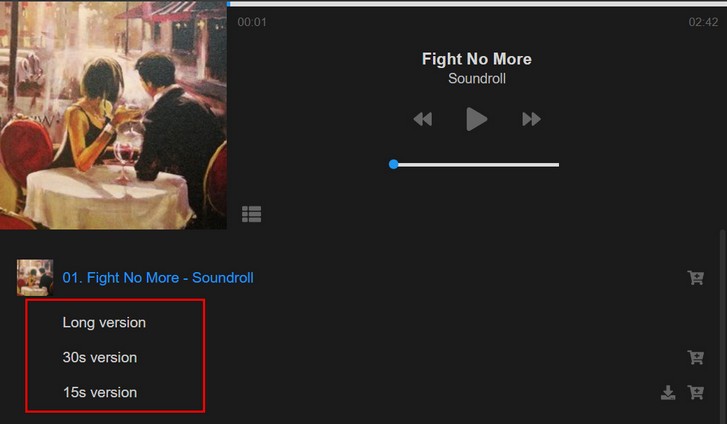
To achieve this add hap-audio-variations div inside hap-playlist-item. This example has 3 variations.
 <div class="hap-playlist-item" data-type="audio" data-path="media/audio/2/03.mp3" data-artist="Soundroll" data-title="Fight No More">

    <div class="hap-audio-variations">
        <div class="hap-audio-variation" data-path="media/audio/2/03.mp3">
            <div class="hap-audio-variation-title">Long version</div>
        </div>

        <div class="hap-audio-variation" data-path="media/audio/2/03_30s.mp3">
            <div class="hap-audio-variation-title">30s version</div>
        </div>

        <div class="hap-audio-variation" data-path="media/audio/2/03_15s.mp3">
            <div class="hap-audio-variation-title">15s version</div>
    </div>

</div>
Note that you can attach url and download link to each variation as well (with data-link, data-download on hap-audio-variation).
 <div class="hap-playlist-item" data-type="audio" data-path="media/audio/2/03.mp3" data-artist="Soundroll" data-title="Fight No More">

    <div class="hap-audio-variations">

        <div class="hap-audio-variation" data-path="media/audio/2/03_15s.mp3" data-download="media/audio/2/03_15s.mp3" data-link="http://www.google.com" data-target="_blank" data-rel="nofollow">
            <div class="hap-audio-variation-title">15s version</div>
        </div>

    </div>

</div>
Or alternatively, you can write HTML for icons yourself (div class="hap-playlist-icons"):
 <div class="hap-playlist-item" data-type="audio" data-path="media/audio/2/03.mp3" data-artist="Soundroll" data-title="Fight No More">

    <div class="hap-audio-variations">

        <div class="hap-audio-variation" data-path="media/audio/2/03_15s.mp3">
            <div class="hap-audio-variation-title">15s version</div>

            <div class="hap-playlist-icons">

                <a class="hap-playlist-icon hap-download" href="media/audio/2/03.mp3" download="" title="Download variation" aria-label="Download"><svg aria-hidden="true" focusable="false" role="img" viewBox="0 0 512 512"><path d="M216 0h80c13.3 0 24 10.7 24 24v168h87.7c17.8 0 26.7 21.5 14.1 34.1L269.7 378.3c-7.5 7.5-19.8 7.5-27.3 0L90.1 226.1c-12.6-12.6-3.7-34.1 14.1-34.1H192V24c0-13.3 10.7-24 24-24zm296 376v112c0 13.3-10.7 24-24 24H24c-13.3 0-24-10.7-24-24V376c0-13.3 10.7-24 24-24h146.7l49 49c20.1 20.1 52.5 20.1 72.6 0l49-49H488c13.3 0 24 10.7 24 24zm-124 88c0-11-9-20-20-20s-20 9-20 20 9 20 20 20 20-9 20-20zm64 0c0-11-9-20-20-20s-20 9-20 20 9 20 20 20 20-9 20-20z"></path></svg></a>

                <a class="hap-playlist-icon hap-link" href="http://www.google.com" target="_blank" title="Purchase variation" aria-label="Purchase" rel="nofollow"><svg aria-hidden="true" focusable="false" role="img" viewBox="0 0 576 512"><path d="M504.717 320H211.572l6.545 32h268.418c15.401 0 26.816 14.301 23.403 29.319l-5.517 24.276C523.112 414.668 536 433.828 536 456c0 31.202-25.519 56.444-56.824 55.994-29.823-.429-54.35-24.631-55.155-54.447-.44-16.287 6.085-31.049 16.803-41.548H231.176C241.553 426.165 248 440.326 248 456c0 31.813-26.528 57.431-58.67 55.938-28.54-1.325-51.751-24.385-53.251-52.917-1.158-22.034 10.436-41.455 28.051-51.586L93.883 64H24C10.745 64 0 53.255 0 40V24C0 10.745 10.745 0 24 0h102.529c11.401 0 21.228 8.021 23.513 19.19L159.208 64H551.99c15.401 0 26.816 14.301 23.403 29.319l-47.273 208C525.637 312.246 515.923 320 504.717 320zM408 168h-48v-40c0-8.837-7.163-16-16-16h-16c-8.837 0-16 7.163-16 16v40h-48c-8.837 0-16 7.163-16 16v16c0 8.837 7.163 16 16 16h48v40c0 8.837 7.163 16 16 16h16c8.837 0 16-7.163 16-16v-40h48c8.837 0 16-7.163 16-16v-16c0-8.837-7.163-16-16-16z"></path></svg></a>

            </div>

        </div>
    </div>

</div>
Parameters:
| Parameter | Required | Value |
|---|---|---|
| data-path | yes | audio url (only single audio url are supported as variation audio) |
| data-download | custom download path | |
| data-link | variation item url link | |
| data-target | http://www.w3schools.com/tags/att_a_target.asp | |
| data-rel | variation item url rel attribute |
Settings for variation:
| Parameter | Required | Value |
|---|---|---|
| variationToggleSpeed | number, default 300 | Speed which accordion with variations opens |
| playVariationInSequence | true / false | Play variations after main songs ends. After all variations have played, playlist will continue to next song. |
Audio advertising
There are 2 different kinds of adverts supported in the player (normal adverts and vast).
Normal adverts
3 types of normal ads exist. Ads before main song start (ad pre), ads during main song play in specified interval (ad mid), ads after main song ends (ad end). Multiple ads are supported (meaning you can have multiple ad pre, ad mid, ad end).
Example ad pre:
<div id="playlist-1">
    <div class="hap-playlist-item" data-type="audio" data-path="media/audio/1/01.mp3" data-ad-pre="media/ads/human1.mp3"></div>
</div>
Example multiple ad pre:
<div id="playlist-1">
    <div class="hap-playlist-item" data-type="audio" data-path="media/audio/1/01.mp3" data-ad-pre="media/ads/human1.mp3,media/ads/human2.mp3,media/ads/human3.mp3"></div>
</div>
Example ad mid every 10 seconds:
<div id="playlist-1">
    <div class="hap-playlist-item" data-type="audio" data-path="media/audio/1/01.mp3" data-ad-mid="media/ads/bong.mp3" data-ad-mid-interval="10000"></div>
</div>
Example ad end:
<div id="playlist-1">
    <div class="hap-playlist-item" data-type="audio" data-path="media/audio/1/01.mp3" data-ad-end="media/ads/human3.mp3"></div>
</div>
Parameters:
| Parameter | Value |
|---|---|
| data-ad-pre | ad pre audio url |
| data-ad-mid | ad mid audio url |
| data-ad-mid-interval | interval in which ad plays (miliseconds) |
| data-ad-end | ad end audio url |
| data-shuffle-ads | Shuffle ad order for each individual ad type. For example, if you have multiple ad-pre, it will shuffle them. |
You can also specify audio ads in global playlist options
Available settings for ads:
| Parameter | Value | |
|---|---|---|
| pauseAudioDuringAds | true,false | Pause main audio while audio ad mid plays. |
Vast
Vast adverts
Vast adverts use Google IMA SDK https://developers.google.com/interactive-media-ads/docs/sdks/html5/client-side
Supported adverts are type non inline. Ima sample tags available here: https://developers.google.com/interactive-media-ads/docs/sdks/html5/client-side/tags
Example of vast (data-vast attribute) added to song with data-vast attribute:
<div class="hap-playlist-item" data-type="audio" data-path="media/audio/2/02.mp3" data-artist="" data-title="song tille here" data-thumb="media/thumb/art/01.jpg" data-vast="https://pubads.g.doubleclick.net/gampad/ads?iu=/21775744923/external/vmap_ad_samples&sz=640x480&cust_params=sample_ar%3Dpremidpost&ciu_szs=300x250&gdfp_req=1&ad_rule=1&output=vmap&unviewed_position_start=1&env=vp&impl=s&cmsid=496&vid=short_onecue&correlator="></div>
How to apply one vast url for all songs in playlist?
You can also ad vast url inside global playlist data and then this vast url will be aplied to every song in the playlist. Example:
<div id="hap-playlist-list">

    <div class="playlist-test">

        <div class="hap-playlist-options" data-vast="VAST_URL_HERE"></div>

        <div class="hap-playlist-item" data-type="audio" data-path="AUDIO_URL" title="First song"></div>

        <div class="hap-playlist-item" data-type="audio" data-path="AUDIO_URL" title="Second song"></div>

        <div class="hap-playlist-item" data-type="audio" data-path="AUDIO_URL" title="Third song"></div>

    </div>

</div>
Using skip button
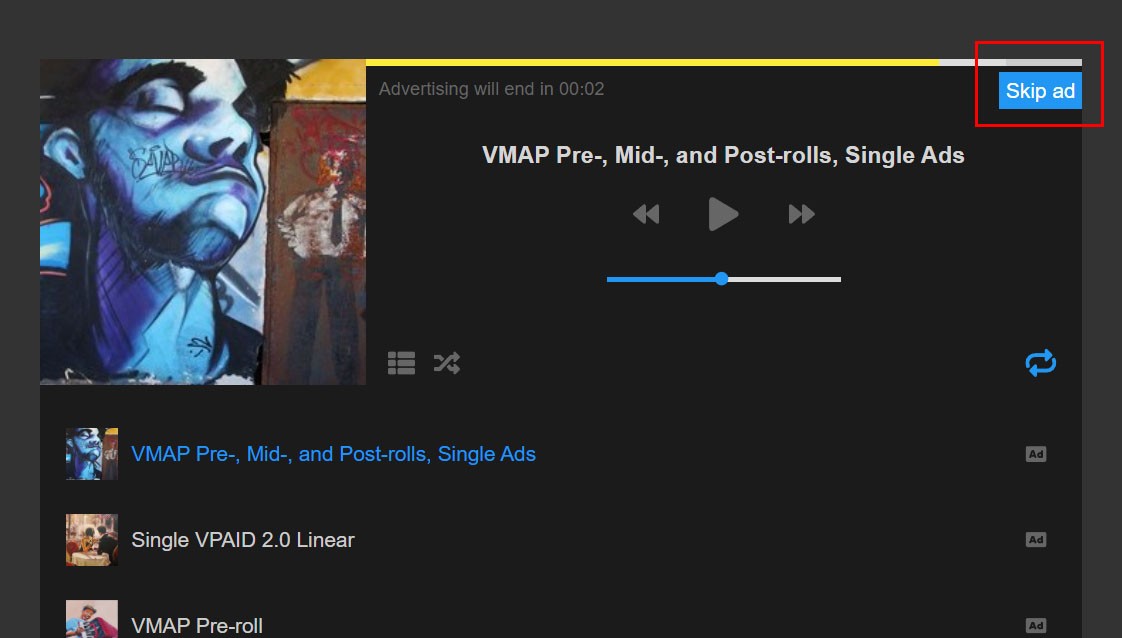
Skip button can be used with VAST ads. To use skip button do the following:
Place button HTML somewhere in the player:
<div class="hap-ad-skip">Skip ad</div>
Add CSS:
.hap-ad-skip{
    display: block;
    color: #fff;
    position: absolute;
    background: #2196f3;
    right: 0;
    top: 10px;
    cursor: pointer;
    transition: opacity .3s ease-out;
    padding: 5px;
    display: none;
}
.hap-ad-skip:hover{
    opacity: 0.9;
}
Activate button with following:
| Parameter | Value | Description |
|---|---|---|
| useImaSkipButton | true,false | Use skip button |
Button will appear if and when ad is skippable!
Playlist selector
Using playlist selector
Player can contain playlist selector icon, which when clicked will open fullscreen thumbnail playlist selector. Clicking on each thumbnail will load new playlist inside the player.

Demo which has this implemented is playlist_selector.html
Requirements (how to create)
1. Add to settings:
usePlaylistSelector:true
2. Include button in player to toggle playlist selector:
<div class="hap-playlist-selector-toggle hap-contr-btn" data-tooltip="Playlist selection">
    <svg aria-hidden="true" focusable="false" role="img" viewBox="0 0 448 512"><path d="M192 32H0V224H192V32zm0 256H0V480H192V288zM256 32V224H448V32H256zM448 288H256V480H448V288z"/></svg>
</div>
3. Include playlist selector HTML inside player div:
<div class="hap-playlist-selector-container">
    <div class="hap-playlist-selector-inner-scroll">
        <div class="hap-playlist-selector-inner">

            <div class="hap-playlist-selector-item" data-thumb="media/playlist_selector/trance.jpg" data-title="Trance mixes" data-description="Genre of electronic dance music that emerged from the British new-age music scene." data-playlist-id="#playlist-trance"></div>

            <div class="hap-playlist-selector-item" data-thumb="media/playlist_selector/marcozannone.jpg" data-title="New Age" data-description="New Age is a range of spiritual or religious practices and beliefs which rapidly grew in Western society during the early 1970s." data-playlist-id="#playlist-new-age"></div>

            <div class="hap-playlist-selector-item" data-thumb="media/playlist_selector/soundroll.jpg" data-title="Soundroll" data-description="Soundroll produces royalty free music for video projects, TV show, commercial and advertising." data-playlist-id="#playlist-soundroll"></div>

            <div class="hap-playlist-selector-item" data-thumb="media/playlist_selector/tim-mcmorris.jpg" data-title="Tim Mcmorris" data-description="Listen to music by Tim McMorris." data-playlist-id="#playlist-tim-mcmorris"></div>

        </div>
        <div class="hap-playlist-selector-filter-msg"><span>NOTHING FOUND!</span></div>
    </div>
    <div class="hap-playlist-selector-header">
        <input type="text" class="hap-playlist-selector-search" placeholder="Search..">
        <div class="hap-playlist-selector-close" title="Close">
            <svg aria-hidden="true" focusable="false" role="img" viewBox="0 0 320 512"><path d="M317.7 402.3c3.125 3.125 3.125 8.188 0 11.31c-3.127 3.127-8.186 3.127-11.31 0L160 267.3l-146.3 146.3c-3.127 3.127-8.186 3.127-11.31 0c-3.125-3.125-3.125-8.188 0-11.31L148.7 256L2.344 109.7c-3.125-3.125-3.125-8.188 0-11.31s8.188-3.125 11.31 0L160 244.7l146.3-146.3c3.125-3.125 8.188-3.125 11.31 0s3.125 8.188 0 11.31L171.3 256L317.7 402.3z"/></svg>
        </div>
   </div>
</div>
This example above has 4 playlists defined. Playlist selector item has following attributes:
<div class="hap-playlist-selector-item" data-thumb="media/playlist_selector/soundroll.jpg" data-title="Soundroll" data-description="Soundroll produces royalty free music for video projects, TV show, commercial and advertising." data-playlist-id="#playlist-soundroll"></div>
data-thumb - playlist thumbnail
data-title - playlist title
data-description - playlist description
data-playlist-id - ID of the playlist from hap-playlist-list element
hap-playlist-list is explained in Working with playlist section.
Grid mode
Grid skins can create thumbnail grid in page. Its used in combination with sticky player at the page bottom. Clicking a thumbnail will play audio in sticky player. You have 3 grid styles available (description below thumbnail, description above thumbnail, description right of thumbnail). Grid can also be used without sticky player. Grid demos included are grid1.html, grid2.html, grid3.html
Sticky player
When using normal player in page, you can also activate sticky player which will be visible at page bottom at all times. Sticky player will play song from any active player in the page.
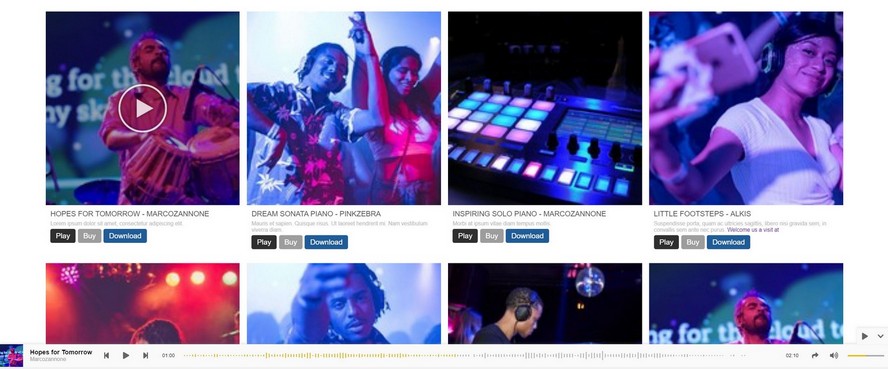
Sticky player requires following javascript and CSS code in HEAD tag:
<link rel="stylesheet" type="text/css" href="css/sticky.css"/>
<script type="text/javascript" src="js/sticky.js"/>
Setting available for sticky player.
| Parameter | Value | Description |
|---|---|---|
| useStickyPlayer | true,false | Use sticky player internally. You still need to include HTMl code for the sticky player in page. |
| stickyPlayerId | dom selector | Query selector for the sticky player. |
| waveBgColor | #9e9e9e | Waveform background color |
| waveProgressColor | #e4c000 | Waveform foreground color (song progress) |
| waveBarWidth | 1 | Width of the bars in waveform. If width of the bars is zero, waveform will look more like a smooth wave. |
| waveBarRadius | 0 | The radius that makes bars rounded |
| waveBarGap | 5 | The optional spacing between bars of the wave, if not provided will be calculated in legacy format. |
| useTitleAnimationInSticky | true,false | Animate song title, artist on hover if title or artist is too long. |
| autoResizeTitle | true,false | Auto resize song title area with javascript. You can turn this off if you want to apply just css |
Sticky classes:
hap-sticky-fixed  (full width sticky player)
hap-sticky-float (partial width sticky player)

hap-sticky-skin-light (light skin)
hap-sticky-skin-dark (dark skin)
Note: you can find sticky examples in following demos: grid_sticky_fixed.html, grid_sticky_float.html
To add sticky player to page, copy all html sticky player code from above mentioned demo, example:
<div id="hap-sticky" class="hap-sticky hap-sticky-fixed hap-sticky-skin-dark">

...rest of player code

</div>
Audio waveform
Using audio waveform as seekbar.
Some player skins have audio waveform as seekbar (sticky player, epic, epic mini, wave).
There are several way to create waveform:
1. Standard way (auto create waveform when audio plays):
<div class="hap-playlist-item" data-type="audio" data-mp3="media/audio/1/Tim_McMorris_-_Successful_Business_Venture.mp3"></div>
When first time audio plays, waveform is created automatically, and plugin will save wave peak file in peaks folder. Next time when the same audio file is loaded, it will just draw wavefrom from that saved peak file, so waveform is going to be available immediatelly every other time this audio is used.
Title for peak file is by default created from audio title. Another option is to use data-peak-name attribute and define peak name you want for each audio file. If song title contains special characters, its advised to use data-peak-name attribute with only safe characters (a-z, A-Z ,0-9).
Example of custom peak name:
<div class="hap-playlist-item" data-type="audio" data-mp3="media/audio/1/Tim_McMorris_-_Successful_Business_Venture.mp3" data-peak-name="my-peak1"></div>
Note that there is a browser limit on how large audio file can be for a waveform to be sucessfuly created. If the file is too large, browser may not have enough memory to succeed. If you have trouble with waveform creation using this method, try to use smaller audio files in mp3 format, or try creating waveforms again.
2. Provide waveform data with data-peaks attribute
You can manually provide waveform data with data-peaks attribute, in which case player will use that for waveform:
<div class="hap-playlist-item" data-type="audio" data-mp3="media/audio/1/Tim_McMorris_-_Successful_Business_Venture.mp3" data-peaks="0.0218, 0.0183, 0.0165, 0.0198, 0.2137, 0.2888, 0.2313, 0.15, 0.2542, 0.2538, 0.2358, 0.1195, 0.1591, 0.2599, 0.2742, 0.1447, 0.2328, 0.1878, 0.1988, 0.1645, 0.1218, 0.2005, 0.2828, 0.2051, 0.1664, 0.1181, 0.1621, 0.2966, 0.189, 0.246, 0.2445, 0.1621, 0.1618, 0.189, 0.2354, 0.1561, 0.1638, 0.2799, 0.0923, 0.1659, 0.1675, 0.1268, 0.0984, 0.0997, 0.1248, 0.1495, 0.1431, 0.1236, 0.1755, 0.1183, 0.1349, 0.1018, 0.1109, 0.1833, 0.1813, 0.1422, 0.0961, 0.1191, 0.0791, 0.0631, 0.0315, 0.0157, 0.0166, 0.0108"></div>
Waveform from remote sources
For player to create waveform automatically (if you dont provide waveform data with data-peaks attribute) its necessary for audio file to be located on the same server as the player. This means if you want to have waveform data for sources like Podcast or Soundcloud for example, you need to add data-remote attribute to song! This tells the player to first try to download the file and then create waveform from it. Example:
<div class="hap-playlist-item" data-type="podcast" data-path="http://robertkelly.libsyn.com/rss" data-remote></div>
This process may fail (file download or creating waveform for very large files). In which case you can provide backup "fake" peak data using demoPeakArr in settings and player will use this as a backup waveform. You can provide multiple and they will be randomized each time.
demoPeakArr:[

'0.05,-0.11,0.27,-0.57,0.19,-0.12,0.14,-0.12,0.13,-0.07,0.11,-0.11,0.12,-0.14,0.31,-0.16,0.29,-0.09,0.15,-0.24,0.18,-0.45,0.3,-0.16,0.24,-0.1,0.1,-0.2,0.16,-0.13,0.12,-0.13,0.34,-0.13,0.44,-0.22,0.54,-0.32,0.48,-0.24,0.57,-0.51,0.54,-0.42,0.22,-0.44,0.31,-0.37,0.58,-0.57,0.58,-0.69,0.75,-0.41,0.41,-0.22,0.66,-0.68,0.64,-0.36,0.42,-0.41,0.34,-0.56,0.37,-0.38,0.33,-0.49,0.38,-0.37,0.41,-0.4,0.55,-0.58,0.4,-0.33,0.35,-0.43,0.16,-0.26,0.26,-0.33,0.38,-0.3,0.23,-0.56,0.52,-0.39,0.41,-0.89,0.49,-0.36,0.43,-0.42,0.35,-0.36,0.48,-0.28,0.34,-0.35,0.78,-0.18,0.63,-0.43,0.13,-0.34,0.18,-0.44,0.35,-0.14,0.22,-0.36,0.26,-0.13,0.28,-0.31,0.31,-0.32,0.29,-0.33,0.26,-0.27,0.36,-0.21,0.16,-0.28,0.55,-0.34,0.38,-0.42,0.53,-0.71,0.56,-0.65,0.81,-0.55,0.55,-0.46,0.67,-0.71,0.96,-0.89,0.88,-0.54,0.65,-0.51,0.55,-0.47,0.79,-0.34,0.66,-0.45,0.57,-0.73,0.66,-0.71,0.59,-0.77,0.64,-0.32,0.65,-0.22,0.5,-0.7,0.62,-0.67,0.52,-0.57,0.8,-0.5,0.69,-0.67,0.79,-0.63,0.63,-0.8,0.78,-0.59,0.73,-0.6,0.65,-0.72,0.8,-0.65,0.84,-0.74,0.64,-0.56,0.75,-0.81,0.42,-0.19,0.25,-0.15,0.1,-0.04,0.07,-0.11,0.08,-0.06',

'0.09,-0.09,0.16,-0.12,0.14,-0.28,0.18,-0.31,0.26,-0.29,0.34,-0.3,0.32,-0.2,0.44,-0.22,0.34,-0.28,0.22,-0.19,0.18,-0.29,0.26,-0.21,0.3,-0.14,0.23,-0.17,0.2,-0.36,0.26,-0.19,0.28,-0.2,0.16,-0.19,0.33,-0.15,0.27,-0.21,0.3,-0.35,0.23,-0.3,0.55,-0.35,0.49,-0.32,0.61,-0.35,0.28,-0.2,0.27,-0.26,0.41,-0.38,0.39,-0.3,0.29,-0.26,0.37,-0.44,0.22,-0.22,0.52,-0.25,0.24,-0.31,0.35,-0.26,0.53,-0.32,0.33,-0.32,0.36,-0.25,0.42,-0.14,0.46,-0.29,0.28,-0.2,0.22,-0.28,0.25,-0.29,0.3,-0.34,0.41,-0.36,0.3,-0.48,0.64,-0.49,0.21,-0.29,0.36,-0.47,0.33,-0.39,0.36,-0.63,0.17,-0.47,0.43,-0.58,0.41,-0.58,0.54,-0.31,0.47,-0.55,0.5,-0.45,0.78,-0.44,0.13,-0.51,0.46,-0.58,0.48,-0.19,0.51,-0.18,0.39,-0.03,0.28,-0.16,0.17,-0.3,0.24,-0.22,0.27,-0.28,0.35,-0.39,0.63,-0.3,0.55,-0.46,0.84,-0.51,0.62,-0.86,0.59,-0.59,0.59,-0.61,0.7,-0.42,0.64,-0.43,0.6,-0.44,0.58,-0.62,0.58,-0.5,0.58,-0.55,0.62,-0.54,0.57,-0.36,0.54,-0.71,0.49,-0.39,0.43,-0.47,0.7,-0.66,0.78,-0.37,0.57,-0.57,0.31,-0.58,0.41,-0.72,0.53,-0.66,0.57,-0.49,0.51,-0.67,0.45,-0.6,0.41,-0.7,0.81,-0.56,0.66,-0.55,0.46,-0.75,0.52,-0.54,0.37,-0.33'

]
Waveform style
Here are couple of waveform examples, to create such waveforms use following settings:

Settings:
waveBarWidth: 5,
waveBarRadius: 3,
waveBarGap: 5,
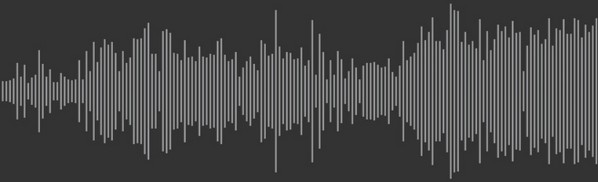
Settings:
waveBarWidth: 1,
waveBarRadius: 0,
waveBarGap: 5
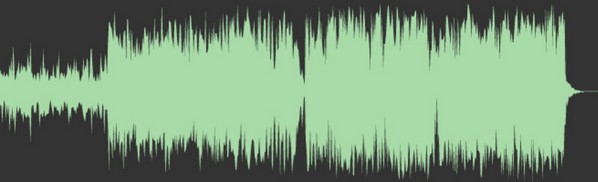
Settings:
waveBarWidth: 0,
waveBarRadius: 0,
waveBarGap: 0,
Using waveform seekbar in other skins
Some player skins have audio waveform as seekbar (sticky player, epic, epic mini, wave).
If you want to use wavefor seekbar in some other skins, you need to use this HTML in player:
<div class="hap-seekbar">
    <div class="hap-seekbar-wave">
        <div class="hap-seekbar-wave-progress"></div>
    </div>

    <div class="hap-waveform-loader">
        <div>Creating waveform...</div>
    </div>
</div>
Instead of "standard" seekbar:
<div class="hap-seekbar">
    <div class="hap-progress-bg">
        <div class="hap-load-level">
            <div class="hap-progress-level"></div>
        </div>
    </div>
</div>
And use waveform settings:
waveBgColor: "#9e9e9e",
waveProgressColor: "#e91e63",
waveBarWidth: "1",
waveBarRadius: "0",
waveBarGap: 5,
Playlist scroll
Using scroll in playlist
Available options for scroll in playlist are:
Requires css and js files in head:
<link rel="stylesheet" type="text/css" href="css/perfect-scrollbar.css"/>
<script type="text/javascript" src="js/perfect-scrollbar.min.js"/>
2. Use default browser scrollbar
Settings available:
| Parameter | Required | Value |
|---|---|---|
| usePlaylistScroll | true,false | Use scrollbar in playlist |
| playlistScrollType | perfect-scrollbar / browser | Choose which playlist scroll to use. You can choose between PerfectScrollbar and default browser scroll |
| playlistScrollOrientation | vertical / horizontal | Playlist scroll orientation |
Lyrics
Using song lyrics
Supported lyrics extensions are lrc, vtt, srt. Lyrics can be added as single or multiple languages.
Using lyrics with single language
Provide url to lyrics file with data-lyrics attribute:
<div class="hap-playlist-item" data-type="audio" data-path="MP3_URL" data-lyrics="URL_TO_LYRICS_FILE" ></div>
Lyrics file needs to be located on the same domain.
Using lyrics with multiple languages
Add multiple lyrics items in hap-lyrics-data:
<div class="hap-playlist-item" data-type="audio" data-path="MP3_URL">

    <div class="hap-lyrics-data">
        <div class="hap-lyrics-item-data" data-lang="en" data-label="English" data-path="URL_TO_LYRICS_FILE" ></div>

        <div class="hap-lyrics-item-data" data-lang="de" data-label="Deutsch - German" data-path="URL_TO_LYRICS_FILE2" data-default="1"></div>

        <div class="hap-lyrics-item-data" data-lang="fr" data-label="Français - French" data-path="URL_TO_LYRICS_FILE3" ></div>
    </div>

</div>
Parameters:
| Parameter | Value | Description |
|---|---|---|
| data-lang | language code. https://en.wikipedia.org/wiki/List_of_ISO_639_language_codes | |
| data-label | Menu label | |
| data-path | Url to lyrics file (needs to be on the same server) | |
| data-default | 1 | make language default on start (optional). Note that this will be overwritten if you have lyricsRememberLang set true. |
Available settings for lyrics:
| Parameter | Value | Description |
|---|---|---|
| lyricsAutoOpen | true,false | Auto open lyrics dialog on song start |
| lyricsAutoScroll | true,false | Auto scroll lyrics |
| lyricsWrap | id or classname | Custom outer container for lyrics. Use this if you want to place lyrics in your own custom HTML element. |
| lyricsContainer | id or classname | Custom inner container for lyrics |
| lyricsRememberLang | true,false | Remember lyrics language in browser if you use mulitple languages. This means if you change song last used language will try to be used on page / song load. |
You can find lyrics examples in content / data / lyrics directory.
How to set custom container for lyrics?
Lyrics by default is placed in hap-lyrics-holder dialog. You can specify your own HTML element where to place lyrics (and then style it optionally with CSS). To specify your own HTML element for lyrics use this in settings:
lyricsWrap: "#my-lyrics-wrap",
lyricsContainer: "#my-lyrics-container",
Add HTML in page:
<div id="my-lyrics-wrap"><div id="my-lyrics-container"> lyrics will be created here </div></div>
Playback rate
Using audio playback rate (speed)
2 types of playback rate can be used: slider and button. Slider changes playback rate by sliding, while button on click.
To use playback rate add button in player and slider holder (if slider version is used).
Slider version
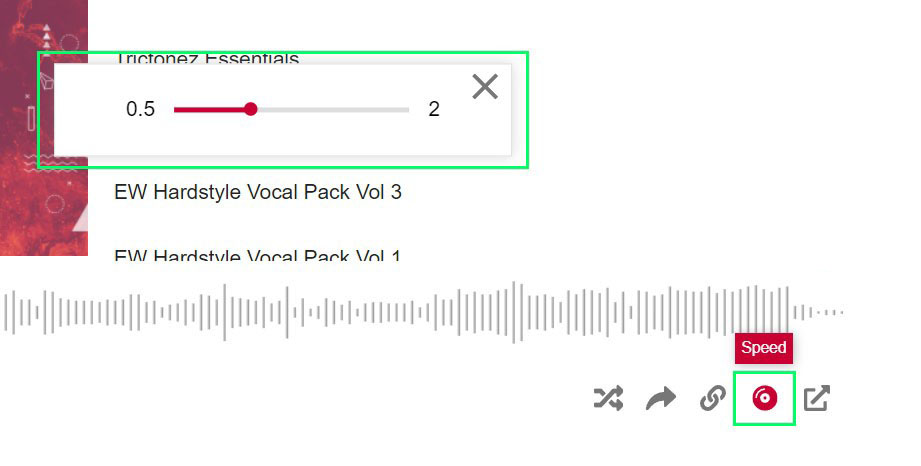
Add button in controls:
<button type="button" class="hap-playback-rate-toggle hap-btn-reset hap-contr-btn" data-tooltip="Speed">
    <svg role="img" viewBox="0 0 496 512"><path d="M248 8C111 8 0 119 0 256s111 248 248 248 248-111 248-248S385 8 248 8zM88 256H56c0-105.9 86.1-192 192-192v32c-88.2 0-160 71.8-160 160zm160 96c-53 0-96-43-96-96s43-96 96-96 96 43 96 96-43 96-96 96zm0-128c-17.7 0-32 14.3-32 32s14.3 32 32 32 32-14.3 32-32-14.3-32-32-32z"></path></svg>
</button>
Add slider holder:
<div class="hap-playback-rate-holder">

    <div class="hap-playback-rate-wrap">
        <div class="hap-playback-rate-min"></div>
        <div class="hap-playback-rate-seekbar">
             <div class="hap-playback-rate-bg">
                <div class="hap-playback-rate-level"><div class="hap-playback-rate-drag"></div></div>
             </div>
        </div>
        <div class="hap-playback-rate-max"></div>
    </div>

    <button type="button" class="hap-playback-rate-close hap-btn-reset hap-contr-btn" data-tooltip="Close">
        <svg aria-hidden="true" focusable="false" role="img" viewBox="0 0 320 512"><path d="M292.6 166.6L315.3 144 270 98.7l-22.6 22.6L158 210.7 68.6 121.4 46 98.7 .7 144l22.6 22.6L112.7 256 23.4 345.4 .7 368 46 413.3l22.6-22.6L158 301.3l89.4 89.4L270 413.3 315.3 368l-22.6-22.6L203.3 256l89.4-89.4z"/></svg>
    </button>

</div>
Button version
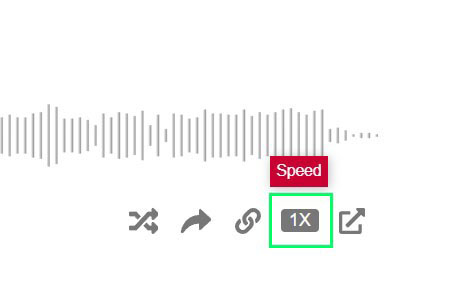
Add button in controls:
<button type="button" class="hap-playback-rate-toggle-num hap-btn-reset hap-contr-btn" data-tooltip="Speed">
    <span class="hap-playback-rate-toggle-inner">1X</span>
</button>
You can specify values for playback rate in settings:
Slider version
playbackRateMin: 0.5,
playbackRateMax: 2,
Minimum and maximum playback rate.
Button version
playbackRateArr:[0.5,1,1.2,1.5,2]
List of playback rates that are looped while button playback rate is being clicked.
Notes:
Make sure you stick to valid playback rates!
Some demos may not have this playback button implemented, in which case you are welcome to contact is and we will include it in that skin (its only matter of copying html and css to that demo somewhere in player markup, no javascript involved).
Video sync
Syncronize video with playing audio.
Add video in same duration as playing audio and video will be syncronized with audio as it plays.
Provide url to video file with data-video attribute:
<div class="hap-playlist-item" data-type="audio" data-path="AUDIO_URL" data-video="URL_TO_VIDEO" ></div>
Available settings:
| Parameter | Value | Description |
|---|---|---|
| videoAutoOpen | true,false | Auto open video dialog on song start |
| useVideoControls | true,false | Use video controls |
| useVideoFullscreen | true,false | Use fullscreen button in video. useVideoControls needs to be true for this to work. |
| useVideoPictureInPicture | true,false | Use picture in picture button in video. useVideoControls needs to be true for this to work. |
| useVideoDownload | true,false | Use download button in video. useVideoControls needs to be true for this to work. |
Query string parameters
Using query string parameters. Rules:
- must include hap-query-instance=INSTANCE_NAME so player can be recognized (INSTANCE_NAME is from settings)
- all parameters begins with "hap-"
- replace parameter camelCase with dash
use + instead of space
use comma for array values
Player settings example:
www.domain.com/some-page?hap-query-instance=INSTANCE_NAME&hap-volume=1&hap-active-item=5&hap-loop-state=playlist&hap-download-icon-title=some+title+here&hap-playlist-item-content=title,thumb
For parameters check configuration
How to create a playlist from query string?
Create audio playlist:
www.domain.com/some-page?hap-query-instance=INSTANCE_NAME&hap-type=audio,audio&hap-path=media/audio/1/01.mp3,media/audio/1/02.mp3&hap-thumb=media/thumb/1/01.jpg,media/thumb/1/02.jpg&hap-title=Driving+In+My+Car,A+Way+To+The+Top&hap-artist=Soundroll,Soundroll
For parameters check audio section (remove data- from parameter)
You need to have the same number of properties! (so for each audio in url same number of thumb, same number of title etc..)
Create podcast playlist:
www.domain.com/some-page?hap-query-instance=INSTANCE_NAME&hap-type=podcast&hap-path=http://www.kingola.com/feed/podcast/&hap-limit=11&hap-thumb-default=URL_TO_DEFAULT_THUMB
For parameters check podcast section (remove data- from parameter)
Create soundcloud playlist:
www.domain.com/some-page?hap-query-instance=INSTANCE_NAME&hap-type=soundcloud&hap-path=http://soundcloud.com/astateoftrance&hap-limit=11&hap-thumb-default=URL_TO_DEFAULT_THUMB&hap-load-more=true
For parameters check soundcloud section (remove data- from parameter)
The same can be done with other media types, just check each section in Working with media
Password protected content
Setting password on a song will prevent user from listening or downloading a song unless he enters valid password in password popup dialog:
To set password to view specific media add data-pwd attribute to playlist item, password example here is "123":
<div class="hap-playlist-item" data-type="audio" data-path="SONG_URL" data-pwd="202cb962ac59075b964b07152d234b70"></div>
To make password use md5 Hash Generator:
http://www.miraclesalad.com/webtools/md5.phpEnter your password and use hash in data-pwd attribute.
Password can also be defined in global playlist data (apply for every song in playlist).
Notes
Password cannot be used when song audio crossfade is used!
Audio crossfade
You can use option to crossfade between current and next playing song.
To activate this option add following settings:
useCrossFade:true,
crossFadeTime:10,
Available settings:
| Parameter | Value | description |
|---|---|---|
| useCrossFade | true / false | Use audio crossfade |
| crossFadeTime | seconds | How many seconds for crossfade to last between 2 songs. |
Note that crossfade has some limitations:
1. Crossfade in only available for media type audio.

2. Audio will only crossfade when playback auto advances to next song on its own (it will not crossfade when user clicks next button song in player or other playlist item). Crossfade will get canceled if user seeks through audio.

3. Crossfade cannot work if you have audio ads defined on the song (pre advert / end advert)

4. Crossfade cannot work if song has start or end time defined (the same goes if AB loop is used)

5. Crossfade cannot work with song variations

6. Crossfade cannot work on IOS because volume cannot be controlled with javascript on IOS devices:

Volume cannot control the on Apple IOS with javascript, you have to use the physical button on the actual phone: Volume Control in JavaScript
You can use crossfade.html demo for test.
Continous playback
How to remember song last played position on page reload?
Available settings:
| Parameter | Value | description |
|---|---|---|
| useContinousPlayback | true,false | Option for continous playback across different pages by remembering playback position using localStorage (remembers active playlist, active song, played time, volume). |
| continousKey | continous playback key. Unique string for localStorage continous playback (using local storage). Has to be unique per player. String, no spacing or special characters! Player has its own internal key so you dont need to set this key if you only use one playe rin page, but if you have multiple players and you want to remember playback for all of them, then set unique keys for each. | |
| continousPlaybackTrackAllSongs | true,false | By default continous playback only remembers song time for last played song. If continousPlaybackTrackAllSongs is true, continous playback will remember last song time for every song in playlist so next time you load this playlist, each song can resume from last position. Useful if you have playlist with long songs like podcast / book audio or similar and you want to continue each song from last played position. Note: this only applies to last used playlist. |
Other option for continous playback is to use popup window feature. Check popup section for more info.
Autoplay in viewport
To make the player autoplay when user scroll the page and audio player enters into view use the following settings:
Settings available:
| Parameter | Required | Value |
|---|---|---|
| autoPlayInViewport | true / false | Start playing media when player is visible on the page by user scrolling. |
Note that for autoplay to work, user needs to interact with the page beforehand (mouse click, use keyboard or use browser scroll), so if this action has not happened and the player is already in viewport, autoplay might not be possible since browsers prevent autoplay without user interaction: https://developers.google.com/web/updates/2017/09/autoplay-policy-changes
Demo which has this implemented in autoplay_viewport.html
Open in Popup window
Note: when using player in popup, its restricted to one player per page.
To open popup manually on click add element class="hap-popup-toggle" in player html:
<div class="hap-popup-toggle" data-tooltip="Open in popup">...icon here...</div>
Using popup feature requires popup.html file in the same directory where player folders are located (js, css, includes..)
In popup.html file in head tag set link to css file of the player, for example:
<link rel="stylesheet" type="text/css" href="css/artwork.css"/>
Or alternatively, set cssUrl in settings:
cssUrl: "css/artwork.css"
Open popup automatically
To open player in popup on start (automatically or by clicking DOM element) without initializing the player in page beforehand do this (example from auto_open_popup_window.html):
settings.popupWidth = 800;//choose popup size
settings.popupHeight = 500;

hap_player_auto_instance = {};
hap_player_auto_instance.settings = settings;//add settings
hap_player_auto_instance.wrapper = document.getElementById("hap-wrapper");//add player wrapper element

hapOpenPopup(settings);//call open popup
Open popup on click
Check demo open_popup_on_click.html
Use player api with popup window
To use the api later from parent window when player is opened in popup:
settings.instanceName = 'player1'//settings has instanceName
<a href="#" onClick="window['player1'].nextMedia(); return false;">Play next media</a>
Check demo open_popup_on_click.html for some api examples with popup window.
Popup window settings
| Parameter | Value | description |
|---|---|---|
| popupWidth | number px | Specify popup window width. If not specified it will automatically nbe calculated from the player original size. If you use auto open popup window option, its advised to set popupWidth and popupHeight because player original size is not known on start. |
| popupHeight | number px | Specify popup window height. If not specified it will automatically nbe calculated from the player original size. If you use auto open popup window option, its advised to set popupWidth and popupHeight because player original size is not known on start. |
| openPlayerInMainWindowAfterPopupClose | true / false | Reopen player in main window after popup window is closed. |
Hide player until music starts
It is possible to completely hide the player until music starts playing. Note that audio autoplay is not possible without user interaction, so this can only be used when user clicks an element in page (like a button) to play music.
This can be used for example if you have a fixed player to page bottom and you dont want it to be visible until music first starts playing. Demo example is fixed_hide_Player_Until_Music_Start.html
Settings used for this feature to work:
hidePlayerUntilMusicStart:true
Encryption
There are following ways to hide real audio url:
Encryption
You can encrypt audio urls with base64 to hide real url from page source.
To do so prepend the following string 'ebsfm:' before encrypted file path (using base64).
Example normal:
<div id="playlist-1">
    <div class="hap-playlist-item" data-type="audio" data-path="media/audio/1/01.mp3"></div>
</div>
Use any online free base64 tool like https://www.base64encode.org/ for encryption. Example when encrypted media/audio/1/01.mp3 becomes bWVkaWEvYXVkaW8vMS8wMS5tcDM=
<div id="playlist-1">
    <div class="hap-playlist-item" data-type="audio" data-path="ebsfm:bWVkaWEvYXVkaW8vMS8wMS5tcDM="></div>
</div>
Blob
To have audio as a blob, use following settings:
useBlob:true
This applies to html audio (mp3, wav, aac, flac etc..). This does not apply to Soudcloud, Podcast, Youtube etc..
Global playlist options
To add an option which will be applied for every item in playlist use hap-playlist-options div which is placed inside a playlist:
<div id="hap-playlist-list">

    <div id="playlist-audio1">
        <div class="hap-playlist-options" data-thumb-global="THUMB_URL_HERE" data-start="5" data-end="10" data-d-pre="" data-ad-pre="URL/TO/AUDIO/AD-PRE" data-ad-mid="URL/TO/AUDIO/AD-MID" data-ad-mid-interval="10000" data-ad-end="URL/TO/AUDIO/AD-END"></div>

        <div class="hap-playlist-item" data-type="audio" data-path="media/audio/1/01.mp3" data-artist="Tim McMorris" data-title="A Bright And Hopeful"></div>
        ...
    </div>

</div>
Options that are set on playlist global options will overwrite options that are set on each media (hap-playlist-item), EXCEPT for ads. Ads set on hap-playlist-item will take precedence over ads set in global playlist options.
Parameters:
| Parameter | Required | Value |
|---|---|---|
| data-thumb-global | Url to global thumbnail which will be applied for every track in playlist. | |
| data-download-global | Add global download url which will be available for download for the whole playlist. | |
| data-start | Enter media start time in seconds. | |
| data-end | Enter media end time in seconds. | |
| data-media-prefix-url | Add prefix url to your relative audio url and thumbnails. For example you load json or xml file as playlist and inside you have relative urls to audio and thumbnails and you want to prefix custom url to media. mediaPrefixUrl:'url/to/some/folder/' mp3:'path/to/mp3' final url = 'url/to/some/folder/path/to/mp3' |
|
| data-pwd | Set password to view media. |
Adverts global options
| Parameter | Required | Value |
|---|---|---|
| data-ad-pre | ad pre audio url | |
| data-ad-mid | ad mid audio url | |
| data-ad-mid-interval | interval in which ad plays (miliseconds) | |
| data-ad-end | ad end audio url | |
| data-shuffle-ads | Shuffle ad order for each individual ad type. For example, if you have multiple ad-pre, it will shuffle them. | |
| data-vast | Url to VAST advertizing file, mor einfo in vast section |
Song download
Option for song to be downloadable can be set using data-download attribute:
<div class="hap-playlist-item" data-type="audio" data-path="audio-url" data-download="download-url"></div>
download-url can be anything, not just audio.
When song has data-download attibutre set, download icon will appear in playlist next to song title.
It is also possible to set global download option in global playlist options , which will be available for every song in playlist.
Download method
Download method can be HTML download attribute or using PHP. Note that using PHP might be restricted on some servers, as some servers block execution of PHP scripts, which is required for download to work.
Use following in settings:
useServerDownload:true / false
Global download button
It possible to show global download buttton in the player which will be shown for every song that has download set.
| Parameter | Required | Value |
|---|---|---|
| useGlobalDownloadButton | true,false | Show global download button when song has download set using data-download attribute. Download button will appear in the player controls (depending on the skin). |
| globalDownloadBtnSelector | DOM selector (classname) | Specify in which element in the player to add global download button. For example: ".foo" |
Playlist song search
Searching for songs in playlist
Available settings:
| Parameter | Value | description |
|---|---|---|
| searchManually | true,false | Trigger Search songs in playlist by click. Requires button to trigger search. |
| searchManualWithEnterKey | true,false | Trigger Search by clicking enter. Only when searchManually is true. |
Add search field in player to search for songs:
<input class="hap-search-filter" type="search" placeholder="Search..">
Ajax search
By default searching using search field work automatically on text input.
Manual search
Searching manual on button click. This is recommended method. Requires button in player or search by enter key.
<input class="hap-search-filter" type="search" placeholder="Search..">

<button type="button" class="hap-btn-reset hap-contr-btn hap-search-execute" data-tooltip="Search.." >
    <svg viewBox="0 0 512 512"><path d="M416 208c0 45.9-14.9 88.3-40 122.7L486.6 441.4 509.3 464 464 509.3l-22.6-22.6L330.7 376c-34.4 25.2-76.8 40-122.7 40C93.1 416 0 322.9 0 208S93.1 0 208 0S416 93.1 416 208zM208 352a144 144 0 1 0 0-288 144 144 0 1 0 0 288z"></path></svg>
</button>
Voice search
Using Voice search to search songs in playlist
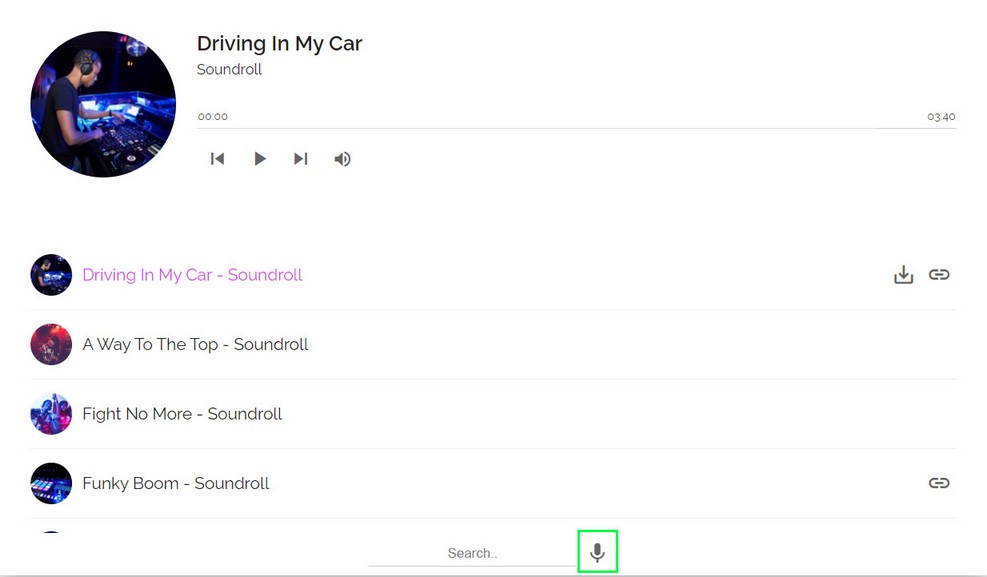
Note that voice search can only be used on supported browsers https://caniuse.com/speech-recognition
How to setup
Add microphone button in player (preferably next to search input field)
<button type="button" class="hap-btn-reset hap-contr-btn hap-voice-search-microphone-btn-main" data-tooltip="Search with your voice">
    <svg viewBox="0 0 384 512"><path d="M192 0C139 0 96 43 96 96V256c0 53 43 96 96 96s96-43 96-96V96c0-53-43-96-96-96zM64 216c0-13.3-10.7-24-24-24s-24 10.7-24 24v40c0 89.1 66.2 162.7 152 174.4V464H120c-13.3 0-24 10.7-24 24s10.7 24 24 24h72 72c13.3 0 24-10.7 24-24s-10.7-24-24-24H216V430.4c85.8-11.7 152-85.3 152-174.4V216c0-13.3-10.7-24-24-24s-24 10.7-24 24v40c0 70.7-57.3 128-128 128s-128-57.3-128-128V216z"/></svg>
</button>
Add search dialog which opens above player (somewhere on global level directly in wrapper element)
<div class="hap-voice-search-popup">
    <div class="hap-voice-search-popup-inner">

        <p class="hap-voice-search-popup-info hap-voice-search-popup-info-waiting">Waiting for permission</p>
        <p class="hap-voice-search-popup-info hap-voice-search-popup-info-listening">Listening...</p>
        <p class="hap-voice-search-popup-info hap-voice-search-popup-info-error">Didn't recognize that. Tap microphone to try again.</p>

        <button type="button" class="hap-btn-reset hap-contr-btn hap-voice-search-popup-close" data-tooltip="Close">
            <svg viewBox="0 0 320 512"><path d="M315.3 411.3c-6.253 6.253-16.37 6.253-22.63 0L160 278.6l-132.7 132.7c-6.253 6.253-16.37 6.253-22.63 0c-6.253-6.253-6.253-16.37 0-22.63L137.4 256L4.69 123.3c-6.253-6.253-6.253-16.37 0-22.63c6.253-6.253 16.37-6.253 22.63 0L160 233.4l132.7-132.7c6.253-6.253 16.37-6.253 22.63 0c6.253 6.253 6.253 16.37 0 22.63L182.6 256l132.7 132.7C321.6 394.9 321.6 405.1 315.3 411.3z"/></svg>
        </button>

        <div class="hap-voice-search-panel-bottom">

            <div class="hap-voice-search-microphone-btn-wrap">
                <div class="hap-voice-search-microphone-btn-pulse"></div>

                <button type="button" class="hap-btn-reset hap-contr-btn hap-voice-search-microphone-btn-popup" title="Search with your voice">
                    <svg viewBox="0 0 384 512"><path d="M192 0C139 0 96 43 96 96V256c0 53 43 96 96 96s96-43 96-96V96c0-53-43-96-96-96zM64 216c0-13.3-10.7-24-24-24s-24 10.7-24 24v40c0 89.1 66.2 162.7 152 174.4V464H120c-13.3 0-24 10.7-24 24s10.7 24 24 24h72 72c13.3 0 24-10.7 24-24s-10.7-24-24-24H216V430.4c85.8-11.7 152-85.3 152-174.4V216c0-13.3-10.7-24-24-24s-24 10.7-24 24v40c0 70.7-57.3 128-128 128s-128-57.3-128-128V216z"/></svg>
               </button>

            </div>
        </div>

    </div>
</div>
Add following in settings:
useVoiceSearch:true
Use relevant CSS (located in _global.css file)
.hap-voice-search-microphone-btn{
}
.hap-voice-search-popup{
    position: fixed;
    top: 0;
    left: 0;
    width: 100%;
    height: 100%;
    background-color: rgba(0,0,0,0.2);
    opacity: 0;
    display: none;
    transition: opacity 0.2s;
}
.hap-voice-search-popup-visible{
    opacity: 1;
}
.hap-voice-search-popup-inner{
    position: absolute;
    top: 50%;
    left: 50%;
    transform: translate(-50%, -50%);
    max-width: 500px;
    width: 100%;
    max-height: 300px;
    height: 100%;
    background-color: #fff;
    box-shadow: 0 16px 24px 2px rgba(0, 0, 0, 0.1);
}
.hap-voice-search-popup-close{
    position: absolute!important;
    top:10px;
    right: 10px;
    cursor: pointer;
}
.hap-voice-search-popup-info{
    font-size: 24px;
    position: relative;
    margin-left: 20px;
    margin-right: 20px;
    margin-top: 50px;
}
.hap-voice-search-popup-info{
    display: none;
}
.hap-voice-search-popup-info-waiting{
    display: block;
}
.hap-voice-search-panel-bottom{
    position: absolute;
    bottom: 0;
    display: flex;
    width: 100%;
    margin-bottom: 30px;
    flex-direction: column;
    align-items: center;
}
.hap-voice-search-microphone-btn-wrap{
    position: relative;
    width: 60px;
    height: 60px;
}
.hap-voice-search-microphone-btn-popup{
    width: 100%;
    height: 100%!important;
    border-radius: 100%;
}
.hap-voice-search-microphone-btn-popup svg,
.hap-voice-search-microphone-btn-popup i{
    border-radius: 100%;
    color: #fff!important;
}
.hap-voice-search-microphone-wrap-active .hap-voice-search-microphone-btn-popup{
    background-color: red;
    color: #fff;
    cursor: default;
}
.hap-voice-search-microphone-btn-pulse{
    width: 100%;
    height: 100%;
    background: #ccc;
    border-radius: 100%;
    position: absolute;
    top: 0;
    left: 0;
}
.hap-voice-search-microphone-wrap-active .hap-voice-search-microphone-btn-pulse{
    animation: ap_mic_pulsate infinite 1.5s;
}
@keyframes ap_mic_pulsate {
    0% {
        transform: scale(1, 1);
        opacity: 1;
    }
    100% {
        transform: scale(1.5, 1.5);
        opacity: 0;
    }
}
Demo included with this functionality is voice_search_brona.html
Additional Icons in playlist
You can add any number of icons in playlist and attach url to each icon. Icons can be SVG, font icons , full img tag. Note that using some formats (like SVG or img tag) may require additional CSS added!
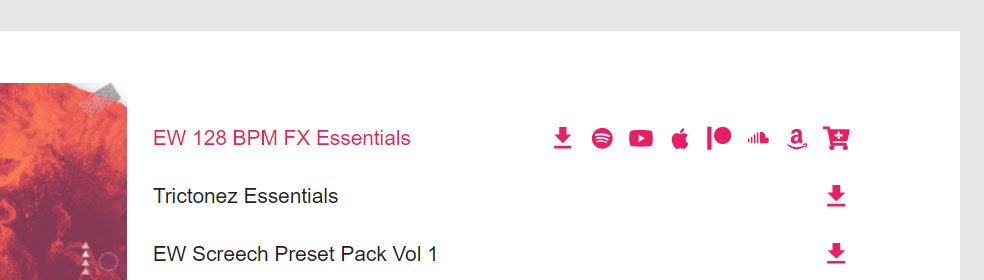
To add icons to song use data-playlist-icons attribute (this example will add 2 icons):
<div class="hap-playlist-item" data-type="audio" data-path="audio-url" data-playlist-icons='[{"title": "Spotify", "url": "https://spotify.com", "target":"_blank", "icon": "", "rel": "nofollow"}, {"title": "Youtube", "url": "https://youtube.com", "target":"_blank", "icon": "", "rel": "nofollow", "class":"custom-icon-class-here"}]'>
</div>
Note the format of attribute, outside quote is single, while all inner quotes are double!
Icon properties:
icon - SVG, font icon, img tag (you can also enter any text to be used instead of icon)

class - icon custom class (optional)
title - shows on hover (optional)
url - icon url on click (optional)
target - url target  (optional)
rel - rel attributte (optional)
Note that only icon is required, other properties are optional.
Using Font Awesome for icons
Use cheatsheet to get icon value Font Awesome unicode cheatsheet. You need to wrap actual iocn value for example (f167) in &#x + f167 + ;
When using Font Awesome you need to add css in head tag:
<link rel="stylesheet" type="text/css" href="https://use.fontawesome.com/releases/v5.7.2/css/all.css"/>
Open content in lightbox
Create icon in songs in playlist items that can open any content in lightbox (video, audio, image, html...)
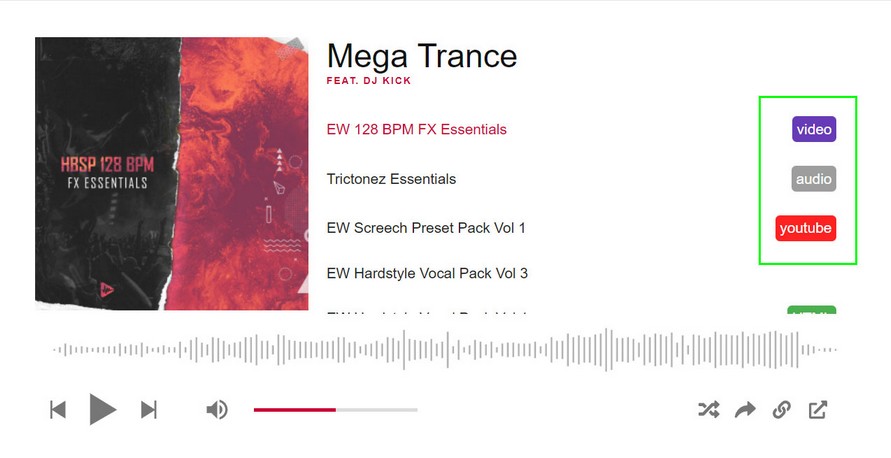
How to add icons:
To add icons to song use data-playlist-icons attribute (example):
<div class="hap-playlist-item" data-type="audio" data-path="audio-url-here" data-playlist-icons='[{"title": "View song", "description": "Custom audio description here. Lorem ipsum dolor sit amet", "type": "audio", "url": "media/lightbox/03.mp4", "icon": "audio", "class":"audio-icon", "purchaseUrl": "https://google.com"}]'>
</div>
Icon properties:
icon - SVG, font icon, img tag (you can also enter any text to be used instead of icon)

class - icon custom class (optional)
title - shows on hover (optional)

type - content to open in lightbox: (video, audio, image, youtube, vimeo, iframe, inline)
url - link to content (video, audio, image, youtube, vimeo, iframe, inline)
hook - connect multiple items in lightbox by providing same hook

description - description (optional)
thumb - thumbnail url
purchaseUrl - www url (if set, will display purchase icon in lightbox) (optional)
Connect multiple items in lightbox by providing same hook:
<div class="hap-playlist-item" data-type="audio" data-path="audio-url-here" data-playlist-icons='[{"title": "View song", "type": "audio", "url": "audio-url-here", "icon": "audio", "hook": "my-gallery1"}]'>
</div>

<div class="hap-playlist-item" data-type="video" data-path="video-url-here" data-playlist-icons='[{"title": "View video", "type": "video", "url": "video-url-here", "icon": "video", "hook": "my-gallery1"}]'>
</div>
By providing same hook (my-gallery1), lightbox will show both items when opened.
Example of different content type that can be opened in lightbox:
video - self hosted video (mp4)

audio - self hosted video (mp4)

youtube - youtube single video, provide just video ID like CnW_AlnIfBM or full embed source:  https://www.youtube.com/embed/CnW_AlnIfBM?playsinline=1&modestbranding=1&cc_load_policy=0&autoplay=1

vimeo - vimeo single video, provide just video ID like 191947042 or full embed source:  https://vimeo.com/191947042

image - image url

iframe - iframe url, provide just iframe src attribute or full iframe path

inline - show HTML, provide ID atribute to element in page you want to show in lightbox, for example #my-div (content INSIDE my-div wil be shown in lightbox)

<div id="my-div">
<p class="foo">This will be show in lightbox</p>
</div>
Settings available for icons:
playlistIconClass:"my-playlist-icon"//global class that will be added to each icon (not related to class property above)
Settings available for lightbox:
 lightbox:{

    useFullscreen:true,//fullscreen button

    useSlideshow:false,
    slideshowTimeout:5000,

    infinite:true,//lopp in either direction
    useNumeration:true,//show numbers
    useKeyboard:true,//keyboard controls

    ratio:'16/9',//default video ratio
    preload: 'auto',//media preload
    autoplay:true,
    controlsList: 'nodownload noremoteplayback',//html 5 video controls list attribute

    useThumbnails:false,
    thumbOrientation:'h',//v = vertical, h = horizontal
    mobileThumbOrientation:'auto',

    posterPlayIcon: '<svg viewBox="0 0 16 16"><polygon points="1,1 1,15 15,8 "/></svg>',


    nextIcon: '<svg role="img" viewBox="0 0 320 512"><path d="M85.14 475.8c-3.438-3.141-5.156-7.438-5.156-11.75c0-3.891 1.406-7.781 4.25-10.86l181.1-197.1L84.23 58.86c-6-6.5-5.625-16.64 .9062-22.61c6.5-6 16.59-5.594 22.59 .8906l192 208c5.688 6.156 5.688 15.56 0 21.72l-192 208C101.7 481.3 91.64 481.8 85.14 475.8z"/></svg>',

    prevIcon: '<svg role="img" viewBox="0 0 320 512"><path d="M234.8 36.25c3.438 3.141 5.156 7.438 5.156 11.75c0 3.891-1.406 7.781-4.25 10.86L53.77 256l181.1 197.1c6 6.5 5.625 16.64-.9062 22.61c-6.5 6-16.59 5.594-22.59-.8906l-192-208c-5.688-6.156-5.688-15.56 0-21.72l192-208C218.2 30.66 228.3 30.25 234.8 36.25z"/></svg>',

    closeIcon: '<svg role="img" viewBox="0 0 320 512"><path d="M315.3 411.3c-6.253 6.253-16.37 6.253-22.63 0L160 278.6l-132.7 132.7c-6.253 6.253-16.37 6.253-22.63 0c-6.253-6.253-6.253-16.37 0-22.63L137.4 256L4.69 123.3c-6.253-6.253-6.253-16.37 0-22.63c6.253-6.253 16.37-6.253 22.63 0L160 233.4l132.7-132.7c6.253-6.253 16.37-6.253 22.63 0c6.253 6.253 6.253 16.37 0 22.63L182.6 256l132.7 132.7C321.6 394.9 321.6 405.1 315.3 411.3z"/></svg>',

    fullscreenIcon: '<svg viewBox="0 0 512 512"><path d="M144 64h-128C7.156 64 0 71.16 0 80v128C0 216.8 7.156 224 16 224S32 216.8 32 208V96h112C152.8 96 160 88.84 160 80S152.8 64 144 64zM144 416H32V304C32 295.2 24.84 288 16 288S0 295.2 0 304v128C0 440.8 7.156 448 16 448h128C152.8 448 160 440.8 160 432S152.8 416 144 416zM496 288C487.2 288 480 295.2 480 304V416h-112c-8.844 0-16 7.156-16 16s7.156 16 16 16h128c8.844 0 16-7.156 16-16v-128C512 295.2 504.8 288 496 288zM496 64h-128C359.2 64 352 71.16 352 80S359.2 96 368 96H480v112C480 216.8 487.2 224 496 224S512 216.8 512 208v-128C512 71.16 504.8 64 496 64z"/></svg>',

    fullscreenExitIcon: '<svg role="img" viewBox="0 0 512 512"><path d="M368 224h128C504.8 224 512 216.8 512 208S504.8 192 496 192H384V80C384 71.16 376.8 64 368 64S352 71.16 352 80v128C352 216.8 359.2 224 368 224zM144 288h-128C7.156 288 0 295.2 0 304S7.156 320 16 320H128v112C128 440.8 135.2 448 144 448S160 440.8 160 432v-128C160 295.2 152.8 288 144 288zM496 288h-128C359.2 288 352 295.2 352 304v128c0 8.844 7.156 16 16 16s16-7.156 16-16V320h112c8.844 0 16-7.156 16-16S504.8 288 496 288zM144 64C135.2 64 128 71.16 128 80V192H16C7.156 192 0 199.2 0 208S7.156 224 16 224h128C152.8 224 160 216.8 160 208v-128C160 71.16 152.8 64 144 64z"/></svg>',

    playIcon: '<svg role="img" viewBox="0 0 384 512"><path d="M24.52 38.13C39.66 29.64 58.21 29.99 73.03 39.04L361 215C375.3 223.8 384 239.3 384 256C384 272.7 375.3 288.2 361 296.1L73.03 472.1C58.21 482 39.66 482.4 24.52 473.9C9.377 465.4 0 449.4 0 432V80C0 62.64 9.377 46.63 24.52 38.13V38.13zM56.34 66.35C51.4 63.33 45.22 63.21 40.17 66.04C35.13 68.88 32 74.21 32 80V432C32 437.8 35.13 443.1 40.17 445.1C45.22 448.8 51.41 448.7 56.34 445.7L344.3 269.7C349.1 266.7 352 261.6 352 256C352 250.4 349.1 245.3 344.3 242.3L56.34 66.35z"/></svg>',

    pauseIcon: '<svg role="img" viewBox="0 0 320 512"><path d="M48 63.1C39.16 63.1 32 71.16 32 80v352C32 440.8 39.16 448 48 448S64 440.8 64 432v-352C64 71.16 56.84 63.1 48 63.1zM272 63.1c-8.836 0-16 7.162-16 16v352c0 8.836 7.164 16 16 16s16-7.164 16-16v-352C288 71.16 280.8 63.1 272 63.1z"/></svg>',

    gridIcon: '<svg role="img" viewBox="0 0 448 512"><path d="M0 168C0 145.9 17.91 128 40 128H88C110.1 128 128 145.9 128 168V216C128 238.1 110.1 256 88 256H40C17.91 256 0 238.1 0 216V168zM32 168V216C32 220.4 35.58 224 40 224H88C92.42 224 96 220.4 96 216V168C96 163.6 92.42 160 88 160H40C35.58 160 32 163.6 32 168zM0 328C0 305.9 17.91 288 40 288H88C110.1 288 128 305.9 128 328V376C128 398.1 110.1 416 88 416H40C17.91 416 0 398.1 0 376V328zM32 328V376C32 380.4 35.58 384 40 384H88C92.42 384 96 380.4 96 376V328C96 323.6 92.42 320 88 320H40C35.58 320 32 323.6 32 328zM248 128C270.1 128 288 145.9 288 168V216C288 238.1 270.1 256 248 256H200C177.9 256 160 238.1 160 216V168C160 145.9 177.9 128 200 128H248zM248 160H200C195.6 160 192 163.6 192 168V216C192 220.4 195.6 224 200 224H248C252.4 224 256 220.4 256 216V168C256 163.6 252.4 160 248 160zM160 328C160 305.9 177.9 288 200 288H248C270.1 288 288 305.9 288 328V376C288 398.1 270.1 416 248 416H200C177.9 416 160 398.1 160 376V328zM192 328V376C192 380.4 195.6 384 200 384H248C252.4 384 256 380.4 256 376V328C256 323.6 252.4 320 248 320H200C195.6 320 192 323.6 192 328zM408 128C430.1 128 448 145.9 448 168V216C448 238.1 430.1 256 408 256H360C337.9 256 320 238.1 320 216V168C320 145.9 337.9 128 360 128H408zM408 160H360C355.6 160 352 163.6 352 168V216C352 220.4 355.6 224 360 224H408C412.4 224 416 220.4 416 216V168C416 163.6 412.4 160 408 160zM320 328C320 305.9 337.9 288 360 288H408C430.1 288 448 305.9 448 328V376C448 398.1 430.1 416 408 416H360C337.9 416 320 398.1 320 376V328zM352 328V376C352 380.4 355.6 384 360 384H408C412.4 384 416 380.4 416 376V328C416 323.6 412.4 320 408 320H360C355.6 320 352 323.6 352 328z"/></svg>',

    cartIcon: '<svg role="img" viewBox="0 0 576 512"><path d="M80 0C87.47 0 93.95 5.17 95.6 12.45L100 32H541.8C562.1 32 578.3 52.25 572.6 72.66L518.6 264.7C514.7 278.5 502.1 288 487.8 288H158.2L172.8 352H496C504.8 352 512 359.2 512 368C512 376.8 504.8 384 496 384H160C152.5 384 146.1 378.8 144.4 371.5L67.23 32H16C7.164 32 0 24.84 0 16C0 7.164 7.164 0 16 0H80zM107.3 64L150.1 256H487.8L541.8 64H107.3zM128 456C128 425.1 153.1 400 184 400C214.9 400 240 425.1 240 456C240 486.9 214.9 512 184 512C153.1 512 128 486.9 128 456zM184 480C197.3 480 208 469.3 208 456C208 442.7 197.3 432 184 432C170.7 432 160 442.7 160 456C160 469.3 170.7 480 184 480zM512 456C512 486.9 486.9 512 456 512C425.1 512 400 486.9 400 456C400 425.1 425.1 400 456 400C486.9 400 512 425.1 512 456zM456 432C442.7 432 432 442.7 432 456C432 469.3 442.7 480 456 480C469.3 480 480 469.3 480 456C480 442.7 469.3 432 456 432z"/></svg>',


    loader: '<div class="ap-preloader"></div>',//preloader

    nextTooltip: 'Next',
    prevTooltip:'Previous',
    closeTooltip:'Close',
    fullscreenTooltip:'Fullscreen',
    fullscreenExitTooltip:'Exit fullscreen',
    slideshowTooltipPlay:'Play',
    slideshowTooltipPause:'Pause',
    gridTooltip:'Thumbnails',
    cartTooltip:'Purchase',
    cartTarget:'_blank',

    useSwipeNavigation:false,
    clickOnBackgroundClosesLightbox:true,

    pauseAudioOnLightboxOpen:false,//NOTE - only work sif you disable these event below (postOpen, postClose)

    postOpen:function(){//callback after lightbox opens
        console.log('postOpen')
    },

    postClose:function(){//callback after lightbox closes
        console.log('postClose')
    }


}
Notes:
Using lightbox requires link to lightbox CSS and js file in page:
<link rel="stylesheet" type="text/css" href="css/aplbox.css"/>

<script src="js/aplbox.js"></script>
Custom content in playlist items
How to add any kind of content in playlist items simply add your HTML in hap-playlist-item div:
Example: (div class="foo")
<div class="hap-playlist-item" data-type="audio" data-path="audio-url">
    <div class="foo"></div>
</div>
How to add HTML description in playlist items:
Put div class="hap-playlist-description" in hap-playlist-item
<div class="hap-playlist-item" data-type="audio" data-path="audio-url">
    <div class="hap-playlist-description">
        <div class="my-description">lorem ipsum dolor sit amet <a href="http://www.google.com" target="_blank">link here</a></div>
    </div>
</div>
Note that when using hap-playlist-description, do not use both data-description attribute because they will collide.
You can also add custom classes to hap-playlist-item. Just add your own classes next to hap-playlist-item, for example (your-class-here):
<div class="hap-playlist-item your-class-here" data-type="audio" data-path="media/audio/1/01.mp3" data-artist="Tim McMorris" data-title="A Bright And Hopeful"></div></div>
Init player on click
Init player when clicking some DOM element in page.
document.getElementById('.some-element').addEventListener("click", function() {
    new hap(document.getElementById("hap-wrapper"), settings);
}, {once : true});
Multiple players in page
How to include multiple players in same page?
Duplicate everything and make wrapper ID and settings unique for each player instance in page: (notice how we have player2, settings2, hap-wrapper2)
Put in page head
    var player, player2;

    document.addEventListener("DOMContentLoaded", function(event) {

        var settings = {
                    instanceName:"player1",
                    activePlaylist:"#playlist-audio1",
                    ... (other player settings)
        }

        var settings2 = {
                    instanceName:"player2",
                    activePlaylist:"#playlist-audio1",
                    ...
        }


        player = new hap(document.getElementById("hap-wrapper"), settings);

        player2 = new hap(document.getElementById("hap-wrapper2"), settings2);

    });
Put in page body
<div id="hap-wrapper">
    ...(player html code)
</div>

<div id="hap-wrapper2">
    ...(player html code)
</div>

<div id="hap-playlist-list">

    <div id="playlist-audio1">
        ...
    </div>

</div>
Callbacks / Events
Following callbacks are supported.
Main song callbacks:
    player.addEventListener('setupDone', function(data){

        //called when plugin has been instantiated and is ready to use api, returns (instance, instanceName)

    })
    player.addEventListener('soundStart', function(data){

        //called on song start, returns (instance, instanceName, media)

    })
    player.addEventListener('soundRequest', function(data){

        //called on song request, returns (instance, instanceName, media)

    })
    player.addEventListener('soundPlay', function(data){

        //called on song play, returns (instance, instanceName, media)

    })
    player.addEventListener('soundPause', function(data){

        //called on song pause, returns (instance, instanceName, media)

    })
    player.addEventListener('beforeSongChange', function(data){

        //called before song end, returns (instance, instanceName, media)

    })
    player.addEventListener('soundEnd', function(data){

        //called on song end, returns (instance, instanceName, media)

    })
    player.addEventListener('soundError', function(data){

        //called on song error, returns (instance, instanceName, media, error)

    })
    player.addEventListener('playlistStartLoad', function(data){

        //called on playlist start load, returns (instance, instanceName)

    })
    player.addEventListener('playlistEndLoad', function(data){

        //called on playlist end load, returns (instance, instanceName)

    })
    player.addEventListener('playlistEnd', function(data){

        //called on playlist end, returns (instance, instanceName, counter)

    })
    player.addEventListener('clickPlaylistItem', function(data){

        //called on playlist item click, returns (instance, instanceName)

    })
    player.addEventListener('playlistItemDisabled', function(data){

        //called on playlist item disable, returns (instance, instanceName, item)

    })
    player.addEventListener('playlistItemEnabled', function(data){

        //called on playlist item enable, returns (instance, instanceName, item)

    })
    player.addEventListener('overPlaylistItem', function(data){

        //called on mouse over playlist item, returns (instance, instanceName)

    })
    player.addEventListener('outPlaylistItem', function(data){

        //called on mouse out playlist item, returns (instance, instanceName)

    })
    player.addEventListener('volumeChange', function(data){

        //called on volume change, returns (instance, instanceName, volume)

    })
    player.addEventListener('destroyPlaylist', function(data){

        //called on playlist destroy, returns (instance, instanceName)

    })
    player.addEventListener('createWaveform_error', function(data){

        //create waveform error, returns (instance, instanceName)

    })
    player.addEventListener('beforeLoginScreen', function(data){

        //before loogin screen opnes, returns (instance, instanceName, media)

    });
Ad callbacks (called when ads play):
    player.addEventListener('adPrePlay', function(data){

        //called when ad pre starts, returns (instance, instanceName, ad)

    })
    player.addEventListener('adMidPlay', function(data){

        //called when ad mid starts, returns (instance, instanceName, ad)

    })
    player.addEventListener('adMidEnded', function(data){

        //called when ad mid ends, returns (instance, instanceName, ad)

    })
    player.addEventListener('adEndPlay', function(data){

        //called when ad end starts, returns (instance, instanceName, ad)

    })
How to use returned parameters:
    player.addEventListener('soundStart', function(data){
        //called on song start, returns (instance, instanceName, counter)

        console.log(data.instance);
        console.log(data.instanceName);
        console.log(data.counter);

        //some api methods

        //get song current time
        data.instance.getCurrentTime();

        //get song duration
        data.instance.getDuration();

    });
API methods
API example is located in _api.html demo.
Following api methods are included:
player.playMedia(); //Play current media

player.pauseMedia(); //Pause current media

player.togglePlayback(); //Toggle current media (pause/play)

player.nextMedia(); //Play next media

player.previousMedia(); //Play previous media

/* set volume (0-1) */
----------------------------------
player.setVolume(0); //Set volume (0)
player.setVolume(0.5); //Set volume (0.5)
player.setVolume(1); //Set volume (1)

player.toggleMute(); //Toggle mute

player.toggleRandom(); //Set random playlist playback (true/false/toggle)
player.setLoop(); //Set loop state (playlist, single, off)

player.setAutoPlay(boolean); //set autoplay

player.setPlaybackRate(0.5); //Set playback rate (0.5)
player.setPlaybackRate(1); //Set playback rate (1)
player.setPlaybackRate(2); //Set playback rate (2)

/* seek (seconds) */
--------------------------
player.disableSeek(boolean); //disable seekbar usage

player.seek(0); //seek (0)
player.seek(5); //seek (5)
player.seek(15); //seek (15)

player.seekBackward(value); //seek value seconds backwards
player.seekForward(value); //seek value seconds forward


/* load media from playlist on demand */
--------------------------
//Load media (format, value)

//by counter (counting start from zero, 0 = first media, 1 = second media...)
player.loadMedia('counter', 0); //Load first media in playlist
player.loadMedia('counter', 2); //Load third media

//by title
player.loadMedia('title', 'Song title');


//by title and artist
player.loadMedia('title-artist', 'Song title', 'Artist name');


//by media-id attribute
player.loadMedia('id', 7); //Load media with data-media-id attribute 7
player.loadMedia('id', 2'); //Load media with data-media-id attribute 2


/* load more */
--------------------------
player.loadMore();// load more function, valid for Youtube playlist, Soundcloud (Soundclond is buggy and does not return next_href for pagination rather often), folder of mp3 files, Podcast

player.setLoadMore(boolean);//toggle load more function on/off


/* load playlist on demand */
--------------------------
player.loadPlaylist('#playlist-audio1'); //Load 'playlist-audio1'
player.loadPlaylist('#playlist-podcast1'); //Load 'playlist-podcast1'


/* play specific audio by passing track data */
--------------------------
var track = {
    type: 'audio',
    mp3: 'PATH TO MP3',
    artist: 'ARTIST NAME',
    title: 'SONG TITLE',
    thumb: 'THUMB URL'
}
player.inputAudio(track);


/* add track(s) to playlist */
--------------------------

//add single track
var track = {
    type: 'audio',
    mp3: 'PATH TO MP3',
    artist: 'ARTIST NAME',
    title: 'SONG TITLE',
    thumb: 'THUMB URL'
}

player.addTrack(track, false, 0); //add track, position 0
player.addTrack(track, true, 2); //add track, play it, position 2
player.addTrack(track, true); //add track, play it, position end


//add multiple tracks
var track_array = [{
    type: 'audio',
    mp3: 'PATH TO MP3',
    artist: 'ARTIST NAME',
    title: 'SONG TITLE',
    thumb: 'THUMB URL'
},
{
    type: 'audio',
    mp3: 'PATH TO MP3',
    artist: 'ARTIST NAME',
    title: 'SONG TITLE',
    thumb: 'THUMB URL'
},
{
    type: 'audio',
    mp3: 'PATH TO MP3',
    artist: 'ARTIST NAME',
    title: 'SONG TITLE',
    thumb: 'THUMB URL'
}]

player.addTrack(track_array, false, 0); //add tracks, position 0
player.addTrack(track_array, true, 2); //add tracks, play it, position 2
player.addTrack(track_array, true); //add tracks, play it, position end


/* remove track(s) from playlist */
--------------------------
//remove track by counter (counting start from zero, 0 = first song, 1 = second song...)
player.removeTrack('counter', 0); //remove first song
player.removeTrack('counter', 2); //remove third song
player.removeTrack('counter', player.getPlaylistLength()-1); //remove last song in playlist
player.destroyPlaylist(); //remove all tracks

//remove track by title
player.removeTrack('title', 'A Bright And Hopeful Future'); //remove song 'A Bright And Hopeful Future'
player.removeTrack('title', 'Be My Valentine'); //remove song 'Be My Valentine'

//remove track by media id
player.removeTrack('id', 0); //remove track media id 0
player.removeTrack('id', 0); //remove track media id 1


/* destroy current playing media / playlist */
--------------------------
player.destroyMedia(); //Destroy current playing song
player.destroyPlaylist(); //Destroy current playlist


/* sort tracks in playlist */
--------------------------
player.sort('title-asc'); //sort playlist ascending
player.sort('title-desc'); //sort playlist descending
player.sort('random'); //sort playlist random

/* misc */
--------------------------

player.getCurrMediaData();//get current song data (title, audio url..)

player.getPlaylistData();//get whole playlist song data (title, audio url..)

player.getCurrentTime();//get current time in seconds

player.getDuration();//get duration in seconds

player.destroyPlaylistScroll();//destroy playlist scroll

player.getSetupDone();//get player ready to use api

player.getPlaylistLoading();//get playlist is loading

player.getPlaylistTransition();//Return playlist loading (is playlist loading)

player.getMediaPlaying();//get media playing

player.getCounter();//get active playlist item number starting from zero (0)

player.getPlaylistLength();//get playlist length


/* open player in popup window */
--------------------------
player.openPopup(); //open popup
Example open player in popup and then use API to communicate with player
1. Add button to page:
<a href="#" onclick="communicate_to_pupup();return false;">communicate_to_pupup</a>
2. Add function in page:
function communicate_to_pupup(){
    window['player1'].pauseMedia();//test

    window['player1'].destroyPlaylist();//clear current playlist

    window['player1'].loadPlaylist('#playlist-xml');//load new playlist

    //or add songs directly

    //window['player1'].addTrack(track_list1, true);

}
'player1' comes from settings:
var settings = {
    instanceName:"player1",
    ....
}
After you open player player in popup, clicking the button will load new playlist in popup (or anything other set in communicate_to_pupup function). Note that example above requires to have #playlist-xml in the page in hap-playlist-list. Check _api.html demo page where this is implemented.
Embedding
Player can use following embedding functionality in embed screen.
Embed code

Available settings:
| Parameter | Value | description |
|---|---|---|
| embedSrc | Url on your website which holds the player you want to use as embed, for example: http://your-domain.com/some-folder/player-embed.html. Then you make this player-embed.html load videos. This url will be added to iframe: <iframe width="100%" height="100%" src="'+embedSrc+'" frameborder="0" allow="accelerometer; autoplay; clipboard-write; encrypted-media; gyroscope; picture-in-picture" allowfullscreen></iframe> |
Song url link
Url link offers direct link to song on your website. This is set internally by the player.
To add embed code to the player add following html inside the player (if this code is already not present in the player):
1. button to toggle embed screen:
<div class="hap-embed-toggle hap-contr-btn" data-tooltip="Embed">
<svg aria-hidden="true" focusable="false" role="img" viewBox="0 0 512 512"><path d="M326.612 185.391c59.747 59.809 58.927 155.698.36 214.59-.11.12-.24.25-.36.37l-67.2 67.2c-59.27 59.27-155.699 59.262-214.96 0-59.27-59.26-59.27-155.7 0-214.96l37.106-37.106c9.84-9.84 26.786-3.3 27.294 10.606.648 17.722 3.826 35.527 9.69 52.721 1.986 5.822.567 12.262-3.783 16.612l-13.087 13.087c-28.026 28.026-28.905 73.66-1.155 101.96 28.024 28.579 74.086 28.749 102.325.51l67.2-67.19c28.191-28.191 28.073-73.757 0-101.83-3.701-3.694-7.429-6.564-10.341-8.569a16.037 16.037 0 0 1-6.947-12.606c-.396-10.567 3.348-21.456 11.698-29.806l21.054-21.055c5.521-5.521 14.182-6.199 20.584-1.731a152.482 152.482 0 0 1 20.522 17.197zM467.547 44.449c-59.261-59.262-155.69-59.27-214.96 0l-67.2 67.2c-.12.12-.25.25-.36.37-58.566 58.892-59.387 154.781.36 214.59a152.454 152.454 0 0 0 20.521 17.196c6.402 4.468 15.064 3.789 20.584-1.731l21.054-21.055c8.35-8.35 12.094-19.239 11.698-29.806a16.037 16.037 0 0 0-6.947-12.606c-2.912-2.005-6.64-4.875-10.341-8.569-28.073-28.073-28.191-73.639 0-101.83l67.2-67.19c28.239-28.239 74.3-28.069 102.325.51 27.75 28.3 26.872 73.934-1.155 101.96l-13.087 13.087c-4.35 4.35-5.769 10.79-3.783 16.612 5.864 17.194 9.042 34.999 9.69 52.721.509 13.906 17.454 20.446 27.294 10.606l37.106-37.106c59.271-59.259 59.271-155.699.001-214.959z"></path></svg>
</div>
2. embed screen:
<div class="hap-embed-holder">
<div class="hap-embed-holder-inner">
<div class="hap-embed-data">
<div class="hap-embed-title">Embed this song:</div>
<div class="hap-embed-box">
<div class="hap-embed-field-wrap hap-audio-embed"></div>
<div class="hap-embed-copy">Copy</div>
</div>
<div class="hap-embed-title">Copy song link:</div>
<div class="hap-embed-box">
<div class="hap-embed-field-wrap hap-audio-link"></div>
<div class="hap-embed-copy">Copy</div>
</div>
</div>
</div>
<div class="hap-embed-close hap-contr-btn" data-tooltip="Close">
<svg role="img" viewBox="0 0 352 512"><path d="M242.72 256l100.07-100.07c12.28-12.28 12.28-32.19 0-44.48l-22.24-22.24c-12.28-12.28-32.19-12.28-44.48 0L176 189.28 75.93 89.21c-12.28-12.28-32.19-12.28-44.48 0L9.21 111.45c-12.28 12.28-12.28 32.19 0 44.48L109.28 256 9.21 356.07c-12.28 12.28-12.28 32.19 0 44.48l22.24 22.24c12.28 12.28 32.2 12.28 44.48 0L176 322.72l100.07 100.07c12.28 12.28 32.2 12.28 44.48 0l22.24-22.24c12.28-12.28 12.28-32.19 0-44.48L242.72 256z"></path></svg>
</div>
</div>
3. You may need some css, for example:
.hap-art-wide-dark .hap-embed-holder{
background: #1b1b1b;
border: 1px solid #333;
}
.hap-art-wide-dark .hap-embed-field-wrap-selected{
background: #2196F3;
color: #fff;
}
Icons in player
How to change icons in player?
Icons in player can be anything, from inline SVG, font icons (like Font Awesome, Material icons, IonIcons...) to plain jpg png images.
To change icons in player simply replace svg part. For example, shuffle icon:
<div class="hap-random-toggle hap-contr-btn" data-tooltip="shuffle">
<svg aria-hidden="true" focusable="false" role="img" viewBox="0 0 512 512"><path d="M504.971 359.029c9.373 9.373 9.373 24.569 0 33.941l-80 79.984c-15.01 15.01-40.971 4.49-40.971-16.971V416h-58.785a12.004 12.004 0 0 1-8.773-3.812l-70.556-75.596 53.333-57.143L352 336h32v-39.981c0-21.438 25.943-31.998 40.971-16.971l80 79.981zM12 176h84l52.781 56.551 53.333-57.143-70.556-75.596A11.999 11.999 0 0 0 122.785 96H12c-6.627 0-12 5.373-12 12v56c0 6.627 5.373 12 12 12zm372 0v39.984c0 21.46 25.961 31.98 40.971 16.971l80-79.984c9.373-9.373 9.373-24.569 0-33.941l-80-79.981C409.943 24.021 384 34.582 384 56.019V96h-58.785a12.004 12.004 0 0 0-8.773 3.812L96 336H12c-6.627 0-12 5.373-12 12v56c0 6.627 5.373 12 12 12h110.785c3.326 0 6.503-1.381 8.773-3.812L352 176h32z"></path></svg>
</div>
For buttons that have multiple icons like pause/play, volume, loop, title sort, change multiple svg, for example pause/play:
<div class="hap-playback-toggle hap-contr-btn">
<div class="hap-btn hap-btn-play">
<svg aria-hidden="true" focusable="false" role="img" viewBox="0 0 448 512"> <path d="M424.4 214.7L72.4 6.6C43.8-10.3 0 6.1 0 47.9V464c0 37.5 40.7 60.1 72.4 41.3l352-208c31.4-18.5 31.5-64.1 0-82.6z"> </path> </svg>
</div>
<div class="hap-btn hap-btn-pause">
<svg aria-hidden="true" focusable="false" role="img" viewBox="0 0 448 512"> <path d="M144 479H48c-26.5 0-48-21.5-48-48V79c0-26.5 21.5-48 48-48h96c26.5 0 48 21.5 48 48v352c0 26.5-21.5 48-48 48zm304-48V79c0-26.5-21.5-48-48-48h-96c-26.5 0-48 21.5-48 48v352c0 26.5 21.5 48 48 48h96c26.5 0 48-21.5 48-48z"> </path> </svg>
</div>
</div>
There are also some icons set internally in settings
Demo metalic_all.html contains different icon type examples (svg, font-awesome, images, material-design).
To see how to use image icons check metalic_image_icons.html demo.
CSS for image icons is the following (included in metalic.css file):
/* image icons */
.hap-icon-active{
display: none!important;
}
.hap-contr-btn:hover .hap-icon-active,
.hap-contr-btn-hover .hap-icon-active{
display: block!important;
}
.hap-contr-btn img{
display: block;
max-width: none;
position: absolute;
top: 50%;
left: 50%;
transform: translate(-50%, -50%);
}
/* image icons */
.hap-link:hover .hap-icon-active,
.hap-download:hover .hap-icon-active{
display: block!important;
}
.hap-download img,
.hap-link img{
display: block;
max-width: none;
position: absolute;
top: 50%;
left: 50%;
transform: translate(-50%, -50%);
}
Input fields in player
If you have your own custom input fields in player, you need to add hap-input-field class to them. This is to ensure they are excluded from keyboard input controls if keyboard controls are used in the player.
How to implement Google Analytics
Settings
| Parameter | Value | description |
|---|---|---|
| useGa | true / false | Use Google Analytics |
| gaTrackingId | Google Analytics MEASUREMENT ID. |
Setup Custom definitions
1. Sign in to your Google Analytics account
2. Go to the Admin panel by clicking the Cog Icon in the bottom left of your screen
3. Click on the property where you want to add custom dimensions
4. Click on Custom Definitions in the left menu, then click on Create Custom Dimension
5. Create following definitions
song_name song_url current_time duration
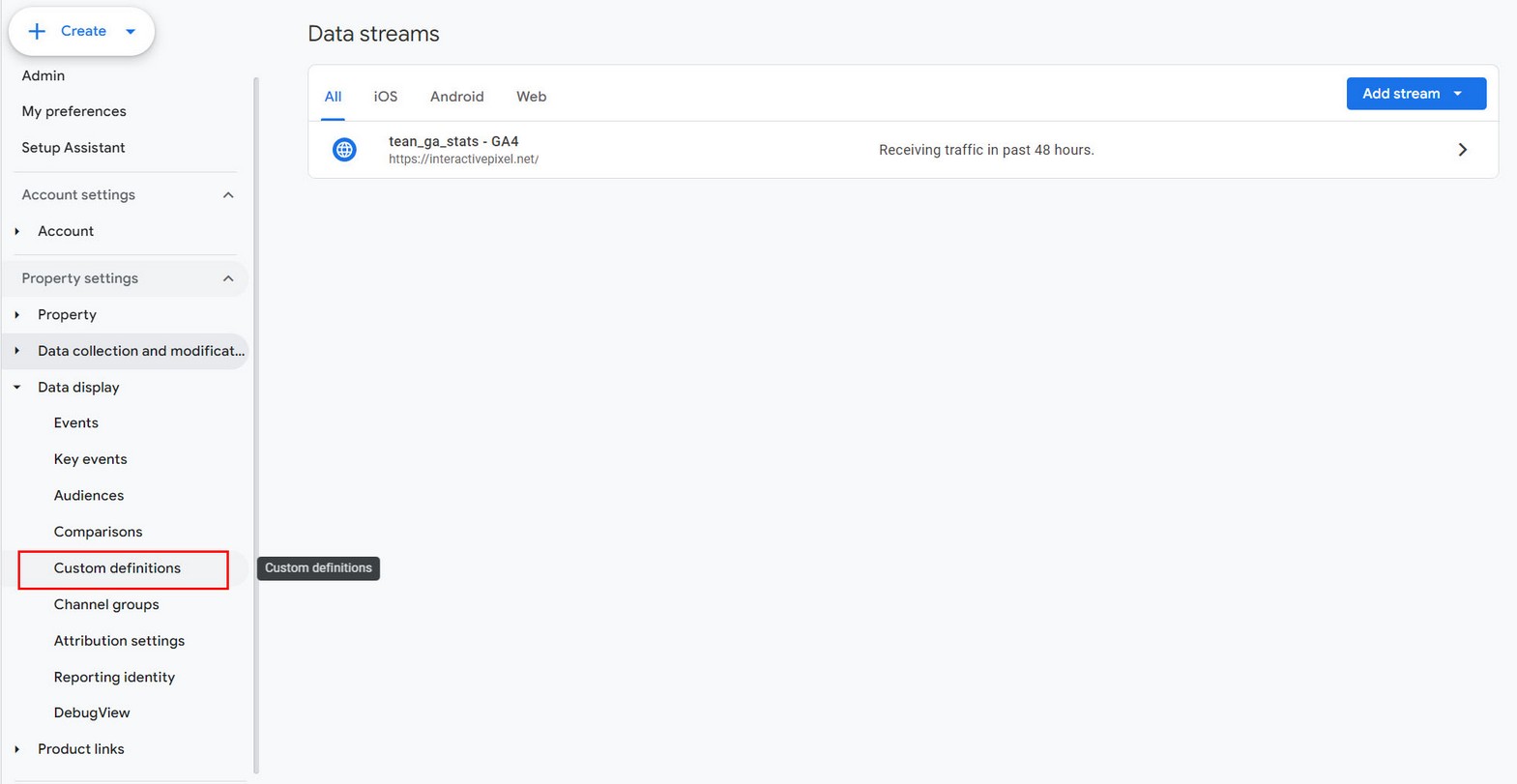

Event display
Using custom definitions, following events will be logged:
complete play pause download
Aria label
The aria-label should be used to provide a text alternative to an element that has no visible text on the screen.
To add aria label to any button in the player simply search for your button inside the player markup and add aria-label attribute.
For example here we add aria-label to pause - play button (toggle playback):
<button type="button" class="hap-playback-toggle hap-btn-reset hap-contr-btn">
<span class="hap-btn hap-btn-play" aria-label="Play">
<svg viewBox="0 0 17.5 21.2"><path d="M0,0l17.5,10.9L0,21.2V0z"></path></svg>
</span>
<span class="hap-btn hap-btn-pause" aria-label="Pause">
<svg viewBox="0 0 17.5 21.2"><rect width="6" height="21.2"></rect><rect x="11.5" width="6" height="21.2"></rect></svg>
</span>
</button>
Here we add aria-label to input textfield used for searching songs:
<input class="hap-search-filter" type="text" placeholder="Search.." aria-label="Search">
Settings
Comments AddOn is available on the following link.

Intro
Comments enables users adding comments to songs.
Note that comment functionality is not available in all player skins (for example skin with circle seekbar or some small skins not containing seekbar). Although it can be added to most skins by copying required HTML and CSS code.
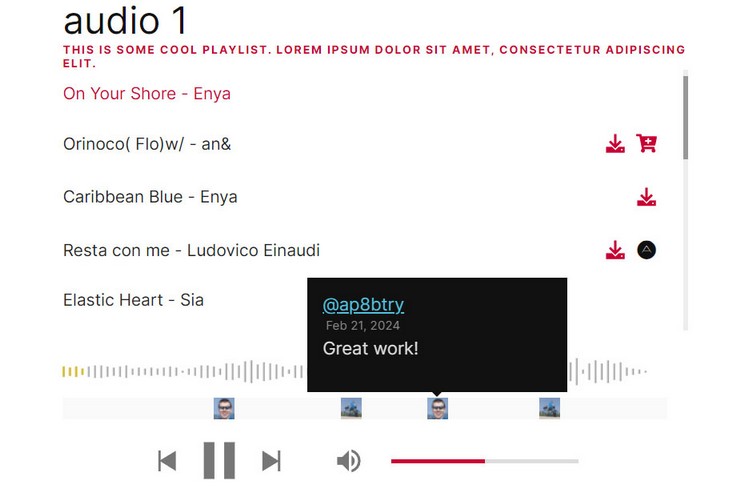
Using Comments AddOn
Include CSS and javascript files to the page:
<link rel="stylesheet" type="text/css" href="css/comments.css" /> <script src="js/ap_comments.js"></script>
Include javascript settings:
useSongComments: true, commentAvatarSize: 20,//Size of the comment avatar image dragActiveComment: true,//enable dragging of active comment to change position hideCommentsOnMobile: false,//disable comment functionlity on mobile canCommentsForNonLoggedIn: true,//leave as true because this refers to Wordpress logged in user functionality createCommentUserLink: false,//if user link is provided, comment username can be linked to that url commentTooltipUserUrlTarget:'_self',//url target enterEmailText: "Please enter valid email!", enterCommentText: "Please enter comment!",
Include HTML parts:
Main comment holder (required), best placed somewhere below the seekbar area. Do not place it in the seekbar because click events will prevent it to work properly since seekbar already includes some mouse events for its functionality. Technically you should be able to place it anywhere in the player area.
<div class="hap-seekbar-comment-wrap">
<div class="hap-seekbar-comment-section">
<div class="hap-seekbar-comment-holder">
<div class="hap-seekbar-comment-section-bg" title="Click to add comment"></div>
</div>
</div>
</div>
Comment input holder (required), must be in player area.
<div class="hap-seekbar-comment-input-wrap">
<div class="hap-seekbar-comment-form-data">
<p class="hap-input-comment-header">Adding comment at <span class="hap-input-comment-time"></span> seconds</p>
<span class="hap-comment-input-info">Drag comment to change time</span>
<div class="hap-input-comment-email-field">
<input type="email" class="hap-comment-input hap-input-comment-email hap-embed-field-wrap" placeholder="Your email">
<span class="hap-comment-input-info">Email is used only for gravatar and is not stored anywhere.</span>
</div>
<input type="text" class="hap-comment-input hap-input-comment-text hap-embed-field-wrap" placeholder="Your comment">
<div class="hap-seekbar-comment-form-actions">
<button type="button" class="hap-btn-reset hap-comment-action-btn hap-seekbar-comment-submit">Submit</button>
<button type="button" class="hap-btn-reset hap-comment-action-btn hap-seekbar-comment-cancel">Cancel</button>
</div>
</div>
</div>
Button to show / hide comment holder (optional), place it anywhere in the player.
<button type="button" class="hap-comment-toggle hap-btn-reset hap-contr-btn" data-tooltip="Comments">
<svg viewBox="0 0 512 512"><path d="M256 448c141.4 0 256-93.1 256-208S397.4 32 256 32S0 125.1 0 240c0 45.1 17.7 86.8 47.7 120.9c-1.9 24.5-11.4 46.3-21.4 62.9c-5.5 9.2-11.1 16.6-15.2 21.6c-2.1 2.5-3.7 4.4-4.9 5.7c-.6 .6-1 1.1-1.3 1.4l-.3 .3 0 0 0 0 0 0 0 0c-4.6 4.6-5.9 11.4-3.4 17.4c2.5 6 8.3 9.9 14.8 9.9c28.7 0 57.6-8.9 81.6-19.3c22.9-10 42.4-21.9 54.3-30.6c31.8 11.5 67 17.9 104.1 17.9zm84.8-293c14.7 14.7 14.7 38.6 0 53.3l-14.9 14.9L272.6 170 287.5 155c14.7-14.7 38.6-14.7 53.3 0zM178.1 264.5L250 192.6l53.3 53.3-71.9 71.9c-4.1 4.1-9.2 7-14.9 8.4l-36.6 9.2c-5.5 1.4-11.2-.2-15.2-4.2s-5.6-9.7-4.2-15.2l9.2-36.7c1.4-5.6 4.3-10.8 8.4-14.9z"/></svg>
</button>
Note that you can hide comments holder on player start by adding following class hap-comments-hidden to hap-seekbar-comment-wrap:
<div class="hap-seekbar-comment-wrap hap-comments-hidden">
<div class="hap-seekbar-comment-section">
<div class="hap-seekbar-comment-holder">
<div class="hap-seekbar-comment-section-bg" title="Click to add comment"></div>
</div>
</div>
</div>
If you do that, you need to include button to show / hide comment holder!
Holder to display all comments in another popup div (optional), place it in the player.
<div class="hap-view-comments-holder">
<div class="hap-view-comments-holder-inner">
<p class="hap-view-comments-header">Comments</p>
<div class="hap-view-comments-content"></div>
<button type="button" class="hap-view-comments-close hap-btn-reset hap-contr-btn" data-tooltip="Close" aria-label="Close">
<svg viewBox="0 0 352 512"><path d="M242.72 256l100.07-100.07c12.28-12.28 12.28-32.19 0-44.48l-22.24-22.24c-12.28-12.28-32.19-12.28-44.48 0L176 189.28 75.93 89.21c-12.28-12.28-32.19-12.28-44.48 0L9.21 111.45c-12.28 12.28-12.28 32.19 0 44.48L109.28 256 9.21 356.07c-12.28 12.28-12.28 32.19 0 44.48l22.24 22.24c12.28 12.28 32.2 12.28 44.48 0L176 322.72l100.07 100.07c12.28 12.28 32.2 12.28 44.48 0l22.24-22.24c12.28-12.28 12.28-32.19 0-44.48L242.72 256z"></path></svg>
</button>
</div>
</div>
Button to open popup div with comments above (required to open popup div), place it in the player.
<button type="button" class="hap-view-comments hap-btn-reset hap-contr-btn" data-tooltip="View comments">
<svg aria-hidden='true' focusable='false' role='img' viewBox='0 0 512 512'><path d='M256 448c141.4 0 256-93.1 256-208S397.4 32 256 32S0 125.1 0 240c0 45.1 17.7 86.8 47.7 120.9c-1.9 24.5-11.4 46.3-21.4 62.9c-5.5 9.2-11.1 16.6-15.2 21.6c-2.1 2.5-3.7 4.4-4.9 5.7c-.6 .6-1 1.1-1.3 1.4l-.3 .3 0 0 0 0 0 0 0 0c-4.6 4.6-5.9 11.4-3.4 17.4c2.5 6 8.3 9.9 14.8 9.9c28.7 0 57.6-8.9 81.6-19.3c22.9-10 42.4-21.9 54.3-30.6c31.8 11.5 67 17.9 104.1 17.9zM128 208a32 32 0 1 1 0 64 32 32 0 1 1 0-64zm128 0a32 32 0 1 1 0 64 32 32 0 1 1 0-64zm96 32a32 32 0 1 1 64 0 32 32 0 1 1 -64 0z'/></svg>
</button>
Demos will comment functionality are epic_comments.html and fixed_comments.html
Adding comments in Songs
When comment is added following callback will fire:
player.addEventListener('commentAdd', function(data){
//called when comment has been added, returns (instance, instanceName, media, comment)
//media - song properties
//comment - contains comment data
})
You can use this to save comment to database.
To add comments to song on player start use following HTML:
If you want to add comments to song on player start (from database or similar)
Place hap-comments div in hap-playlist-item (following example includes 2 comments in song)
<div class="hap-playlist-item" data-type="audio" data-path="SONG URL" data-title="SONG TITLE" >
<div class="hap-comments">
<div class="hap-comment" data-user="Anne" data-user-url="" data-comment="super track!!" data-left="22" data-avatar="" data-date="2024-02-15"></div>
<div class="hap-comment" data-user="Johhny Cash" data-user-url="" data-comment="I love this song! 😁" data-left="35" data-avatar="" data-date="2024-01-11"></div>
</div>
</div>
Comment structure:
data-user - username (required) data-user-url - user link (if provided username will be linked) data-comment - comment text (required) data-left - comment position (required). When comment is created it will return left position in %. data-avatar - comment avatar (if not included, gravatar randomly image will be generated for avatar) data-date - comment date
The same but using object notation:
media:[
{
type: 'audio',
path: 'SONG URL',
title: 'SONG TITLE',
comments:[
{
user: 'Anne',
user_url:'',
comment: 'super track!!',
left: 22,
avatar:'',
date: '2024-02-15'
},
{
user: 'Johhny Cash',
user_url:'',
comment: 'I love this song! 😁',
left: 35,
avatar:'',
date: '2024-01-11'
}
]
}
]
To get song comments on the front page while player is runing, you can use following api method:
player.getCurrMediaData();//get current song data (title, audio url..)
This will return current opened song data, including comments if exist.
Troubleshooting
Mp3 files from folder load slow
If you are loading Mp3 files from folder playlist and you use ID3 tags, its possible that this will slow down initial loading on start. Check this solution.
Self hosted audio mp3 doesnt play
If you have trouble playing audio on your server in some browsers, and you get an errors in developer console similar to these:
HTTP "Content-Type" of "audio/mpeg" is not supported. Load of media resource ... failed.This is a mime type problem. You need to add following lines in your .htaccess file on your server:
AddType audio/mpeg .mp3More details: http://voice.firefallpro.com/2012/03/html5-audio-video-mime-types.html
Autoplay
Autoplay is disabled since recent browser changes and requires user interaction with the page before (like a click or keypress) to start playback:
https://developers.google.com/web/updates/2017/09/autoplay-policy-changes
Volume on mobile
Volume cannot control the on Apple IOS with javascript, you have to use the physical button on the actual phone: Volume Control in JavaScript
Contact / Support
How to contact us after purchase?
To receive support after purchase, first make sure you have registered as described in the register section.
If you have any questions after purchase, send a message at http://codecanyon.net/user/Tean#contact, and provide your PURCHASE CODE.
Social sharing
Using Share feature
Sharing can use default method or browser native method (where supported). Control sharing method using:
Default method uses social sharing icons (Facebook, Twitter etc). Native share does not require these icons.
If both default and native share are used, player will first try to use native share, then if this is not supported, will fallback to default share.
Included sharing sites are listed with hap-share-item class:
To add new sharing site add share-item class and data-type attribute, for example:
Then add sharing code in sharemanager.js file.
Supported sites for sharing
(add anywhere in the player if not already present to trigger share)
<button type="button" class="hap-share-item hap-btn-reset hap-contr-btn" data-type="tumblr" data-tooltip="Tumblr">
    <svg viewBox="0 0 320 512"><path d="M309.8 480.3c-13.6 14.5-50 31.7-97.4 31.7-120.8 0-147-88.8-147-140.6v-144H17.9c-5.5 0-10-4.5-10-10v-68c0-7.2 4.5-13.6 11.3-16 62-21.8 81.5-76 84.3-117.1.8-11 6.5-16.3 16.1-16.3h70.9c5.5 0 10 4.5 10 10v115.2h83c5.5 0 10 4.4 10 9.9v81.7c0 5.5-4.5 10-10 10h-83.4V360c0 34.2 23.7 53.6 68 35.8 4.8-1.9 9-3.2 12.7-2.2 3.5.9 5.8 3.4 7.4 7.9l22 64.3c1.8 5 3.3 10.6-.4 14.5z"></path></svg>
</button>

<button type="button" class="hap-share-item hap-btn-reset hap-contr-btn" data-type="twitter" data-tooltip="Twitter">
    <svg viewBox="0 0 512 512"><path d="M459.37 151.716c.325 4.548.325 9.097.325 13.645 0 138.72-105.583 298.558-298.558 298.558-59.452 0-114.68-17.219-161.137-47.106 8.447.974 16.568 1.299 25.34 1.299 49.055 0 94.213-16.568 130.274-44.832-46.132-.975-84.792-31.188-98.112-72.772 6.498.974 12.995 1.624 19.818 1.624 9.421 0 18.843-1.3 27.614-3.573-48.081-9.747-84.143-51.98-84.143-102.985v-1.299c13.969 7.797 30.214 12.67 47.431 13.319-28.264-18.843-46.781-51.005-46.781-87.391 0-19.492 5.197-37.36 14.294-52.954 51.655 63.675 129.3 105.258 216.365 109.807-1.624-7.797-2.599-15.918-2.599-24.04 0-57.828 46.782-104.934 104.934-104.934 30.213 0 57.502 12.67 76.67 33.137 23.715-4.548 46.456-13.32 66.599-25.34-7.798 24.366-24.366 44.833-46.132 57.827 21.117-2.273 41.584-8.122 60.426-16.243-14.292 20.791-32.161 39.308-52.628 54.253z"></path></svg>
</button>

<button type="button" class="hap-share-item hap-btn-reset hap-contr-btn" data-type="facebook" data-tooltip="Facebook">
    <svg viewBox="0 0 320 512"><path d="M279.14 288l14.22-92.66h-88.91v-60.13c0-25.35 12.42-50.06 52.24-50.06h40.42V6.26S260.43 0 225.36 0c-73.22 0-121.08 44.38-121.08 124.72v70.62H22.89V288h81.39v224h100.17V288z"></path></svg>
</button>

<button type="button" class="hap-share-item hap-btn-reset hap-contr-btn" data-type="whatsapp" data-tooltip="WhatsApp">
    <svg viewBox="0 0 448 512"><path d="M224 122.8c-72.7 0-131.8 59.1-131.9 131.8 0 24.9 7 49.2 20.2 70.1l3.1 5-13.3 48.6 49.9-13.1 4.8 2.9c20.2 12 43.4 18.4 67.1 18.4h.1c72.6 0 133.3-59.1 133.3-131.8 0-35.2-15.2-68.3-40.1-93.2-25-25-58-38.7-93.2-38.7zm77.5 188.4c-3.3 9.3-19.1 17.7-26.7 18.8-12.6 1.9-22.4.9-47.5-9.9-39.7-17.2-65.7-57.2-67.7-59.8-2-2.6-16.2-21.5-16.2-41s10.2-29.1 13.9-33.1c3.6-4 7.9-5 10.6-5 2.6 0 5.3 0 7.6.1 2.4.1 5.7-.9 8.9 6.8 3.3 7.9 11.2 27.4 12.2 29.4s1.7 4.3.3 6.9c-7.6 15.2-15.7 14.6-11.6 21.6 15.3 26.3 30.6 35.4 53.9 47.1 4 2 6.3 1.7 8.6-1 2.3-2.6 9.9-11.6 12.5-15.5 2.6-4 5.3-3.3 8.9-2 3.6 1.3 23.1 10.9 27.1 12.9s6.6 3 7.6 4.6c.9 1.9.9 9.9-2.4 19.1zM400 32H48C21.5 32 0 53.5 0 80v352c0 26.5 21.5 48 48 48h352c26.5 0 48-21.5 48-48V80c0-26.5-21.5-48-48-48zM223.9 413.2c-26.6 0-52.7-6.7-75.8-19.3L64 416l22.5-82.2c-13.9-24-21.2-51.3-21.2-79.3C65.4 167.1 136.5 96 223.9 96c42.4 0 82.2 16.5 112.2 46.5 29.9 30 47.9 69.8 47.9 112.2 0 87.4-72.7 158.5-160.1 158.5z"></path></svg>
</button>

<button type="button" class="hap-share-item hap-btn-reset hap-contr-btn" data-type="linkedin" data-tooltip="LinkedIn">
    <svg role="img" viewBox="0 0 448 512"><path d="M100.28 448H7.4V148.9h92.88zM53.79 108.1C24.09 108.1 0 83.5 0 53.8a53.79 53.79 0 0 1 107.58 0c0 29.7-24.1 54.3-53.79 54.3zM447.9 448h-92.68V302.4c0-34.7-.7-79.2-48.29-79.2-48.29 0-55.69 37.7-55.69 76.7V448h-92.78V148.9h89.08v40.8h1.3c12.4-23.5 42.69-48.3 87.88-48.3 94 0 111.28 61.9 111.28 142.3V448z"></path></svg>
</button>

<button type="button" class="hap-share-item hap-btn-reset hap-contr-btn" data-type="reddit" data-tooltip="Reddit">
    <svg role="img" viewBox="0 0 512 512"><path d="M201.5 305.5c-13.8 0-24.9-11.1-24.9-24.6 0-13.8 11.1-24.9 24.9-24.9 13.6 0 24.6 11.1 24.6 24.9 0 13.6-11.1 24.6-24.6 24.6zM504 256c0 137-111 248-248 248S8 393 8 256 119 8 256 8s248 111 248 248zm-132.3-41.2c-9.4 0-17.7 3.9-23.8 10-22.4-15.5-52.6-25.5-86.1-26.6l17.4-78.3 55.4 12.5c0 13.6 11.1 24.6 24.6 24.6 13.8 0 24.9-11.3 24.9-24.9s-11.1-24.9-24.9-24.9c-9.7 0-18 5.8-22.1 13.8l-61.2-13.6c-3-.8-6.1 1.4-6.9 4.4l-19.1 86.4c-33.2 1.4-63.1 11.3-85.5 26.8-6.1-6.4-14.7-10.2-24.1-10.2-34.9 0-46.3 46.9-14.4 62.8-1.1 5-1.7 10.2-1.7 15.5 0 52.6 59.2 95.2 132 95.2 73.1 0 132.3-42.6 132.3-95.2 0-5.3-.6-10.8-1.9-15.8 31.3-16 19.8-62.5-14.9-62.5zM302.8 331c-18.2 18.2-76.1 17.9-93.6 0-2.2-2.2-6.1-2.2-8.3 0-2.5 2.5-2.5 6.4 0 8.6 22.8 22.8 87.3 22.8 110.2 0 2.5-2.2 2.5-6.1 0-8.6-2.2-2.2-6.1-2.2-8.3 0zm7.7-75c-13.6 0-24.6 11.1-24.6 24.9 0 13.6 11.1 24.6 24.6 24.6 13.8 0 24.9-11.1 24.9-24.6 0-13.8-11-24.9-24.9-24.9z"></path></svg>
</button>

<button type="button" class="hap-share-item hap-btn-reset hap-contr-btn" data-type="digg" data-tooltip="Digg">
    <svg role="img" viewBox="0 0 512 512"><path d="M81.7 172.3H0v174.4h132.7V96h-51v76.3zm0 133.4H50.9v-92.3h30.8v92.3zm297.2-133.4v174.4h81.8v28.5h-81.8V416H512V172.3H378.9zm81.8 133.4h-30.8v-92.3h30.8v92.3zm-235.6 41h82.1v28.5h-82.1V416h133.3V172.3H225.1v174.4zm51.2-133.3h30.8v92.3h-30.8v-92.3zM153.3 96h51.3v51h-51.3V96zm0 76.3h51.3v174.4h-51.3V172.3z"></path></svg>
</button>

<button type="button" class="hap-share-item hap-btn-reset hap-contr-btn" data-type="pinterest" data-tooltip="Pinterest">
    <svg role="img" viewBox="0 0 496 512"><path d="M496 256c0 137-111 248-248 248-25.6 0-50.2-3.9-73.4-11.1 10.1-16.5 25.2-43.5 30.8-65 3-11.6 15.4-59 15.4-59 8.1 15.4 31.7 28.5 56.8 28.5 74.8 0 128.7-68.8 128.7-154.3 0-81.9-66.9-143.2-152.9-143.2-107 0-163.9 71.8-163.9 150.1 0 36.4 19.4 81.7 50.3 96.1 4.7 2.2 7.2 1.2 8.3-3.3.8-3.4 5-20.3 6.9-28.1.6-2.5.3-4.7-1.7-7.1-10.1-12.5-18.3-35.3-18.3-56.6 0-54.7 41.4-107.6 112-107.6 60.9 0 103.6 41.5 103.6 100.9 0 67.1-33.9 113.6-78 113.6-24.3 0-42.6-20.1-36.7-44.8 7-29.5 20.5-61.3 20.5-82.6 0-19-10.2-34.9-31.4-34.9-24.9 0-44.9 25.7-44.9 60.2 0 22 7.4 36.8 7.4 36.8s-24.5 103.8-29 123.2c-5 21.4-3 51.6-.9 71.2C65.4 450.9 0 361.1 0 256 0 119 111 8 248 8s248 111 248 248z"></path></svg>
</button>

<button type="button" class="hap-share-item hap-btn-reset hap-contr-btn" data-type="email" data-tooltip="Email">
    <svg role="img" viewBox="0 0 512 512"><path d="M48 64C21.5 64 0 85.5 0 112c0 15.1 7.1 29.3 19.2 38.4L236.8 313.6c11.4 8.5 27 8.5 38.4 0L492.8 150.4c12.1-9.1 19.2-23.3 19.2-38.4c0-26.5-21.5-48-48-48H48zM0 176V384c0 35.3 28.7 64 64 64H448c35.3 0 64-28.7 64-64V176L294.4 339.2c-22.8 17.1-54 17.1-76.8 0L0 176z"/></svg>
</button>

<button type="button" class="hap-share-item hap-btn-reset hap-contr-btn" data-type="sms" data-tooltip="SMS">
    <svg role="img" viewBox="0 0 512 512"><path d="M256 448c141.4 0 256-93.1 256-208S397.4 32 256 32S0 125.1 0 240c0 45.1 17.7 86.8 47.7 120.9c-1.9 24.5-11.4 46.3-21.4 62.9c-5.5 9.2-11.1 16.6-15.2 21.6c-2.1 2.5-3.7 4.4-4.9 5.7c-.6 .6-1 1.1-1.3 1.4l-.3 .3 0 0 0 0 0 0 0 0c-4.6 4.6-5.9 11.4-3.4 17.4c2.5 6 8.3 9.9 14.8 9.9c28.7 0 57.6-8.9 81.6-19.3c22.9-10 42.4-21.9 54.3-30.6c31.8 11.5 67 17.9 104.1 17.9zM96 212.8c0-20.3 16.5-36.8 36.8-36.8H152c8.8 0 16 7.2 16 16s-7.2 16-16 16H132.8c-2.7 0-4.8 2.2-4.8 4.8c0 1.6 .8 3.1 2.2 4l29.4 19.6c10.3 6.8 16.4 18.3 16.4 30.7c0 20.3-16.5 36.8-36.8 36.8H112c-8.8 0-16-7.2-16-16s7.2-16 16-16h27.2c2.7 0 4.8-2.2 4.8-4.8c0-1.6-.8-3.1-2.2-4l-29.4-19.6C102.2 236.7 96 225.2 96 212.8zM372.8 176H392c8.8 0 16 7.2 16 16s-7.2 16-16 16H372.8c-2.7 0-4.8 2.2-4.8 4.8c0 1.6 .8 3.1 2.2 4l29.4 19.6c10.2 6.8 16.4 18.3 16.4 30.7c0 20.3-16.5 36.8-36.8 36.8H352c-8.8 0-16-7.2-16-16s7.2-16 16-16h27.2c2.7 0 4.8-2.2 4.8-4.8c0-1.6-.8-3.1-2.2-4l-29.4-19.6c-10.2-6.8-16.4-18.3-16.4-30.7c0-20.3 16.5-36.8 36.8-36.8zm-152 6.4L256 229.3l35.2-46.9c4.1-5.5 11.3-7.8 17.9-5.6s10.9 8.3 10.9 15.2v96c0 8.8-7.2 16-16 16s-16-7.2-16-16V240l-19.2 25.6c-3 4-7.8 6.4-12.8 6.4s-9.8-2.4-12.8-6.4L224 240v48c0 8.8-7.2 16-16 16s-16-7.2-16-16V192c0-6.9 4.4-13 10.9-15.2s13.7 .1 17.9 5.6z"/></svg>
</button>