Audio Player for WooCommerce
Thank you for purchase. If you have any questions that are beyond the scope of this help file, please feel free to send a message on the link.
Installation
How to install
Make sure you extract downloaded file from codecanyon, inside you will find file named: 'apmap_woo.zip'. This is the plugin file you upload in wordpress panel!
Activate plugin
After you install plugin you will have to activate your license to start using the plugin.
To activate license you need to create account on the following link, where you will provide your PURCHASE CODE, and get TOKEN in return which you will then enter in plugin section to activate the plugin.
This is made to make sure customers use the license on a single project (as per Envato rules) and to help customers owning many licenses to easily track on which server licenses are being used.
Intro
This plugin enables adding audio samples to your products and displaying audio player in WooCommerce Shop and Product pages. Add one or more preview songs to any of your products and display audio player in your Shop or single Product pages. Choose whether to use sticky player at page bottom.
Choose whether to use Add to Cart button with Ajax in the player.
Quick usage
Quick setup for WooCommerce Shop or single Product page
1. Add audio previews to your products in edit Product pages (upload audio or add CSV). You can add one or more audio preview songs to each product.
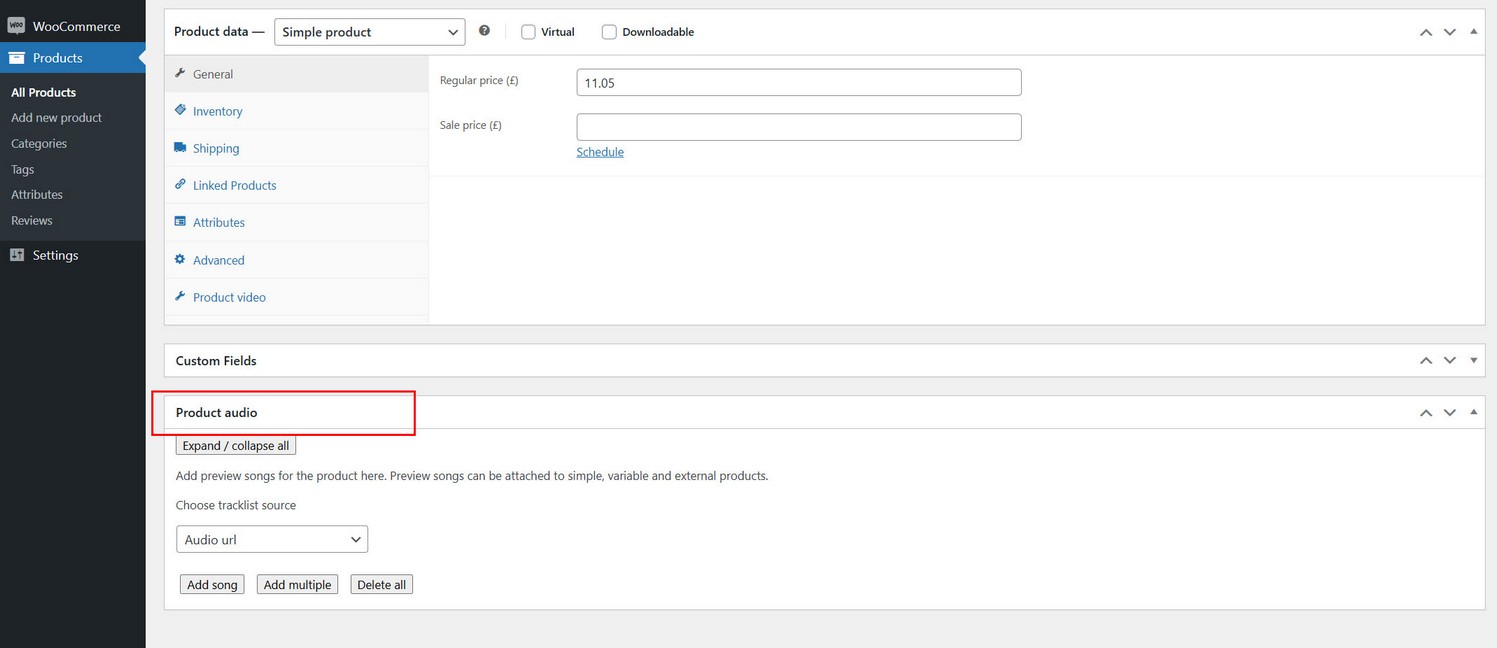
What are audio previews?
Audio preview are songs that will be shown in the player on your Shop or single Product pages. These are not the files user will get when he makes purchase of your WooCommerce product for sale.
To set actual downloadable files, you can do that in WooCommerce Downloadable files section.
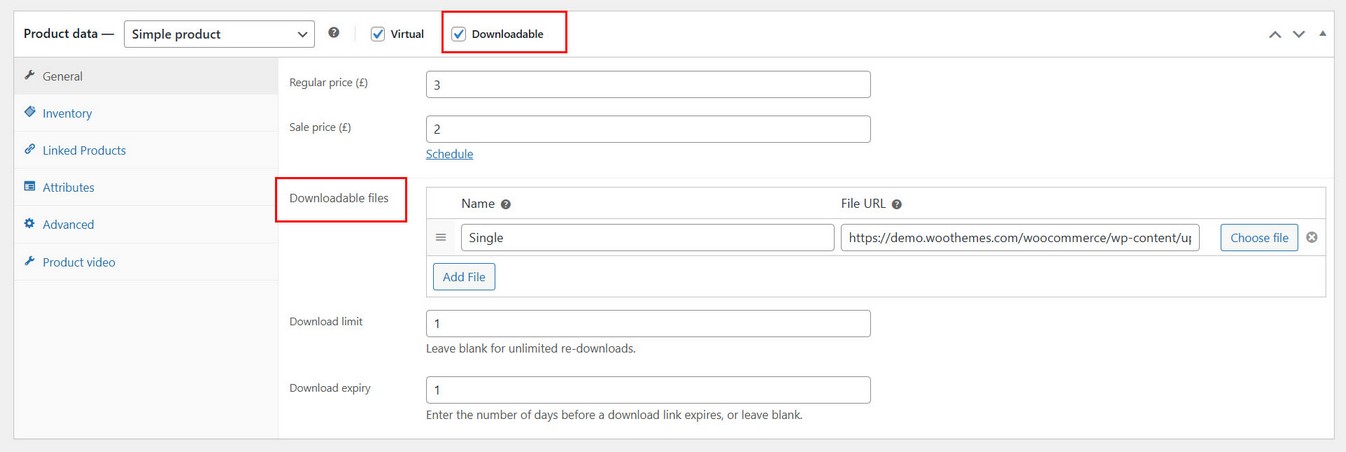
This ensures audio samples that user will be able to listen on your Shop page are not the actual downloadable files, thus preventing users from potentially getting your downloadable files by third party downloaders illegally.
So when you upload audio previews to your WooCommerce products using our plugin, make sure you upload only samples (short versions, watermarked audio etc...)
Note that our plugin is not able to watermark audio previews.
Adding audio to products
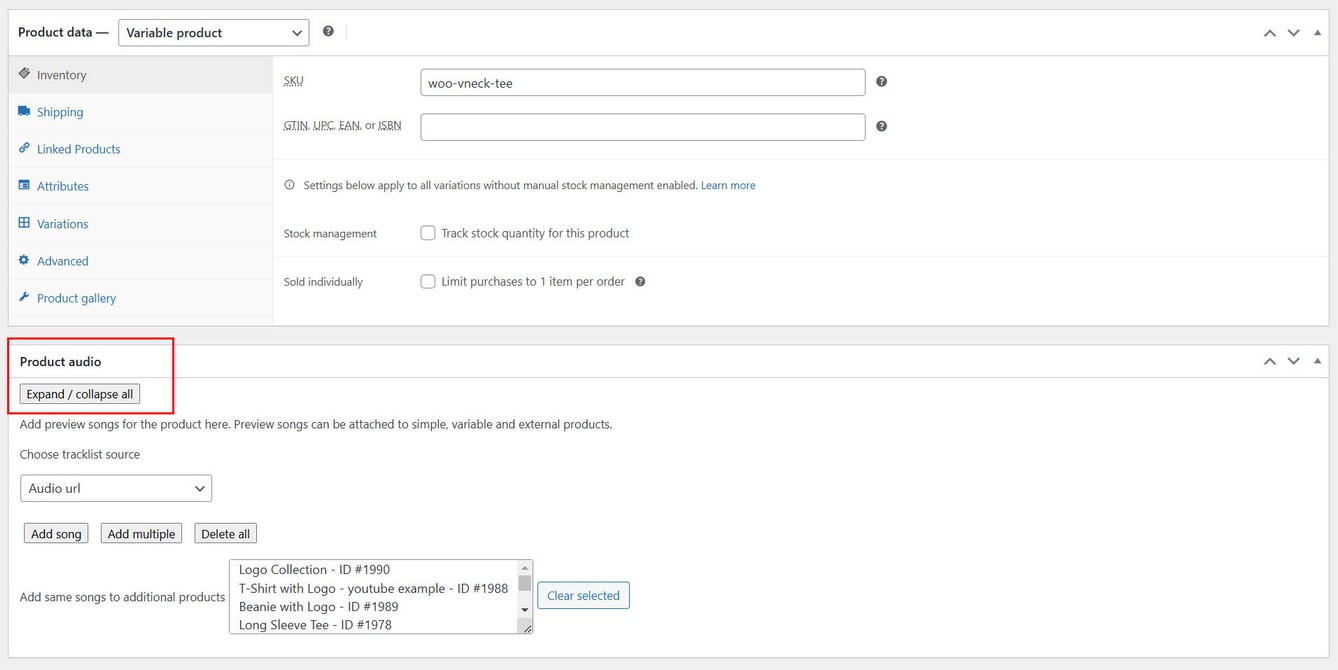
To add one or more audio songs to product, go to edit product section, and add audio files in Product audio metabox:
Supported audio sources
1. HTML audio (mp3, wav, flac...)
Add one or more audio files from Wordpress media library or other supported sources.
Using Google Drive
To load audio file from Google Drive, inside your Google Drive folder, right click on some audio file, click Share and Copy link. You will get something like this:
https://drive.google.com/file/d/1hpshVSMYHjjTqN9A14Y3WyNJisYAaG9_/view?usp=drive_link
Bold part is FILE_ID which you need to copy. You will also need to create Google API key for this to work.
Final format which you can use in the player looks like this:
https://www.googleapis.com/drive/v3/files/FILE_ID?alt=media&key=API_KEY

Replace FILE_ID and API_KEY

Example:

https://www.googleapis.com/drive/v3/files/1hpshVSMYHjjTqN9A14Y3WyNJisYAaG9_?alt=media&key=YOUR_API_KEY
Using audio files cross domain
If you are adding audio files cross different domain, there might have an issue of audio waveform being generated.
For audio waveform to be generated, ideally audio files should to be located on the same domain. If audio files are located on some other domain, our plugin will first try to download these audio files to same domain where the player is located, then it will try to create waveform (cross browser security does not allow waveform to be created cross domain).
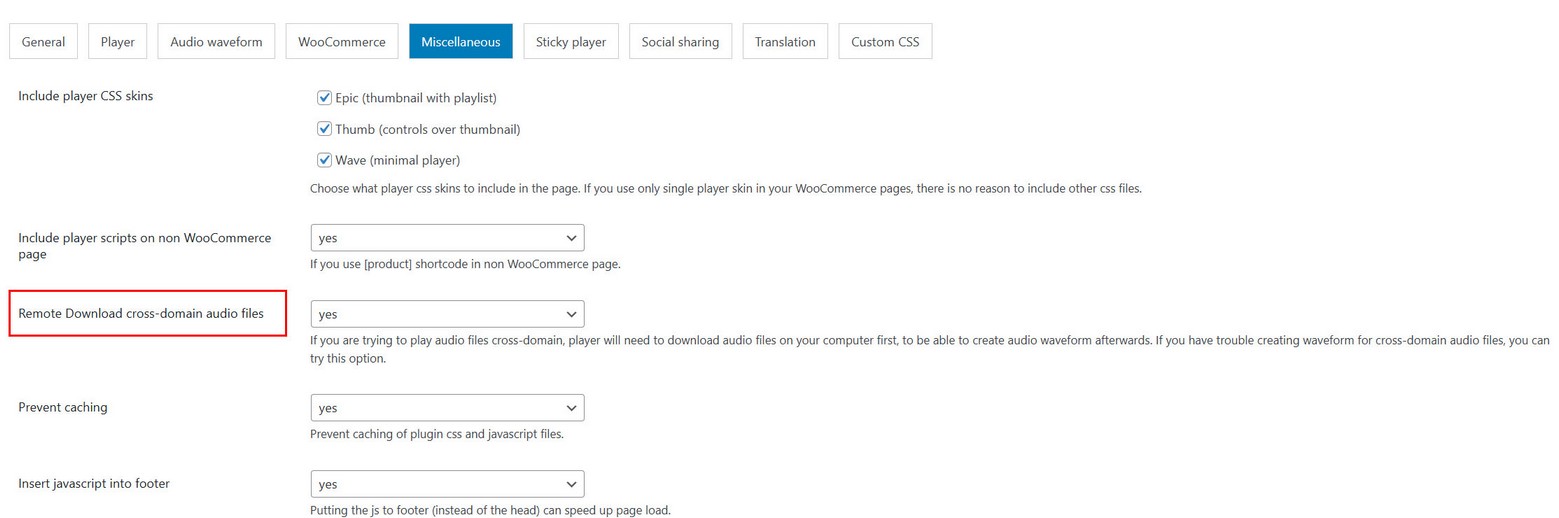
If you have trouble generating waveform, you can activate Remote download option in Miscellaneous settings which will try to download audio first before creating waveform.
2. Import CSV file
You can import CSV file:
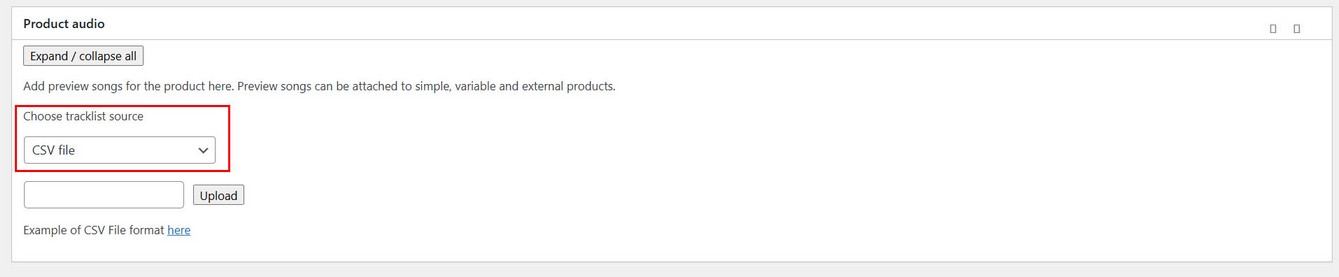
Example of CSV file is provided in plugin package / documentation / misc directory.
3. Load Modern Audio Player playlist
If you have installed Modern Audio Player plugin, you can load playlist from there.

Note on supported sources
Plugin support HTML audio (mp3, wav, flac...), CSV file, m3u playlist, Podcast, folder playlist.
Shop page
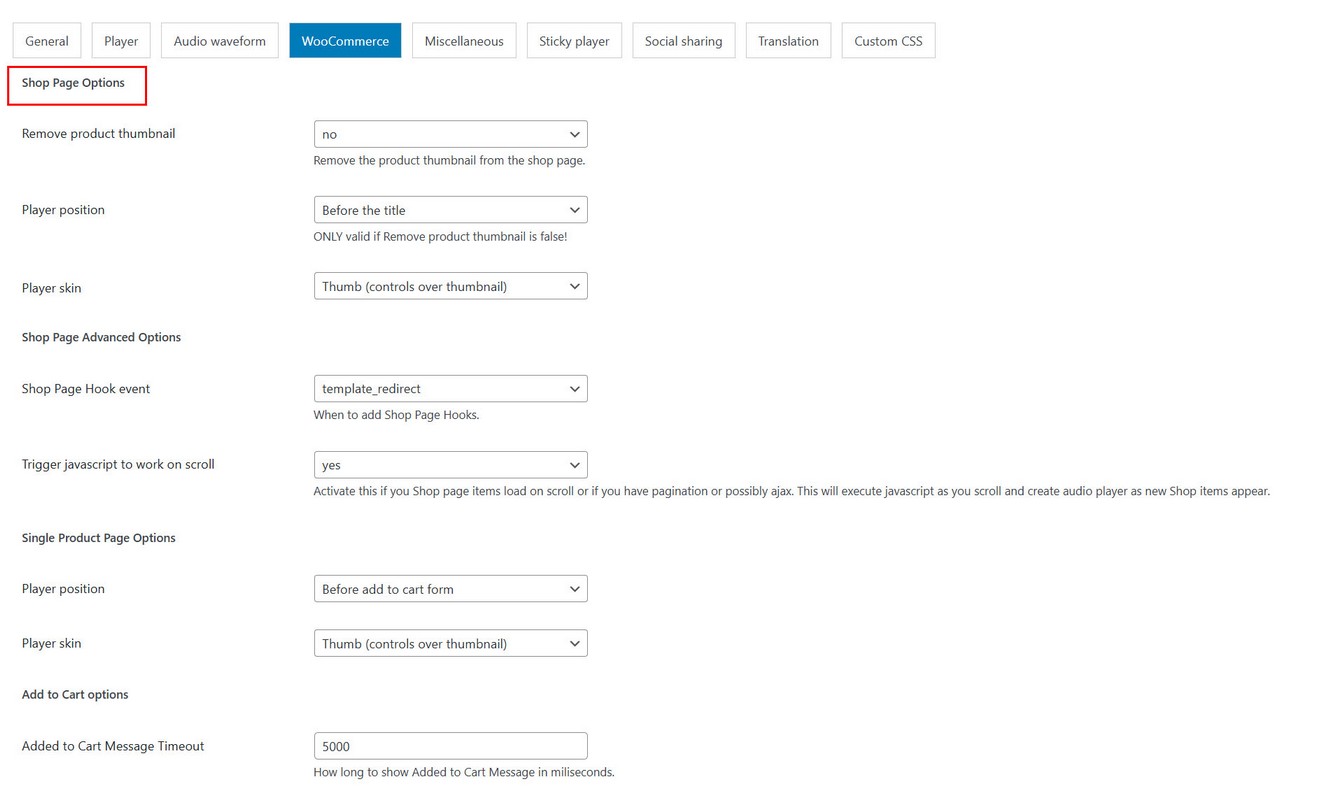
Using audio player in Shop page
In WooCommerce tab choose Shop page options (player position, skin etc)
Single Product page
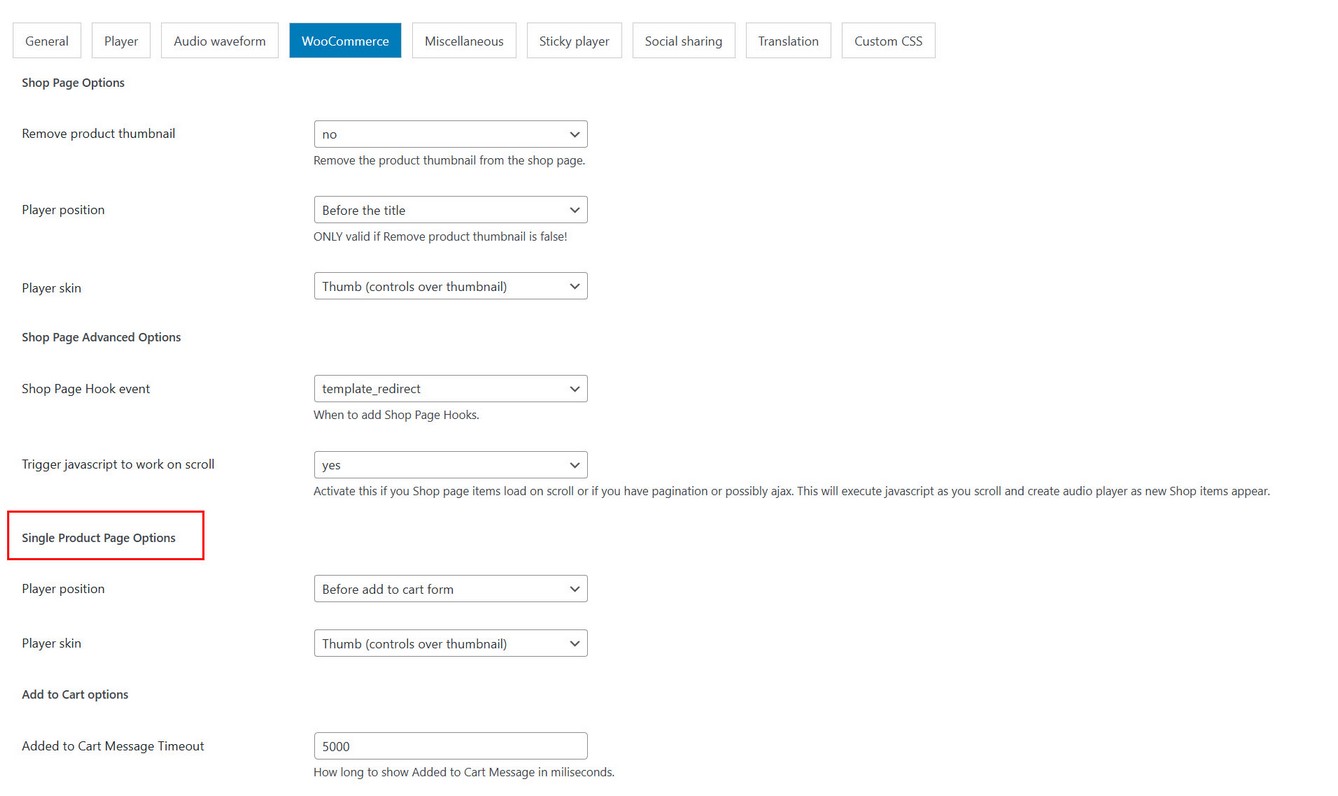
Using audio player in single Product page
In WooCommerce tab choose Single Product Page options (player position, skin etc)
Custom add to cart
Using Ajax Add to Cart button in player
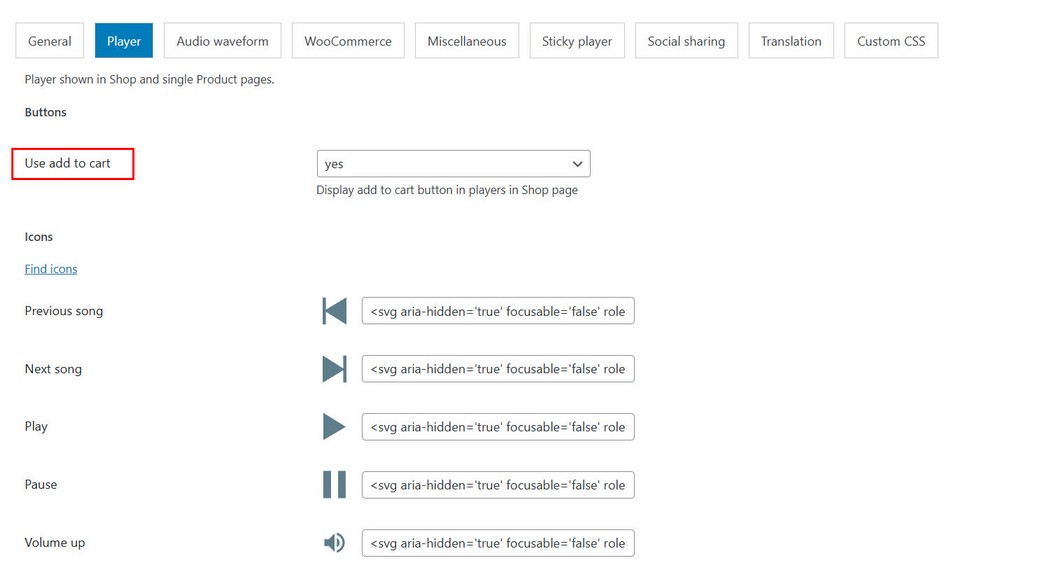
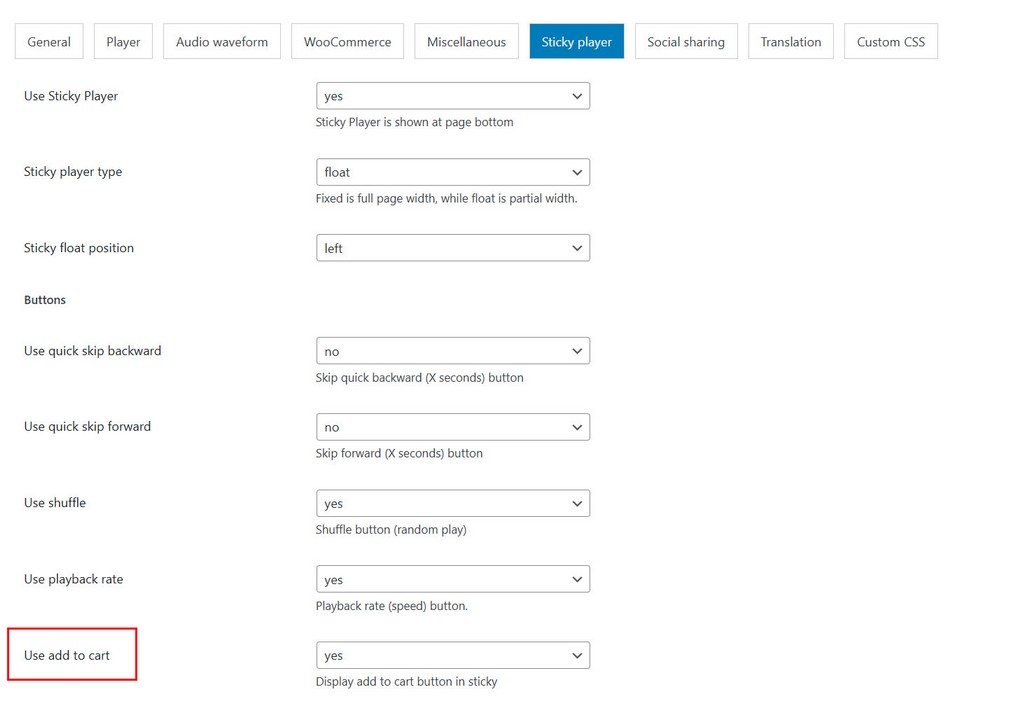
Add to Cart button can be shown in player in Shop page and also in Sticky player. Add to Cart will use Ajax for adding product to cart and works with simple and variable products.
Activate Add to Cart in player in shop page:
Activate Add to Cart in player in Sticky player:
Using in non WooCommerce page
If you want to activate audio players in non WooCommerce page use the following option:
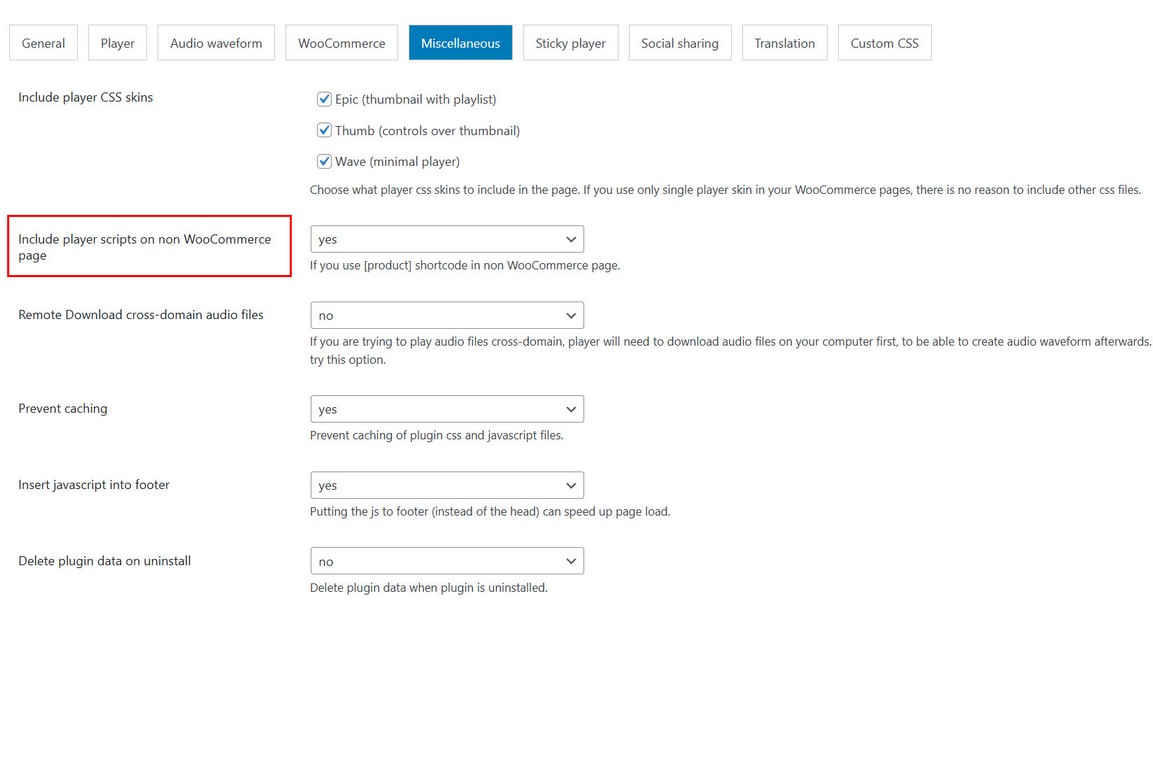
This will make sure this it works with a shortcode like the following:
[products category="accessories"]
[products ids="1972,1980"]
Using with Elementor
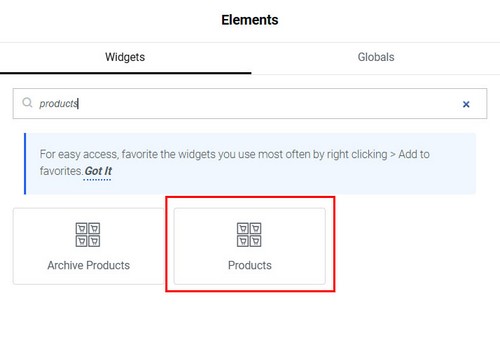
How to create product gallery with Elementor?
Using Elementor Pro, search for Products widget and drag it to the page. When you publish the page, your product songs that you have configured previously will be active like in WooCommerce Shop page.
Make sure you have activated player scripts if this is used in non WooCommerce page:
Using custom shortcode
Player can be added to any page using custom shortcode:
[apmap_woo product_id="1981"]
product_id = product ID (currently supports only single product per player)
Make sure you have activated player scripts if this is used in non WooCommerce page:
Player skins
Several player skins are available and can be used independently in Shop or single Product pages.
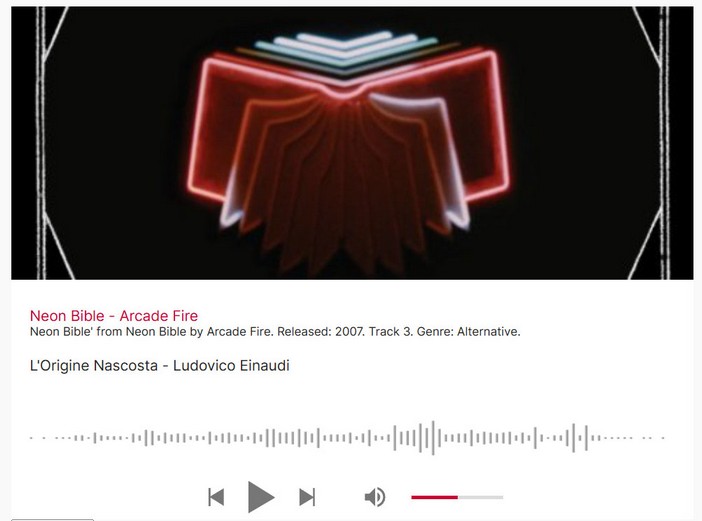
Epic (thumbnail with full playlist)
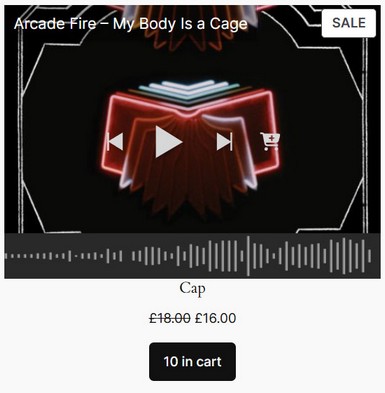
Thumb (thumbnail with controls)
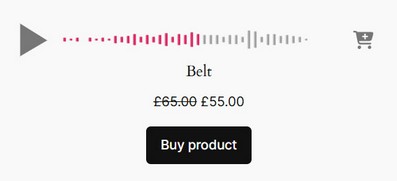
Wave (minimal skin)
Sticky player
Sticky player can be activated in Shop and single Product pages.
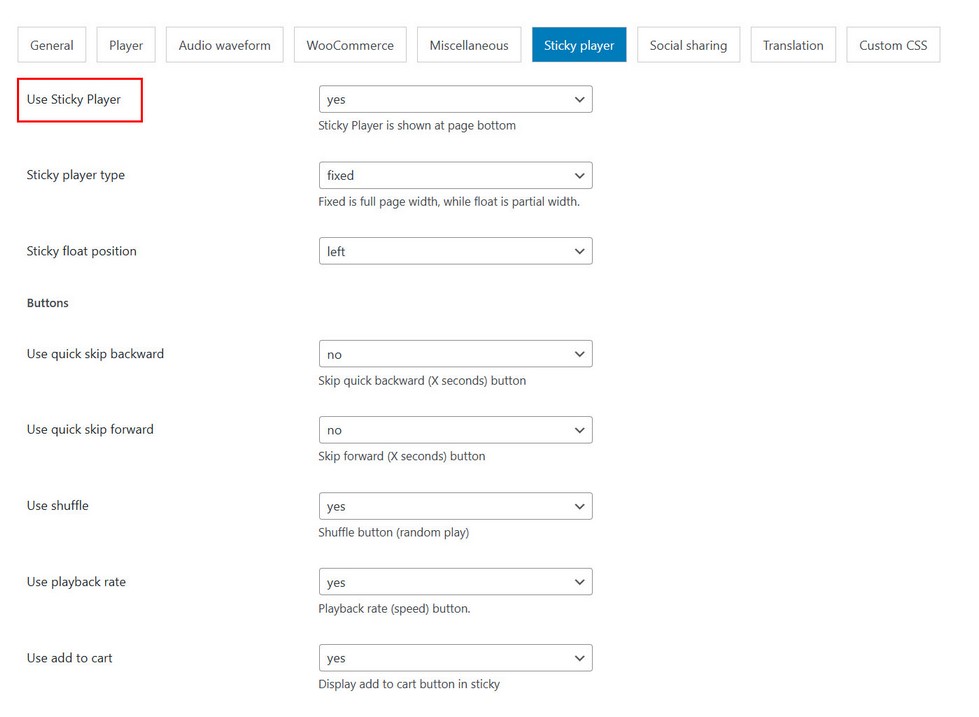
Sticky player is shown once the audio is started.
CSS
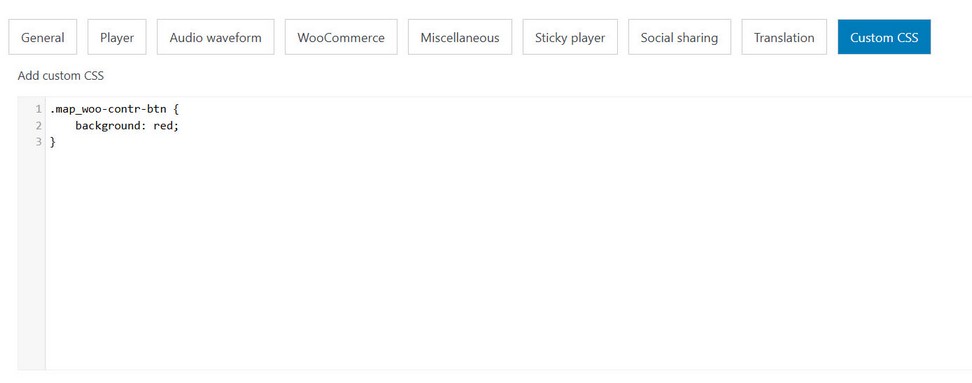
Custom css for the player can be entered in Custom CSS tab.
Example of how to apply some css changes:
Change button background color:
.map_woo-contr-btn {
    background: red;
}
Import product videos
You can import product audio with CSV file. Example of CSV file is provided in plugin package / documentation / misc directory.
Parameters:
| Header | Required | Value |
|---|---|---|
| type | yes | audio |
| path | yes | audio url |
| title | audio title | |
| author | audio author | |
| thumb | thumbnil url | |
| duration | duration seconds | |
| lryics | lryics url (vtt, lrc, srt) | |
| download | download url | |
| description | description | |
| peaks | waveform data |
API methods
Following API methods are supported.
if(window.map_woo_audio_engine)window.map_woo_audio_engine.pauseAudio(); // pause current aduio if plays

if(window.map_woo_audio_engine)window.map_woo_audio_engine.nextAudio(); // play next audio in current player if exist

if(window.map_woo_audio_engine)window.map_woo_audio_engine.previousAudio(); // play previous audio in current player if exist
Adverts and samples addon
Adverts and Samples AddOn has mutiple functionality.
Adverts AddOn allows you to attach audio adverts to your songs in Products and shop pages. Adverts can be played before, during or after main song plays. Adverts can be attached to any products that have audio set with Audio Player for WooCommerce plugin.
Purpose of using Samples is to restrict your audio files from being downloaded when users view your Shop and Product pages. By using samples you can ensure only part of the song will be acessible to the user.
Adverts and Samples AddOn is available here

Install Adverts and Samples AddOn
First make sure AddOn is activated together with main Audio Player for WooCommerce plugin.
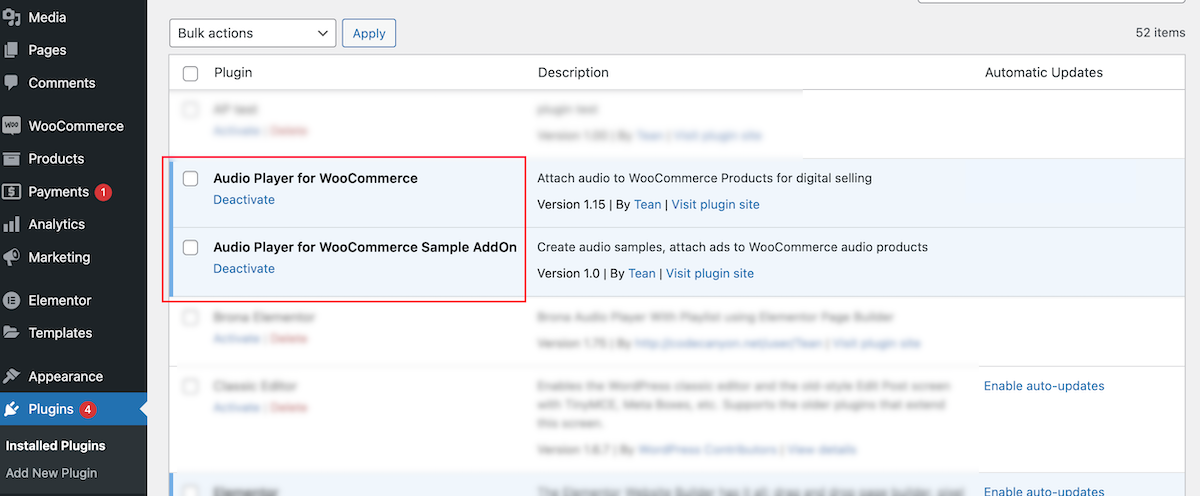
Also, make sure you have the latest compatible version of main Audio Player for WooCommerce plugin.
Register plugin inside Ad manager / Settings

Registration is done the same way as registering main plugin.
Notes
Using samples
Purpose of using samples is to restrict your audio files from being downloaded when users view your Shop and Product pages. By using samples you can ensure only part of the song will be acessible to the user.
Plugin will create map_woo-sample folder in WordPress uploads directory where audio samples will be stored.
Plugin requires FFMPEG to be installed for samples creation.
View instructions how to install FFMPEG.
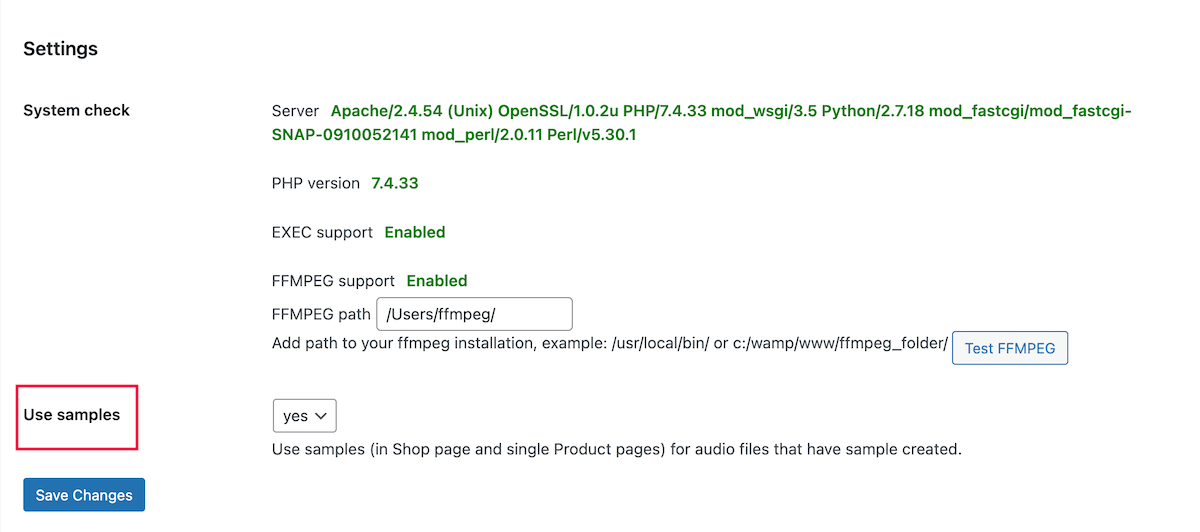
Check FFMPEG support in Plugin menu / Audio samples / Settings
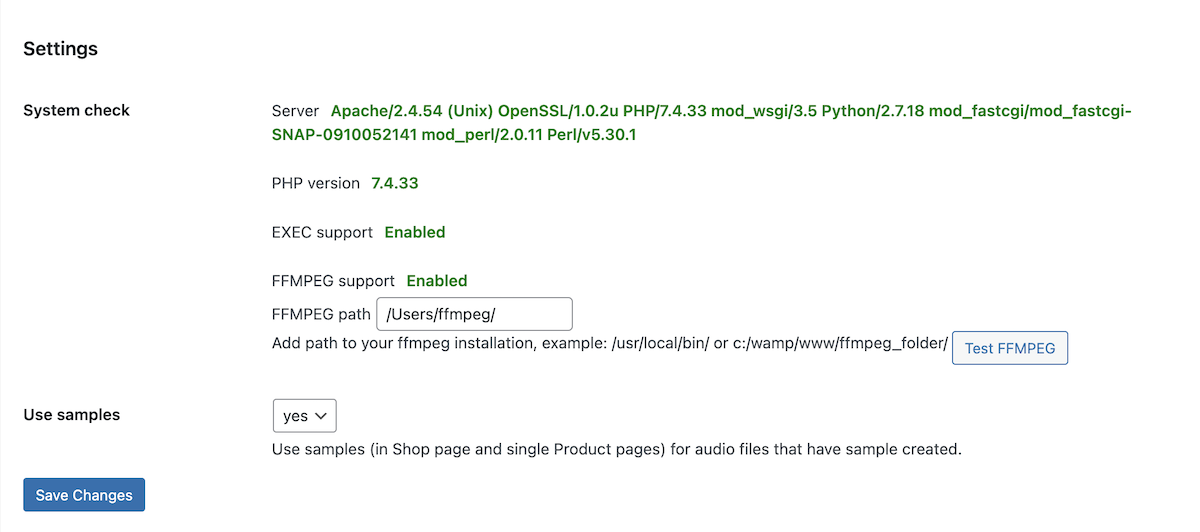
Run FFMPEG test if neccessary.
Once you have FFMPEG installed you can proceed to create audio samples.
In the following table all products that have audio attached will be listed.Note that you can only create samples for default audio media type.
You can create samples, choose start, end time for your samples, you can also overwrite previously created samples or delete all.
Note that if you have lots of audio files and they are larger in size, this process might take longer. In case browser runs out of memory and crashes during this process, we suggest trying this again with some other browser. In this case use Create only missing samples option.
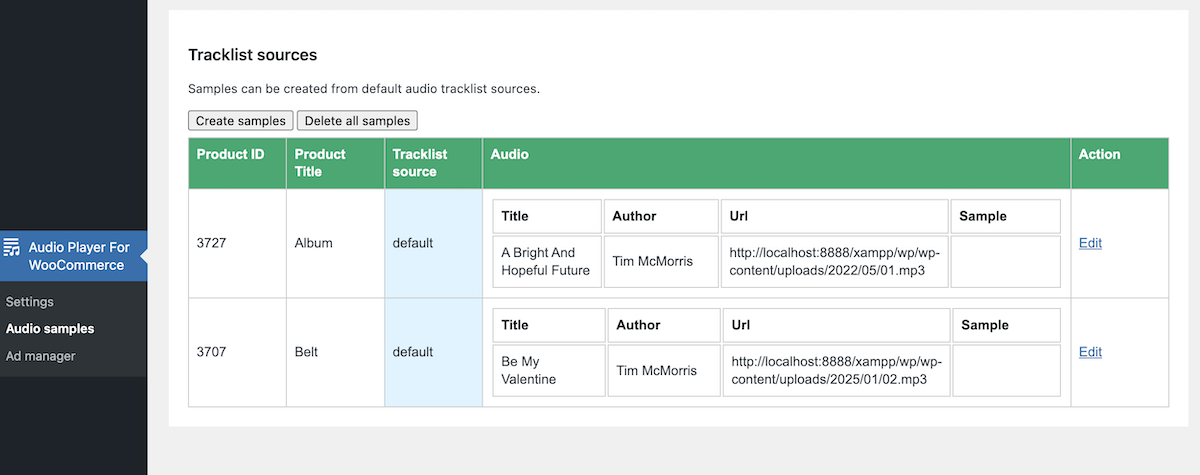
Using samples with your products
When you select use samples, that means all products that have audio attached, will use sample (for samples that have been successfully created here).
Using adverts
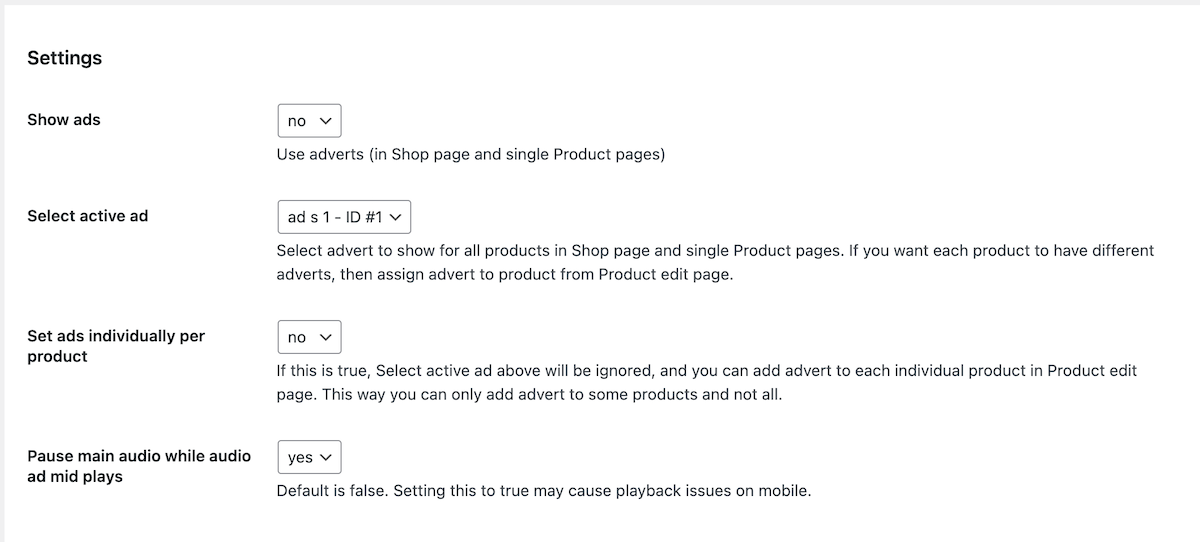
Audio adverts can be attached to songs in Shop and single Product pages. Adverts can be played before songs start, during song play and after songs ends. Unlimited number of adverts can be used with songs.
Advert settings are available in Plugin menu / Ad Manager / Settings
Creating adverts
Adverts can be created in Plugin menu / Ad Manager / Manage ads section.
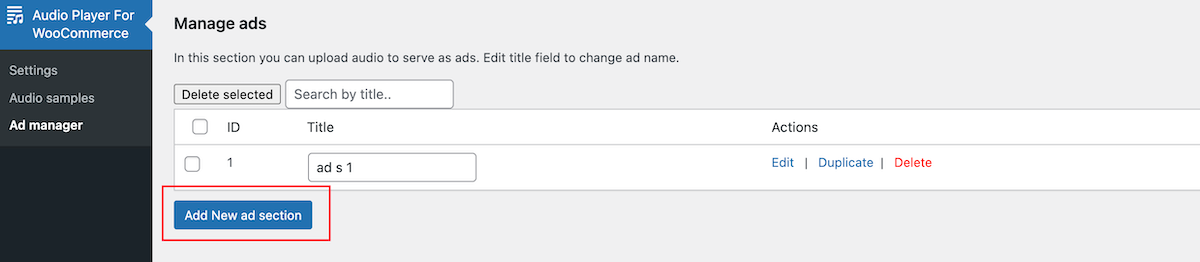
Create New Ad section, and inside add any number of adverts.
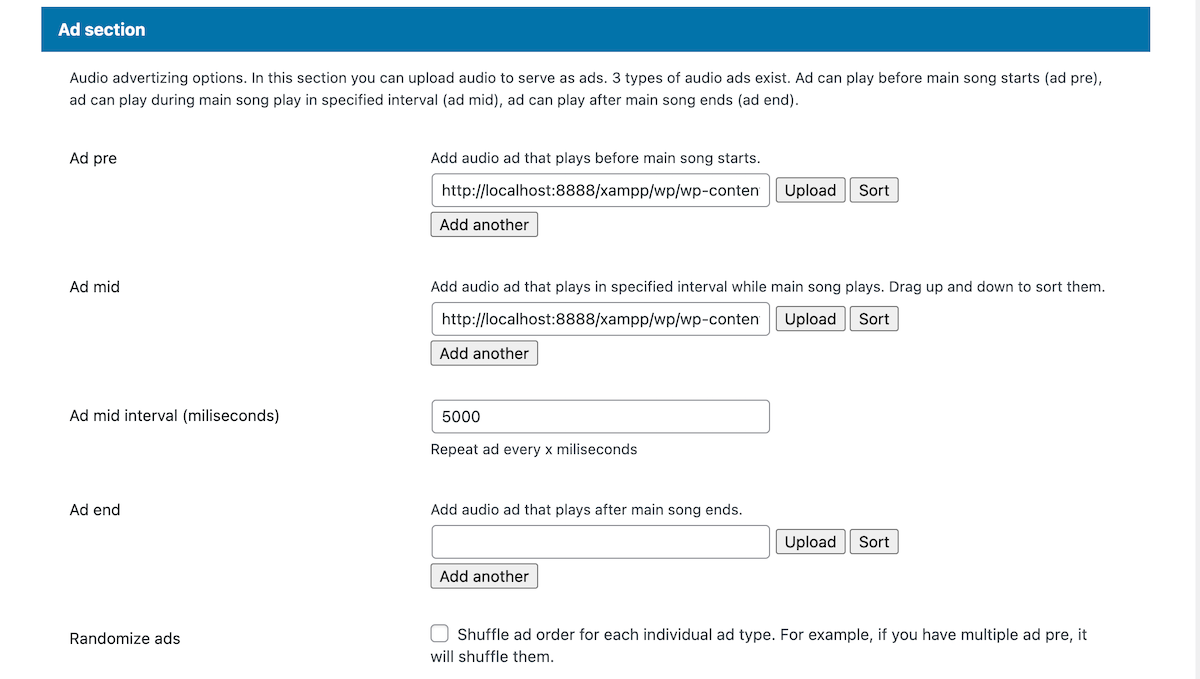
Then you can attach this adverts you created to songs (globally to all products or individually to single product).
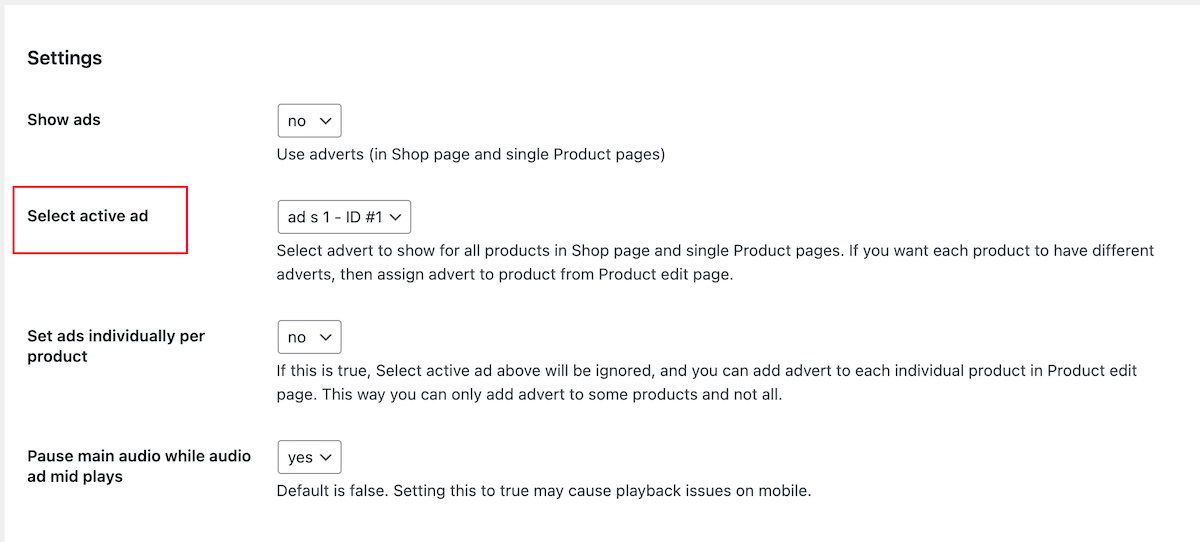
Apply advert globally to all products
To apply this advert globally to all products select in Advert settings with Select active Ad
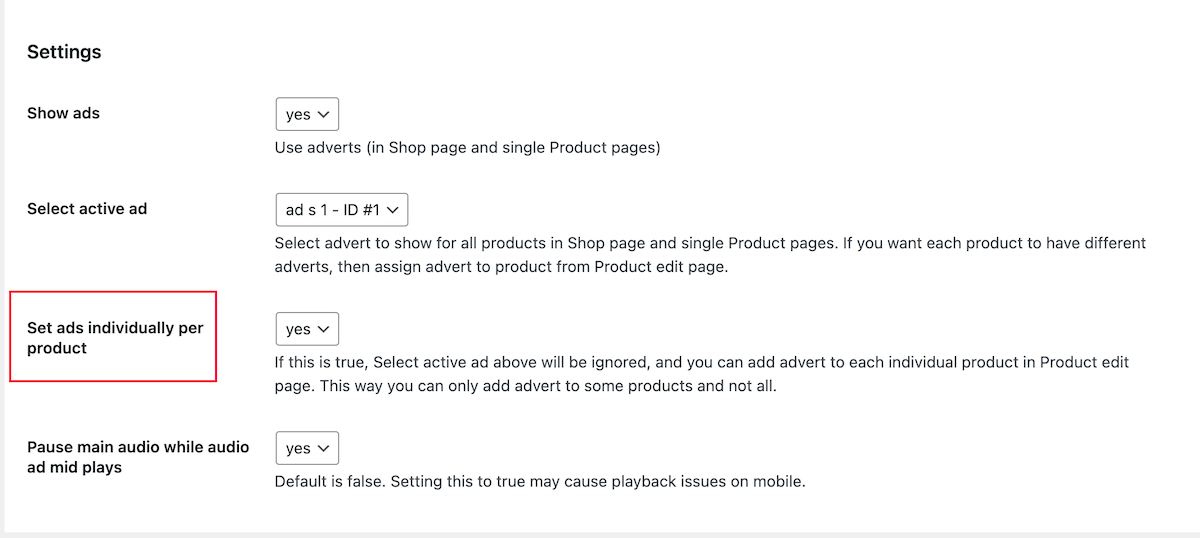
Apply advert only to individual product
To apply this advert only to individual product in Advert settings select Set ads individually per product to yes.
Then you can choose advert for each individual product in Product edit page:
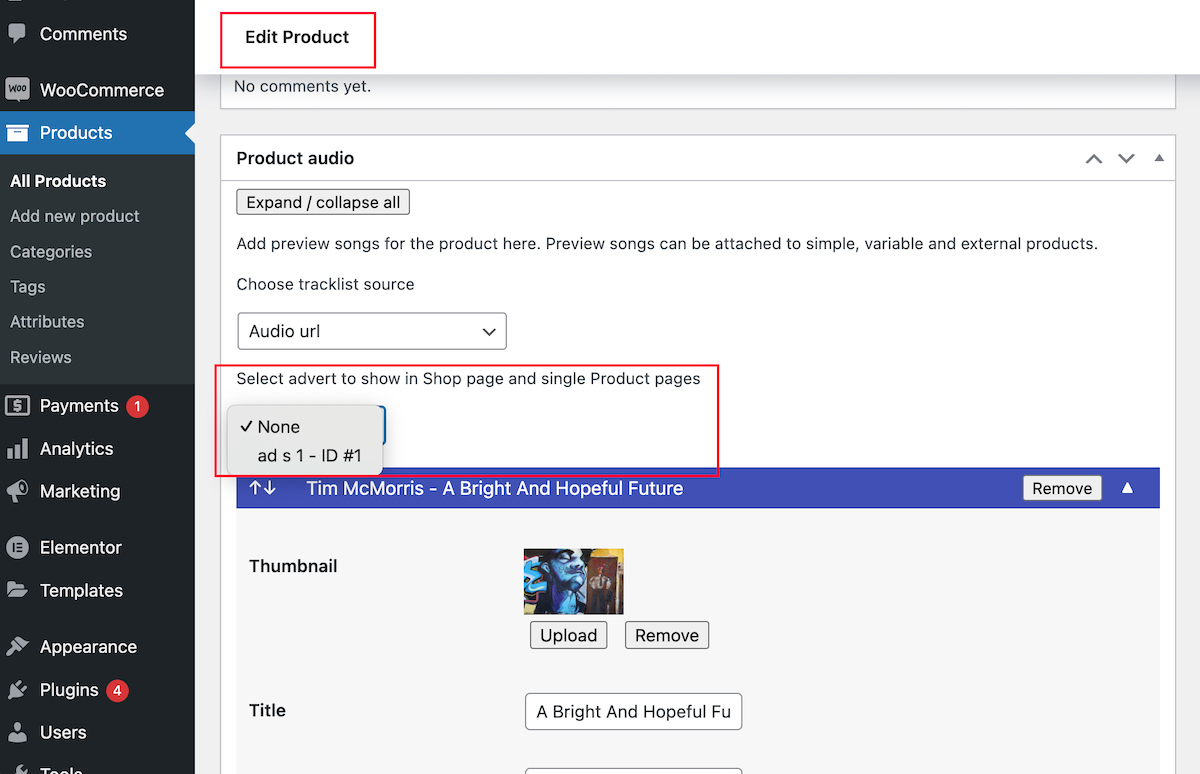
This way only certain products can have adverts attached or all products can have different adverts attached.
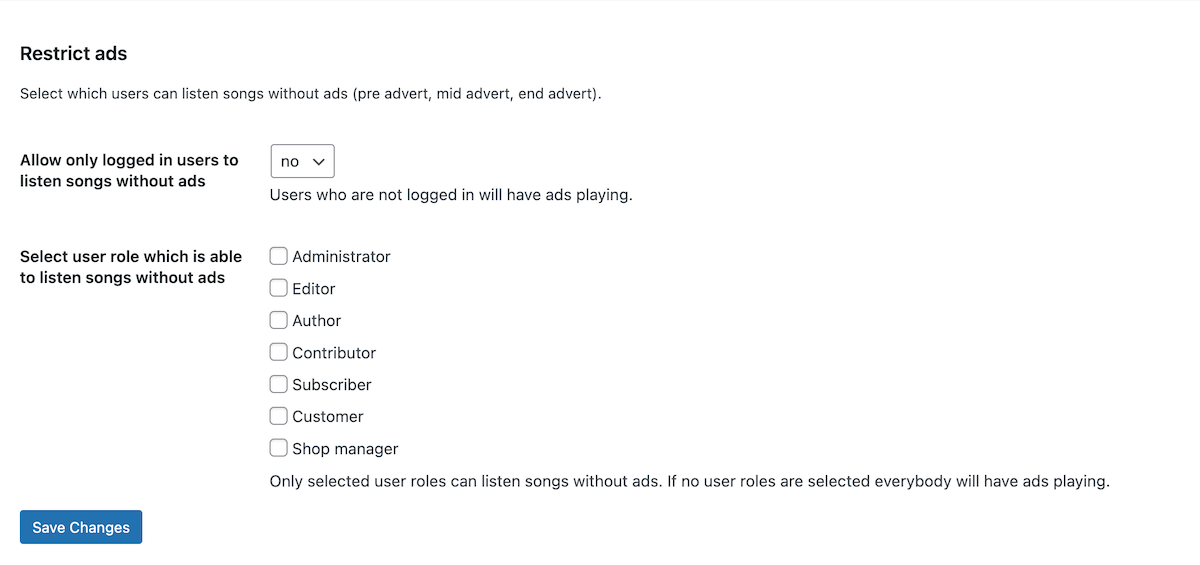
Restrict advert by user roles
Its possible to restrict advert by user roles or logged users feature.
Troubleshooting
Audio dont show in page
Switch to default Wordpress theme to see if the audio are working in default Wordpress theme. If the audio work there but do not work in your theme, we need to know which theme you use, so contact us with all the information and live page link where we can see the audio.
http://codecanyon.net/user/Tean#contact
Plugin does not work as expected
If the plugin does not work as expected, try the following tests to see if it makes a difference and what could be causing an issue:
1. Update to latest plugin files available on Codecanyon
2. Switch to default Wordpress theme
3. Check for errors in browser developer console (Chrome F12 key, Console tab)
4. Try to deactivate any 3rd party plugins (the ones that not come with Wordpress)
5. If you still have issues after you have done all changes above, you can send a message at http://codecanyon.net/user/Tean#contact , provide your PURCHASE CODE, provide a link to your live page, and a temporary user and password for your wordpress admin panel so we can have a look.
Contact
How to contact us?
If you have any questions after purchase, send a message at http://codecanyon.net/user/Tean#contact, and provide your PURCHASE CODE.